Inspect a desktop sync issue safely
Read desktop sync pair errors, macOS permission loss, conflict notices, and per-file failure records without exposing contents or credentials.
Last reviewed
Desktop sync has two evidence locations. Issues shows pair-level errors, permission loss, notices, and unresolved conflicts; Overview expands the per-file error ledger from the N files not synced badge.

Before you start
- Select the workspace that owns the sync pair, then open Sync.
- Avoid copying file contents or credentials. Paths and filenames can themselves be private, so share only what support needs.
Steps
- Open Issues and locate the affected remote folder. A pair error card shows the folder name, exact error message, local path, Retry, and Report; there is no separate details drawer.
- For
macOS needs permission to this folder again., choose Reselect folder. This Mac App Store state needs a renewed sandbox grant and deliberately does not offer Retry. - Read nonfatal notices before acting. A conflict-copy notice offers Show both versions; degraded watching, skipped files, or held deletions describe conditions that an ordinary retry cannot repair.
- Return to Overview when the row shows
N files not synced, then expand that badge. The true count remains visible even when the client lists only the 200 most recent attempts. - For each listed file, record its path, message, timestamp tooltip, and will retry or won’t retry label. These labels distinguish transient attempts from entries the engine stopped retrying automatically.
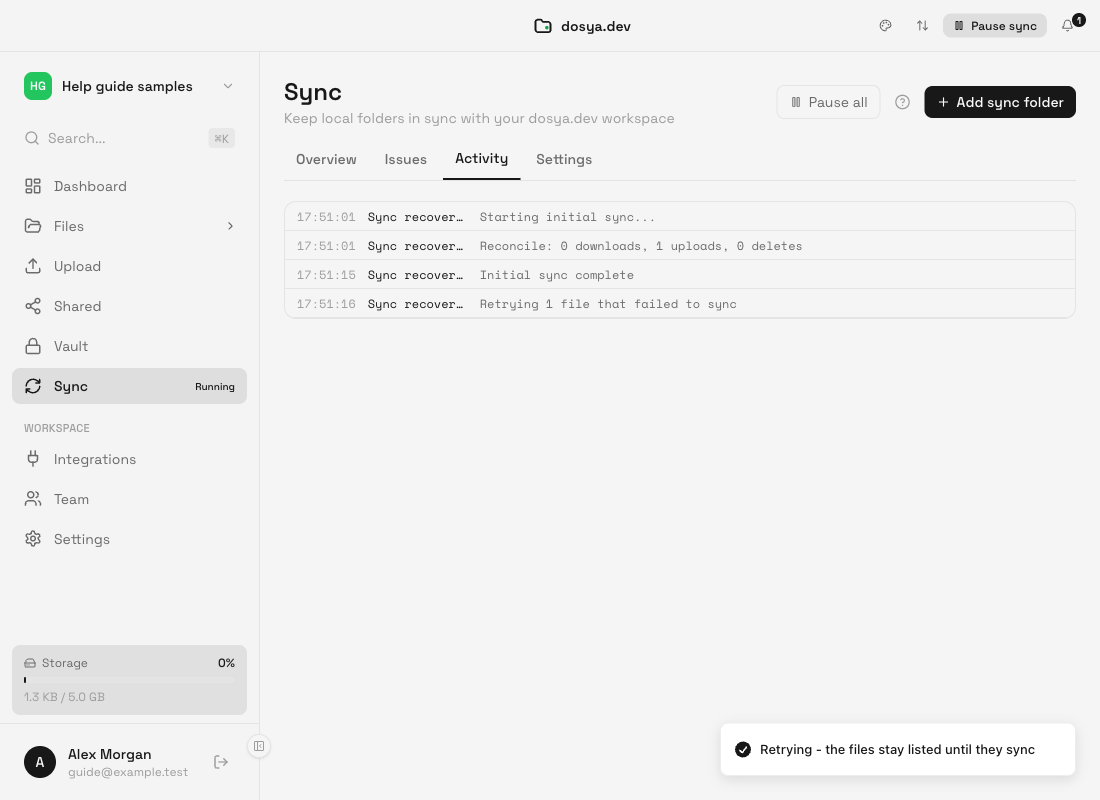
- After fixing the named cause, use Retry to reset every failed file in the pair, including permanent and undisplayed entries. Clear only dismisses the ledger; later scans can try those files again.
Expected result
The evidence identifies whether the fault belongs to the whole pair, a lost macOS grant, a conflict/notice, or individual files. Report opens the problem form with the pair’s error message prefilled.
A successful retry leaves rows listed until their files sync. If the pair remains in Error, preserve the exact message and submit a report rather than guessing from generic permission or storage causes.
Related guides
Was this helpful?
Loading helpfulness results…
Voting saves a necessary ballot cookie for up to 180 days so you can change your answer.
Questions and replies
Ask about the steps in this guide. Questions are reviewed before publication.
Keep account details, credentials and private files out of public questions. Use private support for those.
Loading questions…
Sign in to your Dosya account to ask a question.