Verify your email within 24 hours of signing up
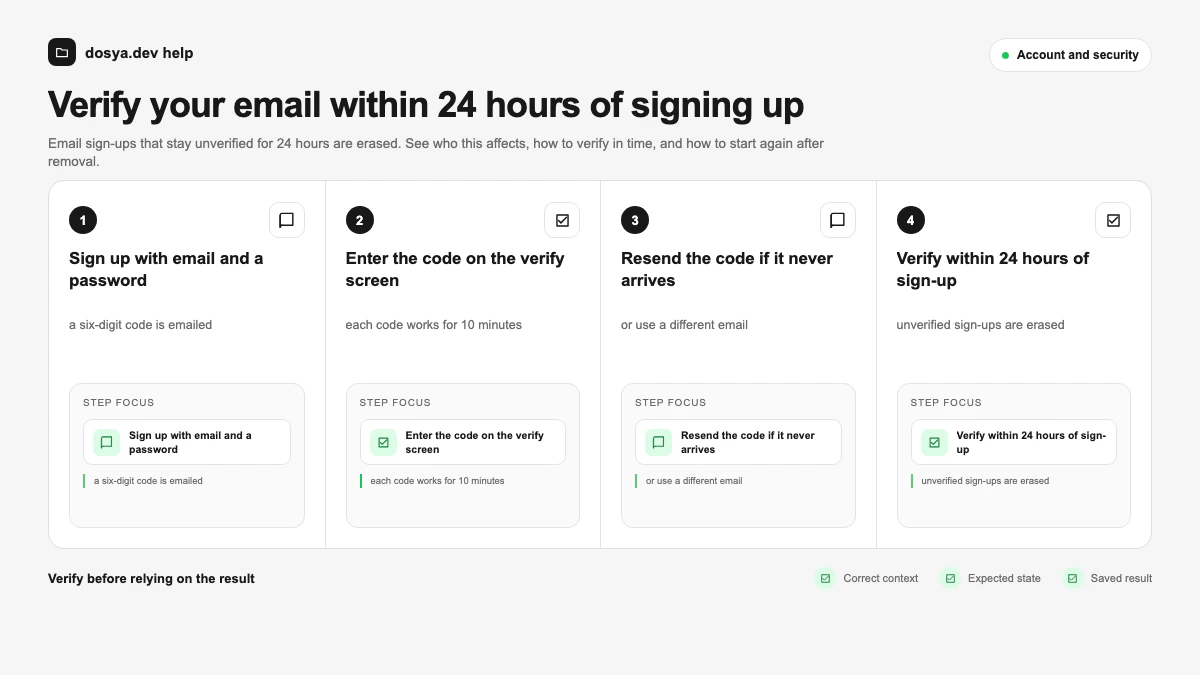
Email sign-ups that stay unverified for 24 hours are erased. See who this affects, how to verify in time, and how to start again after removal.
Last reviewed
A new account made with an email address and password has to prove that the address is yours. Until you enter the code we email you, the account cannot sign in. If it stays unverified for 24 hours, we erase it.
This only affects email sign-ups that were never verified. Accounts created with Google, GitHub, or Apple count as verified from the first moment, because the provider has already confirmed the address. An account that has been verified once is never removed by this rule.
Why we remove unverified sign-ups
An unverified account cannot sign in, so it holds no files and no one can use it. Most are mistyped addresses or abandoned attempts. Keeping them would also hold the email address hostage: nobody else, including the real owner, could register it. Removing them after a day frees the address and keeps personal data we cannot use off our systems.
Steps: verify before the deadline
- Sign up with your email address and password. We send a six-digit code to that address right away.
- Open the email titled Your dosya.dev verification code and check its sender and the address it was sent to.
- Enter the code on Verify your email and select Verify email. A code works for 10 minutes.
- If the code expired or never arrived, select Resend code and use only the newest email. Look in spam or quarantine folders too.
- If you typed the wrong address, select Use a different email and sign up again with the right one.
- When the code is accepted, dosya opens Welcome (or your pending code redemption). The account is now verified and the 24-hour rule no longer applies to it.
The email verification guide covers resend limits and code lockouts in detail.
What counts toward the 24 hours
The clock starts when the account is first created. Submitting the sign-up form again with the same address does not restart it: we reuse the pending account and send a fresh code, but the original start time stays.
We check for expired sign-ups once an hour, so removal can happen up to about an hour after the deadline. If you verify at any point before your account is selected, it is kept.
Too many wrong codes can lock verification for up to 24 hours. If that lock outlasts the deadline, the account may be erased before you can try again. In that case, simply sign up again once the address is free.
A faster way: sign in with a provider
If the address belongs to a Google, GitHub, or Apple account, you can sign in with that provider instead of waiting for a code. Using the same address verifies the pending account at once. The password you chose during sign-up is replaced, so you sign in with the provider from then on, or set a new password later. See sign-in methods.
Expected result
A verified account stays, with no deadline. An unverified one is erased after 24 hours, together with the empty workspace we created for it, and its email address becomes free to register again.
If your account was removed
Nothing you can recover was lost: the account could not sign in, so it held no files. Start again from creating an account. Use the same address if you like; it is accepted as new. If you had entered a license or promotion code, enter it again after you verify.
Related guides
Was this helpful?
Loading helpfulness results…
Voting saves a necessary ballot cookie for up to 180 days so you can change your answer.
Questions and replies
Ask about the steps in this guide. Questions are reviewed before publication.
Keep account details, credentials and private files out of public questions. Use private support for those.
Loading questions…
Sign in to your Dosya account to ask a question.