Creating an account and verifying your email
Create a Dosya account with an identity provider or email and password, enter the six-digit verification code and recover when the message does not arrive.
Last reviewed
Create a Dosya account at app.dosya.dev/sign-up. You can continue with Google, GitHub or Apple, or register with an email address and password. Email-and-password registration requires a six-digit code before you can use the account.
You do not enter payment-card details on the signup form. Your first personal workspace is created automatically after registration, so a successful verification takes you into the welcome flow rather than asking you to build a workspace first.
Before you start
- Use an email address that you can open now. Check the spelling before creating the account; the verification screen shows the address receiving the code.
- If you choose email and password, use at least 8 characters. A longer unique passphrase is easier to remember and safer than reusing a password from another service.
- Keep the signup tab open while checking your inbox. You can return to the verification screen without starting another account.
- If you were invited to a workspace, open the original invitation after signing in if the app does not return you to it automatically.
Steps: create the account
- Open Dosya signup.
- Choose one registration method:
- Select Continue with Google, Continue with GitHub or Continue with Apple, then complete that provider’s own consent flow.
- To use email and password, enter your Name, Email and Password.
- Review the linked Terms of Service and Privacy Policy. For email-and-password registration, select the agreement checkbox.
- Select Create Account. If the form reports a weak password, invalid address or existing account, correct that item before trying again.
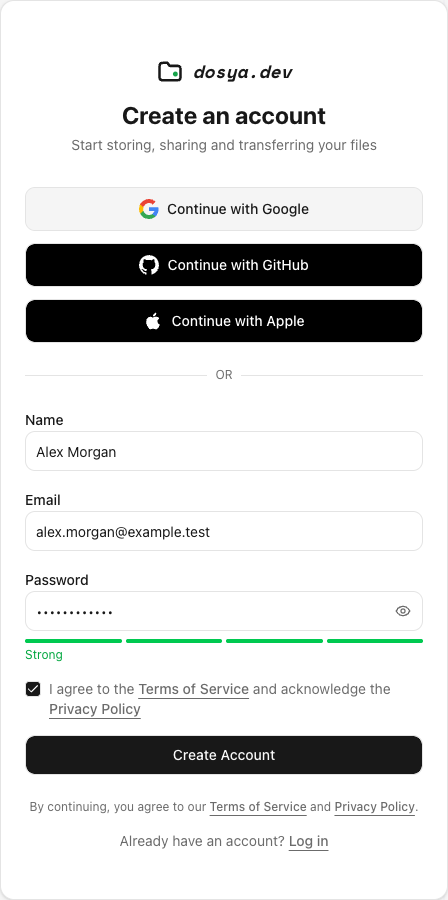
The provider buttons can create an account without using the email form. Follow the provider’s prompts and check that it returns you to app.dosya.dev before entering any Dosya information. If you intended to use an existing account, use Log in at the bottom instead of creating another one.
Verify an email-and-password account
- Open the newest Dosya verification message in the inbox for the address shown on screen. Check Spam, Junk, Promotions and mail rules if it is not in the main inbox.
- Enter the complete six-digit code. The field accepts digits and stops at six characters.
- Select Verify email. A valid current code signs you in and opens the welcome flow.
- Complete or skip the welcome tour. Your automatically created personal workspace is ready for your first upload.
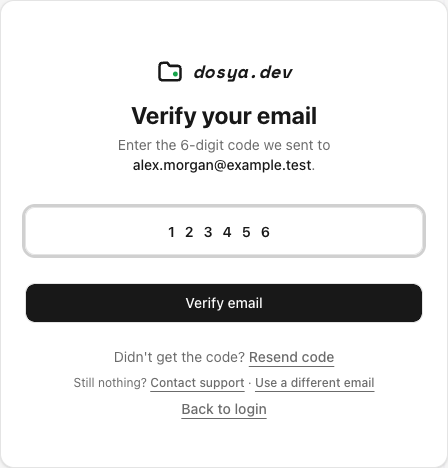
Use the newest code after requesting a resend. Verification codes expire and have an attempt limit, so do not keep guessing after a code is rejected. Wait for the latest message and copy its six digits carefully.
Expected result
The account email is verified, the browser is signed in and the welcome flow opens the automatically created personal workspace. Finishing or skipping the welcome flow takes you to the workspace’s first-run dashboard.
If the verification email does not arrive
Work through these checks in order:
- Confirm the address shown on the verification screen. A typo means the message went to the wrong address; choose Use a different email and register with the correct one.
- Search the mailbox for
dosyaand inspect Spam, Junk, Promotions, quarantine and blocked-sender rules. - Allow a few minutes for the mail provider to process the first message. Repeated clicks do not make the provider deliver faster.
- Select Resend code once. The app can temporarily refuse another resend when one was requested recently; wait for the displayed cooldown rather than repeatedly clicking.
- If neither message arrives, select Contact support from the verification screen. Include the address, approximate request time and the error text. Do not send your password or a verification code.
Limits and security checks
Verification codes expire, accept only a limited number of attempts and can be resent only after a short cooldown. These checks mean an older email may contain a code that no longer works. Use the newest message and follow any retry time shown by the app.
Account creation can also be rate-limited when many requests come from one address. Wait for the stated period instead of changing details or repeatedly submitting the form.
Troubleshooting
The form says an account already exists. Open Log in with that address. Use the password-reset route if you no longer know its password. Creating another account with spelling or alias changes can separate files and workspace memberships.
The code is invalid. Make sure all six digits came from the newest Dosya message. Request a new code when the old one expired. A code is tied to the account address and cannot verify another signup.
Too many attempts. Stop trying codes and wait for the stated retry period. Request a new code when the screen permits it. This limit protects the account from repeated guesses.
The verification screen shows the wrong address. Choose Use a different email. Do not verify an address you do not control.
The page cannot reach the server. Check Dosya status, confirm your connection, then retry. A privacy extension, corporate filter or blocked browser challenge can also prevent an authentication request from completing.
An identity-provider button returns an error. Confirm you selected the intended Google, GitHub or Apple account and that the provider returned to app.dosya.dev. If you previously used email and password with the same address, try logging in with that original method.
Frequently asked questions
Do I need a payment card to create an account?
No card field appears in the signup flow. Plan choices and billing changes are handled separately after account creation.
Can I change the email before verification?
Use Use a different email on the verification screen and complete signup with the correct address.
Why did verification open a welcome screen instead of workspace creation?
New accounts receive a personal workspace automatically. The welcome screen introduces the first upload and other common tasks.
Should I share my verification code with support?
No. Support does not need your password or six-digit verification code. Share only the address, time and visible error through a private support route.
Related guides
Was this helpful?
Loading helpfulness results…
Voting saves a necessary ballot cookie for up to 180 days so you can change your answer.
Questions and replies
Ask about the steps in this guide. Questions are reviewed before publication.
Keep account details, credentials and private files out of public questions. Use private support for those.
Loading questions…
Sign in to your Dosya account to ask a question.