Verify a downloaded file by name and size
Compare the downloaded file with Dosya File details by name and displayed size, then open the local copy to confirm the intended item arrived.
Last reviewed
A single-file Download opens /api/files/:id/download, which checks membership, Files access, the download_files permission, confinement, hidden state, and locks. An accepted request redirects to a signed object URL that lasts 300 seconds. Downloading does not alter the Dosya item.
Dosya’s File details panel shows the stored name and a human-readable size. Use those values to identify the browser result; Dosya does not display or attach a checksum for this manual comparison.

Steps
- In Files, select the intended item and open File details; record its full name, extension, and displayed Size.
- Confirm that you are viewing the current file rather than a historical version, because a version-row download can have a different byte size.
- Choose Download and wait for the browser to mark the transfer complete; restart from Files if a stale 300-second signed redirect no longer works.
- In the browser download list or operating-system file properties, compare the saved name with the Dosya name; browsers may add a local suffix when that name already exists.
- Compare the local byte count or formatted size with File details, allowing only the display rounding introduced by human-readable units.
- Open the local copy in an application you trust and inspect representative content before using, sharing, or deleting another copy.
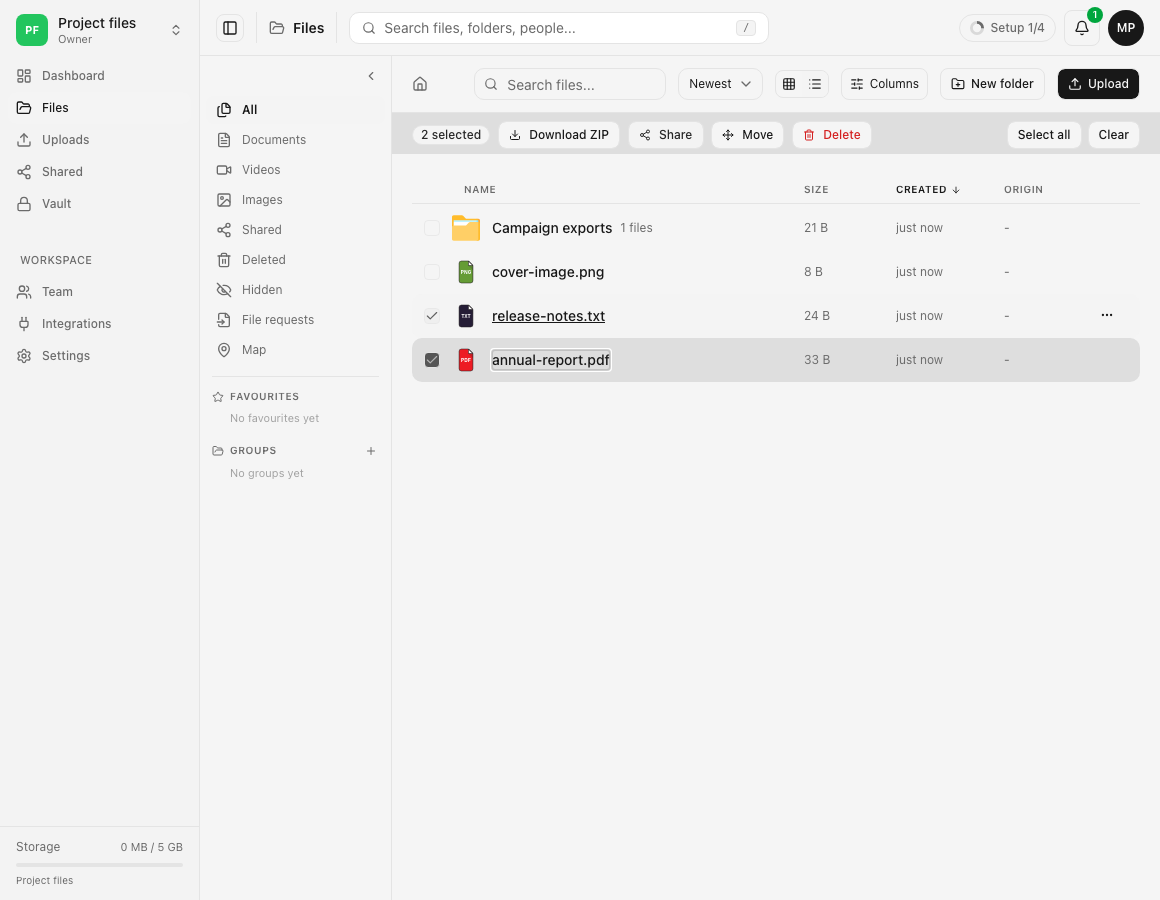
Expected result
The local file represents the selected Dosya item: its original name is recognizable, its size agrees with File details after unit rounding, and a trusted application can read it. The source remains in its workspace.
A locally appended name such as report (1).pdf normally means the browser avoided overwriting an existing local file; verify the size and content rather than assuming a Dosya rename. This file is view-only and cannot be downloaded requires a different item or a lock change by an authorized member. For This file is locked. Enter the lock password to access it, the direct API requires the issued personal file-unlock token on the download request. The current Files menu, details Download button and viewer header Download do not send that token, so unlocking the preview and clicking those controls again is not sufficient. Use a client that sends the valid token, or ask a permitted manager to remove the file’s lock only if normal download access is intended. Password-protected ancestor folders use a separate personal grant resolved by your account.
Related guides
Was this helpful?
Loading helpfulness results…
Voting saves a necessary ballot cookie for up to 180 days so you can change your answer.
Questions and replies
Ask about the steps in this guide. Questions are reviewed before publication.
Keep account details, credentials and private files out of public questions. Use private support for those.
Loading questions…
Sign in to your Dosya account to ask a question.