Canceling an upload safely
Stop the intended queued or active upload, check the other transfers, and confirm whether a complete file already exists in Files.
Last reviewed
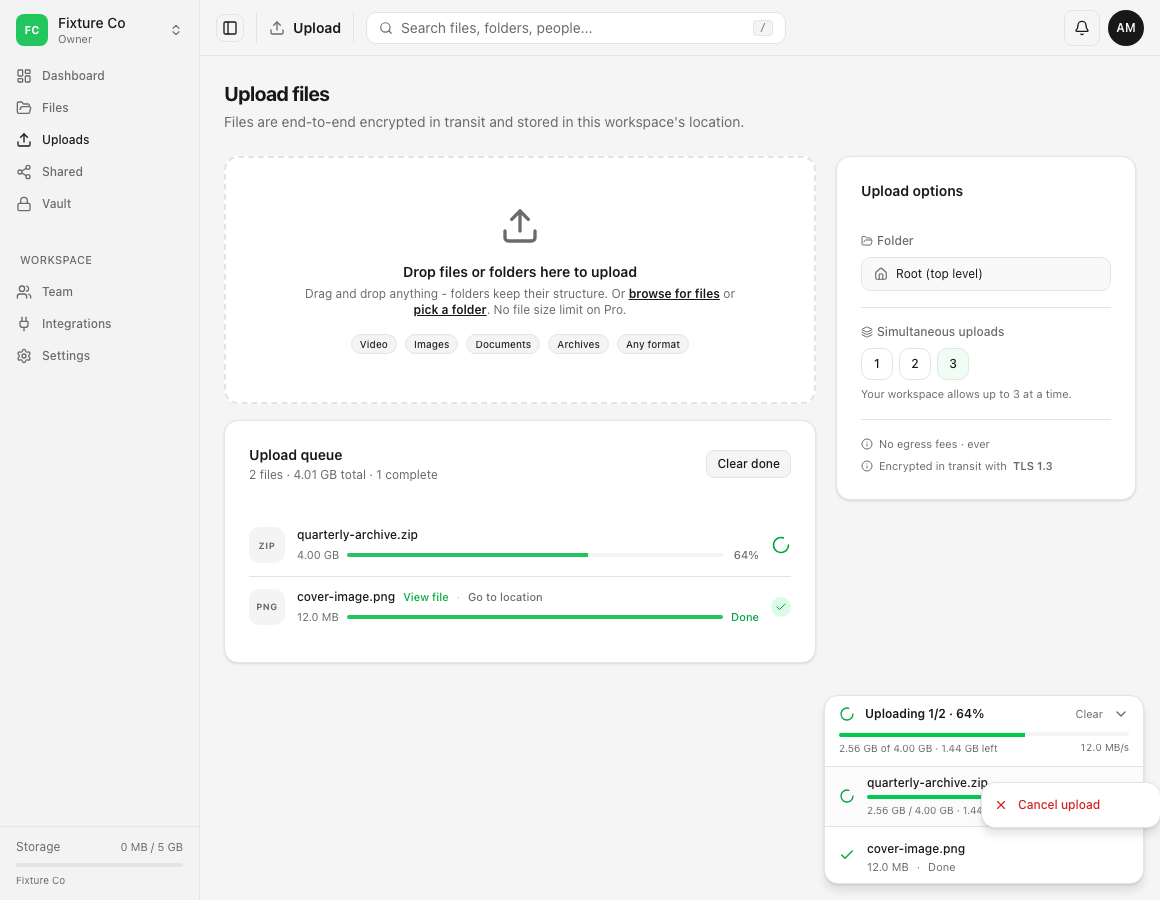
Cancel the individual queued or active file from the upload list at the bottom right. The current web app applies the action immediately without a confirmation dialog, so verify the exact filename before selecting Cancel upload or its X control.
Canceling one attempt does not remove a file that already reached Done, and it does not cancel the other rows. Check Files after cancellation to determine what is actually stored.
Before you start
- Confirm the active workspace and intended destination.
- Read the exact filename, size and state. Similar names can represent an older completed copy and a new attempt.
- Keep the source file if you might upload it later. A canceled attempt cannot be resumed through the Interrupted workflow.
- Let any file that you still need continue. Cancel is scoped to the selected row, so choose carefully.
Steps: cancel the intended upload
- Expand the upload list at the bottom right of the web app.
- Find the exact row. An active item shows progress and has an X control; a queued item can also be canceled before it starts.
- Select the row’s X, or right-click the row and choose Cancel upload.
- Expect the action to apply immediately. The current web UI does not ask for confirmation.
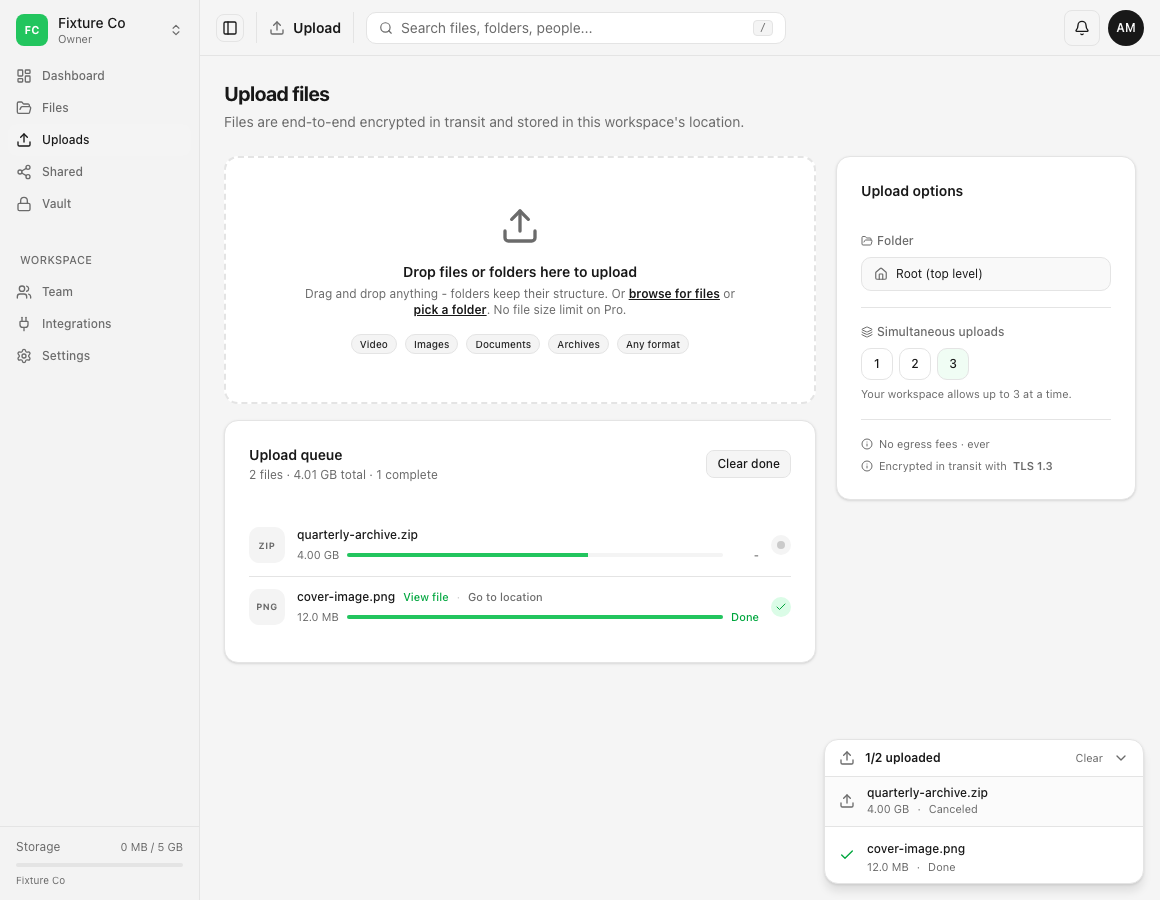
- Confirm that the selected row changes to Canceled. Check that unrelated active, queued and Done rows keep their own states.
Steps: check the result
- Confirm Canceled on the intended row. If it still shows Uploading, make sure you used the control for that row.
- Review the other transfers. A completed row should remain Done, and another active or queued file should continue under its own state.
- Open Files and inspect the intended destination. A canceled incomplete attempt should not be treated as a completed file.
- If a file with the same name already exists, compare its size, modified time, version information or contents. It can be an older completed copy rather than the attempt you just canceled.
- If you still need the canceled file and no verified completed copy exists, start a new upload from the unchanged original.
Steps: clear the queue only after checking Files
- Record any error or state information you still need.
- Verify completed files through View file, Go to location or Files.
- Use Clear done or Clear only to tidy the visible transfer history.
- Delete an unwanted completed file from Files through the normal file action. Clearing its upload row does not delete the stored object.
Expected result
The chosen active or queued attempt changes to Canceled, while unrelated transfers retain their states. Files contains only the copies that completed independently. If the canceled file is still required, a new attempt starts from the original after you have checked for an existing completed copy.
Limits and cleanup behavior
- Cancel stops the selected browser transfer. It is separate from Interrupted, which can offer Resume after source-file selection.
- A file that already shows Done is complete and cannot be undone through the transfer’s Cancel action. Delete it from Files if removal is intended.
- Do not use the presence or absence of a queue row as a storage inventory. Verify Files, versions and trash where relevant.
- Incomplete multipart data may be cleaned up separately. The current web UI does not promise an exact cleanup time or immediate visible storage recovery after cancellation.
- Clearing queue history only changes the local display. It does not cancel an active transfer, delete a completed file or prove partial data has been reclaimed.
Troubleshooting
I canceled the wrong file. Preserve the original and check Files immediately. If the selected attempt did not complete, add that original again. Do not restart unrelated Done rows.
The file still appears in Files. It may have completed before cancellation, or it may be an older copy with the same name. Compare size, time, version information and contents. If you intend to remove a verified completed file, use its Files action.
Available storage did not change immediately. Do not rely on an instant quota change for incomplete multipart cleanup. Refresh the workspace view after current transfers settle. If the capacity remains wrong, record the time, filename, approximate size and screenshot and contact support.
Canceled disappeared after I selected Clear. Clear removes transfer history from the display. Check Files for the actual result. If no completed copy exists and the file is needed, begin a new upload.
There is no Cancel action. A Done item is already complete. An Error, Interrupted or Canceled item is no longer actively transferring. Use its available Retry or Resume action when appropriate, or start a new upload after checking Files.
Another upload stopped too. Inspect its own state and message. A connection loss or page close can interrupt multiple rows even though Cancel itself targets one transfer.
Frequently asked questions
Can I cancel one upload without stopping the others?
Yes. Cancel acts on the selected row. Confirm the other rows continue or remain Done after the action.
Is an incomplete file saved after I cancel?
Do not treat a canceled attempt as a completed file. Check Files for the destination result. Internal incomplete transfer data can be cleaned up separately and has no promised immediate cleanup time in this workflow.
Can I cancel a file after it says Done?
No. Done means the upload completed. Use Files to inspect or delete the stored file.
Can I resume a canceled upload?
No. Resume belongs to an Interrupted attempt. Start a new upload from the original if a canceled file is still required.
Related guides
Was this helpful?
Loading helpfulness results…
Voting saves a necessary ballot cookie for up to 180 days so you can change your answer.
Questions and replies
Ask about the steps in this guide. Questions are reviewed before publication.
Keep account details, credentials and private files out of public questions. Use private support for those.
Loading questions…
Sign in to your Dosya account to ask a question.