Troubleshooting a failed upload
Read a failed upload’s message, retry while the original file is available, or use Resume after a reload and verify the completed copy.
Last reviewed
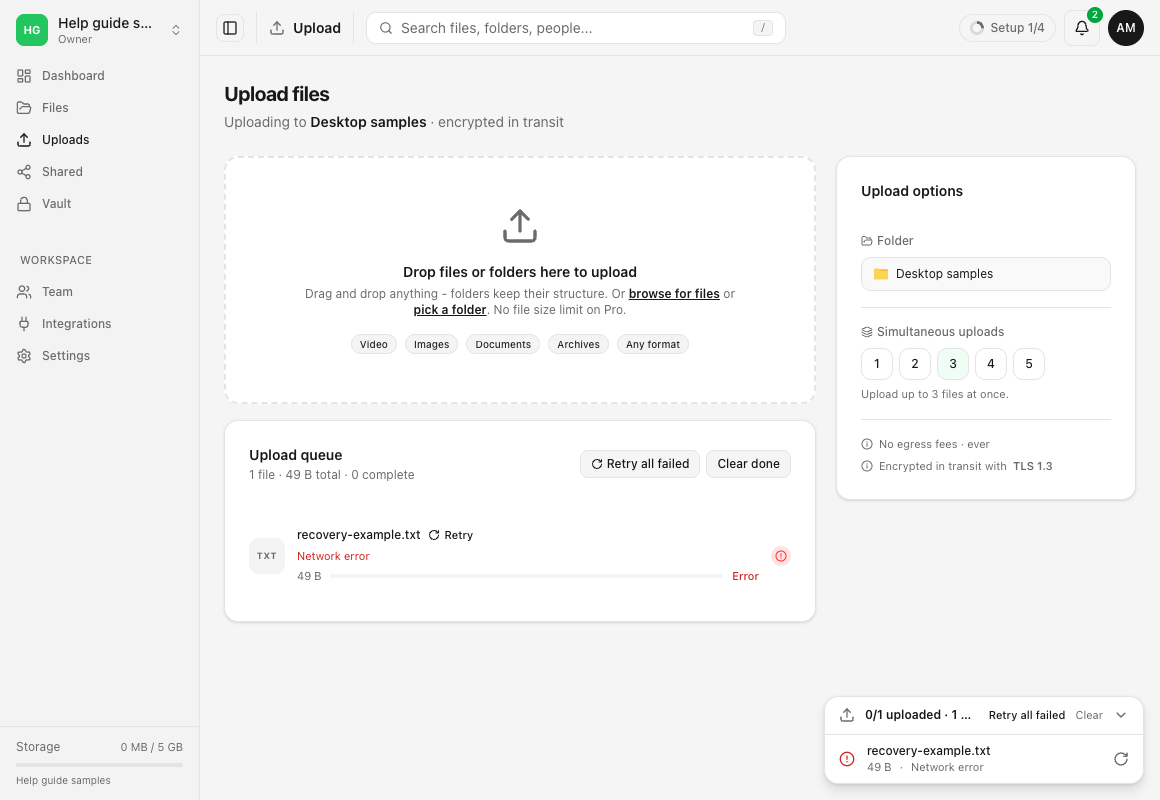
Read the failed item’s message in Uploads → Upload queue. Fix the stated cause, then select Retry while the current tab still holds the original file. If an upload was interrupted by a reload, use Resume in the small upload list at the bottom right and reselect the original file. Confirm the completed destination copy before removing your original.
Before you start
- Keep the original file available on your device. A queued item or a progress bar does not establish that a cloud copy completed.
- Note the exact error, approximate time, filename and intended workspace/folder. Read the complete message by hovering over a truncated queue error when needed.
- Check the selected workspace and Upload options → Folder. An existing queue item keeps its original destination; changing the folder affects new uploads.
- These steps cover ordinary signed-in uploads. Anonymous file requests have their own expiry, file-type, size and count rules.
- Keep the tab open and the computer awake for a retry test. Do not close the page merely to refresh a stalled progress display; that can require source-file selection again.
Steps: diagnose a failed or stuck upload
- Open Uploads in the sidebar. Find the affected row in Upload queue. An error row names its cause and shows Retry. The small upload list at the bottom right also contains progress and actions; expand it with its arrow if needed.
- Distinguish Queued, Error and Interrupted. Queued can mean another upload is using the available transfer slots. An active transfer shows bytes or a percentage. Error needs its stated cause corrected. Interrupted in the bottom-right list means this tab needs the source file again.
- Check the connection and account. Restore connectivity and complete sign-in if the app requires it. If all small test uploads fail, also check service status. One failed item alone does not establish a service outage.
- Check the refusal before retrying. For a permission or folder error, ask the workspace owner to confirm your upload permission and the destination. For storage, size or file-type restrictions, correct the stated limit first. Retry cannot change a role or storage allowance.
- Avoid duplicate attempts. Keep the original failed row until you understand its destination and result. Do not add the same large file repeatedly while another attempt might still be transferring.
Steps: retry in the current tab
- Resolve the cause. For a network interruption, reconnect first. For a workspace refusal, resolve the permission or policy issue before another attempt.
- Select the row’s Retry. Use Retry beside the failed filename in Upload queue, or the circular-arrow Retry action in the bottom-right list.
- Use Retry all failed only when appropriate. This retries the failed items whose source files remain available in this tab. For failed rows retained after a reload, the batch action changes them to Interrupted so you can use Resume and reselect their originals.
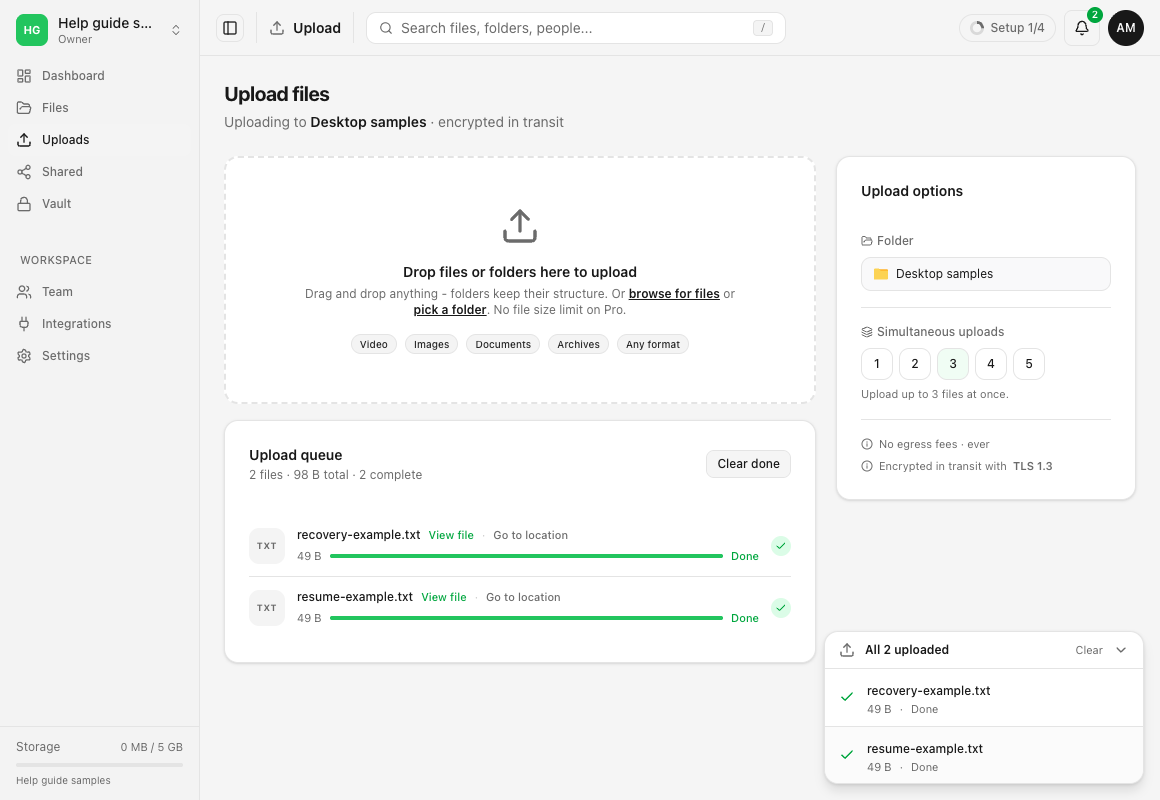
- Wait for Done. Check the intended destination with View file or Go to location from the completed queue row. Open your own completed copy and confirm it is the expected version.
If the individual Retry button is disabled, this tab no longer holds the source file. Its tooltip explains that you need to add the file again. You can also use Retry all failed to put retained error rows into the dock’s Interrupted state, then follow Resume below. A right-click Retry label alone is not proof that the source is still available.
Steps: resume after a reload
- Find Interrupted in the bottom-right upload list. A reload preserves recent queue entries, but not the browser’s in-memory File objects. The Upload queue page may show a neutral row; the bottom-right list offers the explicit Resume action.
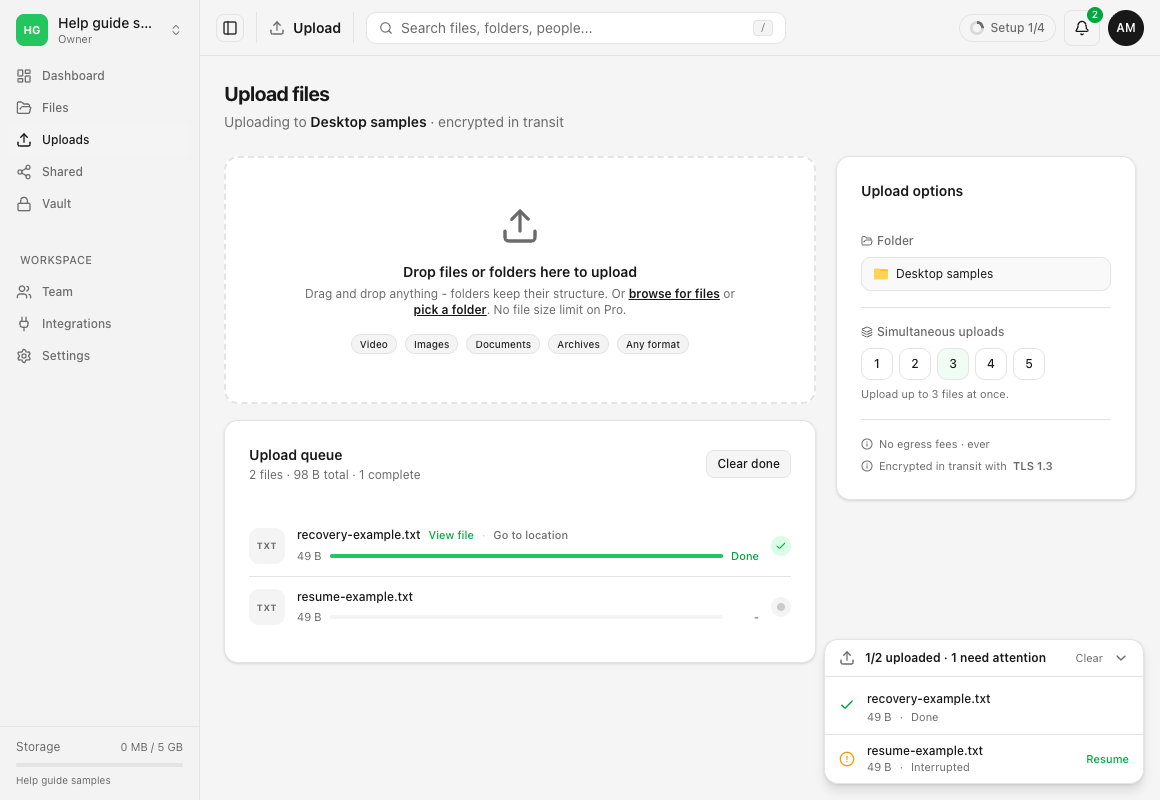
- Select Resume. In the operating system’s file picker, choose the original file from your device.
- Check a mismatch before continuing. The selected file must have the same filename and size as the queued entry. If it differs, the app says That file does not match (name or size differs). Reselect the correct original; do not rename an unrelated file to make it pass.
- Let the upload finish. A small, single-request upload restarts its transfer. A multipart upload with a valid saved session can reuse server-recorded parts. Resume is not a guarantee that every interrupted session remains valid.
- Check the completed copy. Find Done, then use View file or Go to location. For important work, compare your own destination copy with the original before removing the source.
Expected result
A retryable upload completes after its cause is corrected, or provides a more specific error to diagnose. An interrupted upload can continue after you reselect its original, subject to the session and destination still being valid. The completed file appears in the correct workspace and folder.
Completion must include checking the actual destination. A 100% progress value, a queued entry or a dismissed error does not establish that the right file and version are available there.
Limits and actions to use carefully
- Resume checks name and size, not identity. A different file with the same name and size can pass that check. Choose the actual original, and avoid a file that was edited during recovery.
- Recent queue entries are stored in this browser. Browser storage may be unavailable or cleared, and only the most recent entries are retained. Signing out clears upload state. A different browser cannot resume from this browser’s list.
- Clear done on the queue and Clear in the dock also dismiss failed or cancelled entries. They do not repair the cause or establish success. Keep the message until you have recorded what you need.
- Cancel ends that transfer. It is different from a recoverable Interrupted entry; start a new upload if you deliberately cancelled and still need the file.
- A saved multipart session can expire or be refused later. Do not promise recovery after the source changes, permissions are removed or the destination disappears.
- An ordinary upload is separate from Vault’s client-side encryption workflow. These queue-recovery controls do not convert a file into Vault content.
Troubleshooting
Retry returns the same error. The cause may still apply. Recheck the message, workspace, folder, role and applicable storage/file policy. Repeated clicks do not remove a refusal.
The progress seems stuck. Check bytes, connection and the active transfer slots. A queued item can be waiting for another upload. Keep the tab open; use a small harmless test file in the same destination once you have resolved any restriction.
Resume is missing. Expand the bottom-right list. If the old row is Error after a reload, use Retry all failed to make source selection available. If the item was cleared, cancelled or belongs to a previous signed-in account, add the original through Uploads after checking for a completed destination copy.
The file matches its name and size but its contents changed. Do not treat the name/size check as proof. Use an unmodified original where available. If you cannot identify it, preserve the available versions and get private help before relying on partial recovery.
A file request refuses the same file. Check the request’s stated rules and contact its owner. Signed-in workspace uploads and recipient requests have different restrictions.
A small sample works but the original fails. Report that distinction, the exact error, approximate size and type, browser/OS versions, time and destination. Start with private support, or contact support if you cannot sign in. Exclude passwords, keys, private share links and the original file from public questions.
Frequently asked questions
Does refreshing automatically continue the upload?
No. A reload loses the browser’s in-memory source file. An active item becomes Interrupted and needs Resume with the original.
Must I reselect every failed file?
No. Retry works while the current tab still holds its File object. After a reload, re-selection is needed before another transfer can use that source.
Does Clear done remove completed cloud files?
No. It dismisses queue entries. Removing cloud files is a separate action in Files.
Can I delete my original after the bar reaches 100%?
Keep it until the queue reports completion and you have checked the destination copy and expected version.
Related guides
Was this helpful?
Loading helpfulness results…
Voting saves a necessary ballot cookie for up to 180 days so you can change your answer.
Questions and replies
Ask about the steps in this guide. Questions are reviewed before publication.
Keep account details, credentials and private files out of public questions. Use private support for those.
Loading questions…
Sign in to your Dosya account to ask a question.