Fixing a slow upload or download
Compare a small transfer, check status and queue state, reduce competing work, and separate network delay from policy or storage failures.
Last reviewed
Start by identifying the state, then compare one small transfer on the same device and connection. A Queued upload is waiting, an Error is a refusal or failure, and an active upload with slowly changing bytes is a speed problem.
Check Dosya service status when several actions or devices fail at once. If status is healthy and one connection is affected, test the local network, browser and competing traffic before changing the workflow.
Before you start
- Keep the original upload source and any incomplete local download.
- Record the filename, approximate size, start time and timezone, workspace, client and visible state or error.
- Avoid repeatedly starting the same large transfer. Duplicate attempts compete for bandwidth and make the evidence harder to read.
- Check storage usage, role permission and file policy when the transfer is refused. A quota or permission error is not slow throughput.
- Use a harmless small file for comparison. Do not upload confidential data merely to run a speed test.
Steps: identify what is slow
- Open Uploads for an upload, or the browser’s download indicator for a download.
- Read the individual state. Queued is waiting for a slot; Uploading shows progress; Error names a cause; Interrupted needs recovery; Canceled was stopped.
- Watch transferred bytes for a short interval. Movement indicates an active but possibly slow transfer. A percentage alone can pause while a part finishes or the service finalizes the file.
- Compare a small file in the same workspace and direction. If the small transfer works, the connection may be usable but the original exposes duration, size or many-file overhead.
- Compare upload and download separately. Home connections commonly have less upstream capacity, so a fast download does not prove that a large upload should be equally fast.
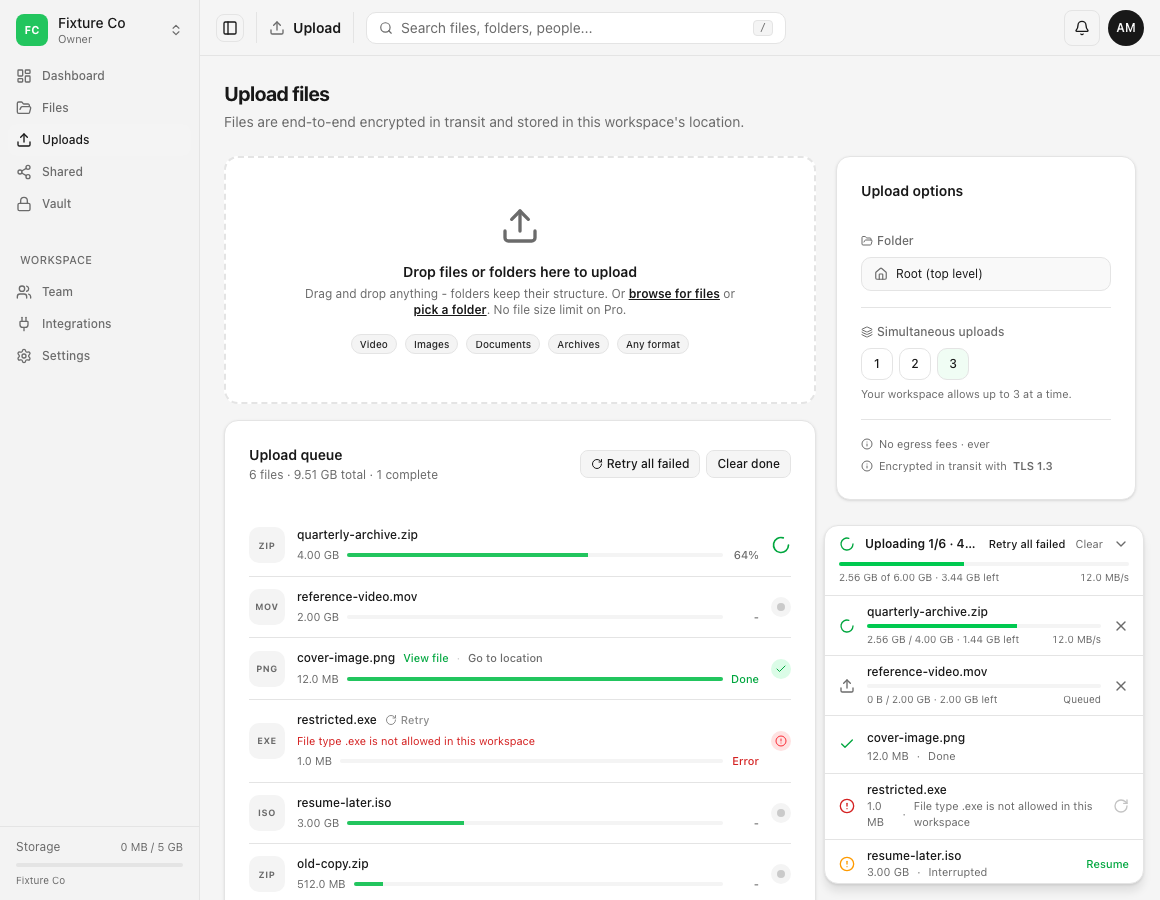
Steps: separate network, client and service causes
- Open status.dosya.dev in a separate tab. A matching incident across users or components points to the service; a healthy page does not prove every local route is healthy.
- Pause unrelated cloud sync, streaming, backups and other large transfers. For web uploads, lower Upload options → Simultaneous uploads so fewer files share the connection.
- Keep the device awake and the tab open. Reconnect a stable wired network when practical. Wi-Fi roaming, sleep, VPN reconnects and mobile/Wi-Fi handoffs can interrupt long requests.
- Test without a VPN or proxy only when your organisation permits it. A corporate path can be the cause, but bypassing a required control is not an appropriate test.
- Try another current browser or the desktop/CLI workflow with the same harmless sample. A result that follows one client points to that client; a result that follows the connection points to the network.
- If the source already has a direct public download URL, consider Dosya’s Remote download integration. It fetches server to server and can continue without routing the file through your device.
Steps: handle many small files
- Check whether the slow task contains thousands of small files. Each item needs listing, policy and transfer work even when the total byte size is modest.
- When your workflow permits, archive the folder locally and upload one archive. Keep the original folder until you verify the archive and destination.
- For repeat sync or automation, use the desktop app, CLI, rclone, WebDAV or S3 workflow appropriate to the job. Tune concurrency conservatively and respect any credential allowance.
- Verify the final contents. Faster transfer is not useful if archiving changed required metadata or made collaboration impractical.
Expected result
You can classify the issue as waiting for a slot, active but bandwidth-limited, interrupted, refused by policy or quota, specific to one client/network, or consistent with a service incident. The controlled small transfer and status evidence give support something concrete to investigate.
No single test establishes a guaranteed speed. Throughput changes with the source device, local upstream or downstream capacity, route, competing traffic, file count, protocol and destination response.
Limits and region behavior
- A workspace’s storage location is chosen at creation and fixed. Existing files are not moved by selecting or creating another workspace.
- Uploads and downloads travel through the nearest Cloudflare edge before reaching the workspace’s storage location. Storage residency and the network route are separate.
- Creating a workspace in another region does not make an existing transfer move or become faster. It creates a separate storage destination for new files.
- Multipart upload makes a dropped connection cheaper to recover; it cannot make a slow upstream connection exceed its available bandwidth.
- Free API, WebDAV and S3 credentials and public share links have documented fair-use allowances. A rate-limit or allowance response needs its reset or policy action, not a speed tweak. Ordinary signed-in web behavior should be diagnosed from its own message.
- Dosya does not promise a completion time for a particular file or connection.
Troubleshooting
An upload remains Queued. Check active rows and Simultaneous uploads. The workspace can impose a lower concurrent-upload limit. A waiting item is not consuming upload bandwidth yet.
A transfer is active but barely moves. Stop competing traffic, keep the device awake, try a stable wired path and compare a small sample. Record bytes moved over a measured interval rather than describing it only as “slow.”
Every page and transfer fails. Check service status and another network if available. Record the affected components and time. Do not keep retrying a destructive or paid action during an incident.
Only uploads are slow. Measure the connection’s upstream capacity and check other upload traffic. Consumer connections often provide much less upload bandwidth than download bandwidth.
Only one large file is affected. Check remaining storage, workspace maximum file size, file-type policy and the row’s message. See Uploading large files and failed-upload recovery.
A new region seems faster in a test. Treat it as a different workspace and a different test, not a migration or guarantee. The original workspace and files remain in their fixed location, and normal route variation can affect one measurement.
Frequently asked questions
Does changing my workspace region make an existing upload faster?
No. A workspace’s location is fixed, so an existing transfer does not move. A new workspace is a different destination. Dosya already routes transfers through the nearest edge independently of storage residency.
How do I tell a network issue from a service incident?
Compare service status, another connection or device, and one small transfer. A matching multi-user incident points to the service; a problem that follows one network or client points locally. Preserve the time and exact state for support.
Should I increase simultaneous uploads?
Only when the connection has spare capacity and the workspace allows it. Lower concurrency is often more stable for one large file; higher concurrency can help many small files but can also make each one slower.
Related guides
Was this helpful?
Loading helpfulness results…
Voting saves a necessary ballot cookie for up to 180 days so you can change your answer.
Questions and replies
Ask about the steps in this guide. Questions are reviewed before publication.
Keep account details, credentials and private files out of public questions. Use private support for those.
Loading questions…
Sign in to your Dosya account to ask a question.