Setting link expiry and checking the actual expiration
Choose a preset or custom expiry, understand workspace and plan caps, and confirm when the finished sharing link will stop working.
Last reviewed
Choose Expires in while creating a sharing link, then verify the finished link in Shared. The selected value is a request: a workspace maximum or the Free-plan seven-day limit can shorten it, so the date shown after creation is the date to trust.
Expiry stops new access through that URL. It does not delete the original file from its workspace and cannot remove a copy someone already downloaded.
Before you start
- Upload the file completely and confirm you have permission to create sharing links.
- Decide when recipients should lose new access. Include enough time for their timezone and working hours.
- Use a fresh recipient browser for testing. A browser already showing downloaded content is not evidence that a later request will still work.
- Review workspace policy with an owner if links repeatedly end earlier than expected.
Steps: choose an expiry
- Open Files, find the item and choose Share.
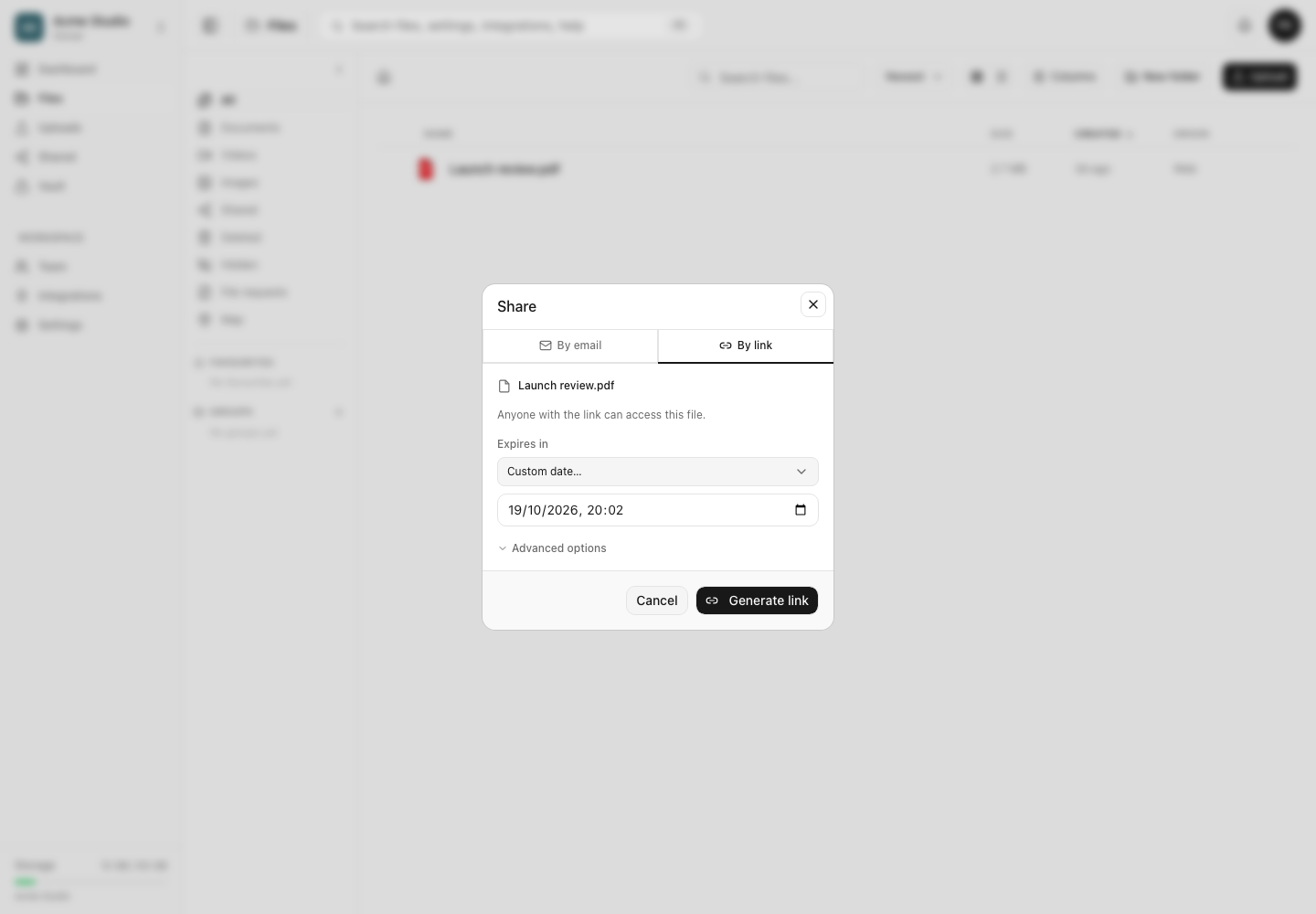
- Select By link for an ordinary URL, or stay on By email when sending to named recipients. Both flows use the same Expires in control.
- Choose 1 hour, 24 hours, 7 days, 30 days, 90 days, Custom date… or Never.
- For Custom date…, enter a local date and time at least one minute in the future. The app converts that local value to the exact timestamp stored for the link.
- Review any password, view-only or download-limit settings separately, then generate or send the link.
Check the actual expiry
- Open Shared after the link is created.
- Find the item and read Expiry and Status. An approaching deadline appears as Expiring soon.
- Select the link to open its details. The Link controls rail shows the remaining time or Never.
- If the date is earlier than your requested date, keep the displayed result. Do not promise the longer date to recipients.
- Copy and test the final URL only after reviewing this value.
The application currently validates custom expiries up to ten years from creation. A workspace can configure a shorter maximum. On Free, every newly created link is limited to seven days even when you selected 30 days, 90 days or Never. The tighter limit wins.
Expiry limits and boundary behavior
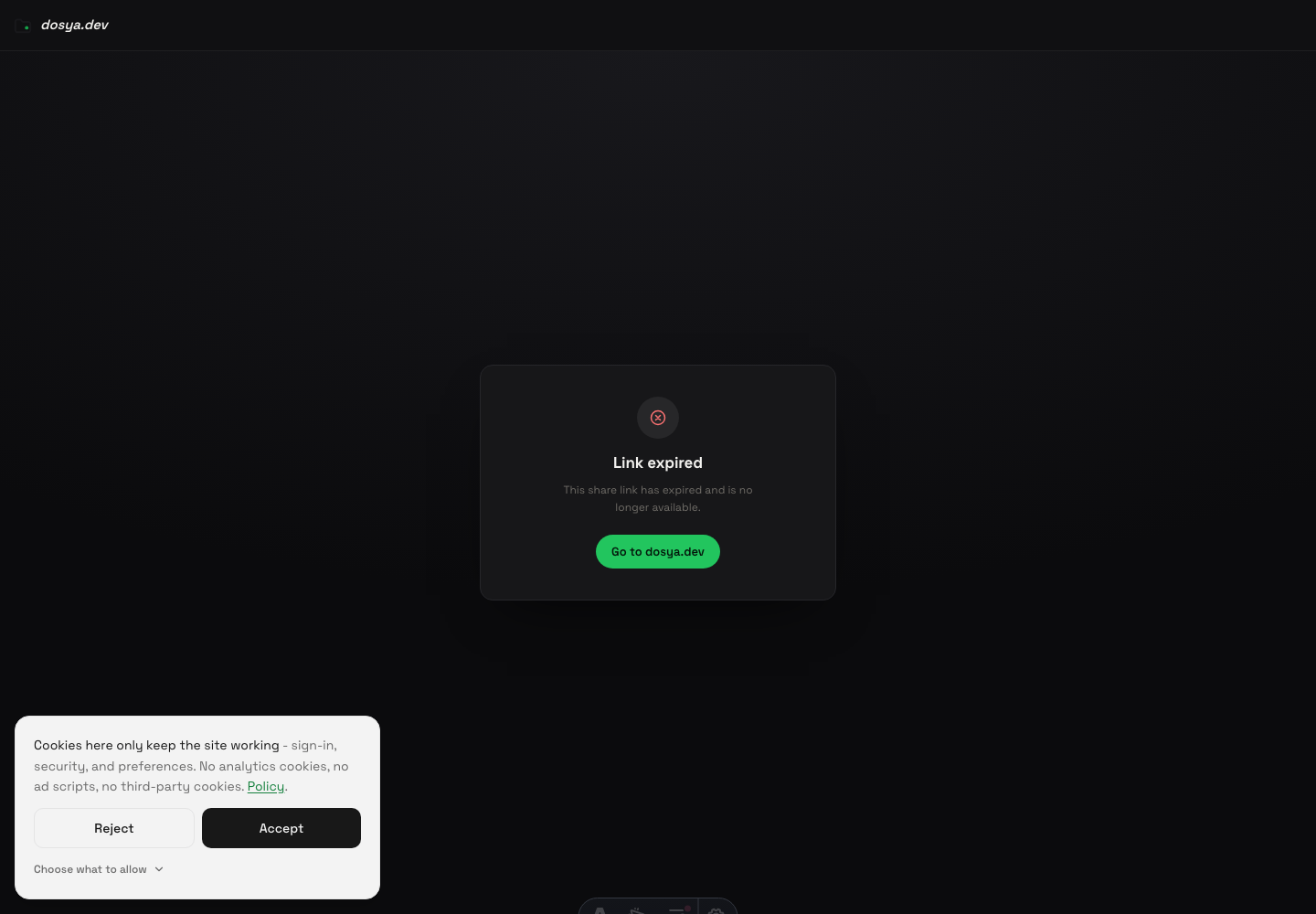
The API compares the stored expiry timestamp with the current time. Once it has passed, requests for that share URL return an expired response and the public page displays Link expired. A recipient who has not already saved the file cannot start a new view or download through that link.
Because the value is an exact timestamp, two people in different timezones can see different clock representations of the same moment. Choose the deadline with the recipient’s location in mind.
Expected result
The link remains usable until its stored expiry, subject to every other access setting. After that instant, the recipient sees Link expired and the owner sees the link as expired in Shared. The file, its versions, comments and other sharing links remain in the workspace.
Troubleshooting
The expiry is earlier than the date I selected. Check the finished link in Shared. A workspace maximum or the Free-plan seven-day cap can silently lower a longer request, including Never.
Custom date is rejected. Choose a valid local date at least one minute ahead. Dates more than 3,650 days from creation are rejected by the current API.
The recipient says the link expired sooner than expected. Compare the actual stored expiry, the recipient’s timezone and the complete URL they used. Confirm they did not open an older link to the same file.
The page says revoked rather than expired. Someone with permission ended the link manually. Revocation is a separate terminal state and can occur before the scheduled expiry.
The recipient still has a copy. Expiry controls future service from Dosya. It cannot recall bytes already downloaded or a screen capture taken while the link was active.
Frequently asked questions
Why is the expiry earlier than the date I selected?
A workspace maximum or the Free-plan seven-day maximum shortened the requested lifetime. Check the actual result in Shared.
Does an expired link delete the original file?
No. Only that URL stops working. The workspace file and other links remain until separately changed or deleted.
What does Never mean?
It requests no scheduled expiry. A workspace maximum or Free-plan policy can still replace it with a finite date, and the owner can revoke the link at any time.
Related guides
Was this helpful?
Loading helpfulness results…
Voting saves a necessary ballot cookie for up to 180 days so you can change your answer.
Questions and replies
Ask about the steps in this guide. Questions are reviewed before publication.
Keep account details, credentials and private files out of public questions. Use private support for those.
Loading questions…
Sign in to your Dosya account to ask a question.