Troubleshooting a rejected or incomplete file-request upload
Identify whether a file, password, deadline, request limit, destination or workspace quota stopped a file-request submission and choose the right next action.
Last reviewed
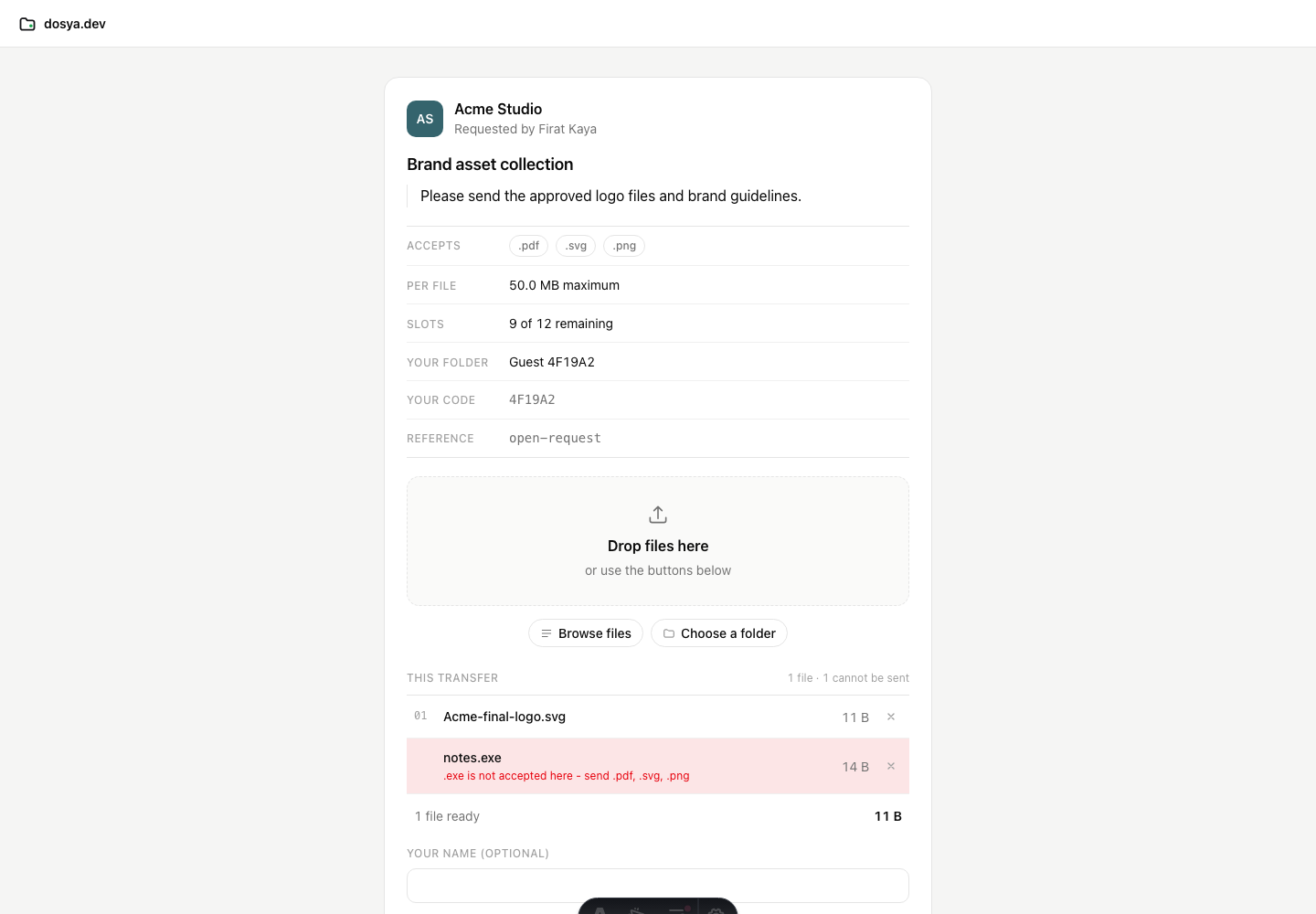
Start with the exact message on the request page. A rejection before transfer usually points to the file’s type, size, empty content or remaining slots. A closed page points to the request’s status. A failure during transfer can involve the connection, destination or workspace storage.
Before you start
- Keep the request page open and copy the exact redacted message before reloading.
- Note the file’s extension and approximate size. Do not send its contents or the private request URL in a public channel.
- Use one harmless sample while diagnosing the problem, rather than repeatedly submitting the full batch.
- Contact the request owner first when the status, deadline, password, destination or workspace storage may need to change.
Quick decision table
| What you see | Likely cause | Who should act |
|---|---|---|
| An extension “is not accepted here” | The filename does not match the request’s allowed extensions | Uploader chooses a permitted file; owner changes the rule if appropriate |
| “Too large” or a displayed per-file maximum | The file exceeds this request’s size rule | Uploader sends a smaller file; owner changes the limit if appropriate |
| No remaining upload slots | The request reached its maximum file count | Owner reviews submissions and creates or changes the request |
| Password rejected | Wrong request password or too many attempts | Uploader checks the shared password and waits after repeated attempts |
| Request expired or revoked | The deadline passed or the owner closed it | Owner changes an expired request or creates a new one after revocation |
| Upload starts, then fails | Network interruption, changed request state, destination restriction or storage limit | Retry after checking the cause; owner checks the request and workspace |
Steps: check the file before retrying
- Reload the request page so its terms are current.
- Compare the filename extension with Accepted files. The extension at the end of the filename is checked; changing a suffix does not convert the file’s contents.
- Compare the file size with Per file. This is a limit for each file, not the combined transfer size.
- Remove empty files. A zero-byte file is rejected.
- Check Files remaining. Already received files count toward the request maximum.
- Select only the corrected files and submit again. Do not keep retrying an unchanged file that the page has already rejected.
If the password does not work
- Use the file-request password supplied by the owner. It is separate from your Dosya account password.
- Type or paste it carefully; request passwords are case sensitive.
- After five failed attempts from the same request and network address within 15 minutes, further attempts are rate limited. Stop guessing and ask the owner to confirm or replace the password.
- A successful unlock lasts for about 30 minutes in that browser. Reload and unlock again if access times out during a longer session.
- If you were invited by email, open the recipient-specific URL before the password step so the owner can retain its attribution.
If the request is closed or full
An expired request has passed its deadline. The owner can use Edit to choose a future expiry or Never. A revoked request cannot be reopened in the current interface; the owner must create a new request.
A request at its maximum file count has no remaining slots. Removing a staged file from your current browser does not free a slot already consumed by a completed submission. The owner should review the received uploads before raising the limit or sending a replacement request.
If transfer starts and then stops
- Keep the tab open and the computer awake. Avoid switching networks during a large upload.
- Read the status on the affected line. A multipart transfer retries accepted parts, so allow a short interruption to recover before starting over.
- If the page says access timed out, unlock again and continue.
- Reload the request. Its owner may have changed the password, expiry, rules, destination or revoked it while the transfer was running.
- Try one small permitted sample. If that also fails, send the owner the time, filename extension, approximate size and redacted error text.
- The owner should check the request status, destination folder, workspace storage and their ability to upload into that folder.
Troubleshooting: owner checks
Open the request detail page and select Edit. Confirm the expiry, destination, password state and Advanced options. Compare Max files with the received upload count.
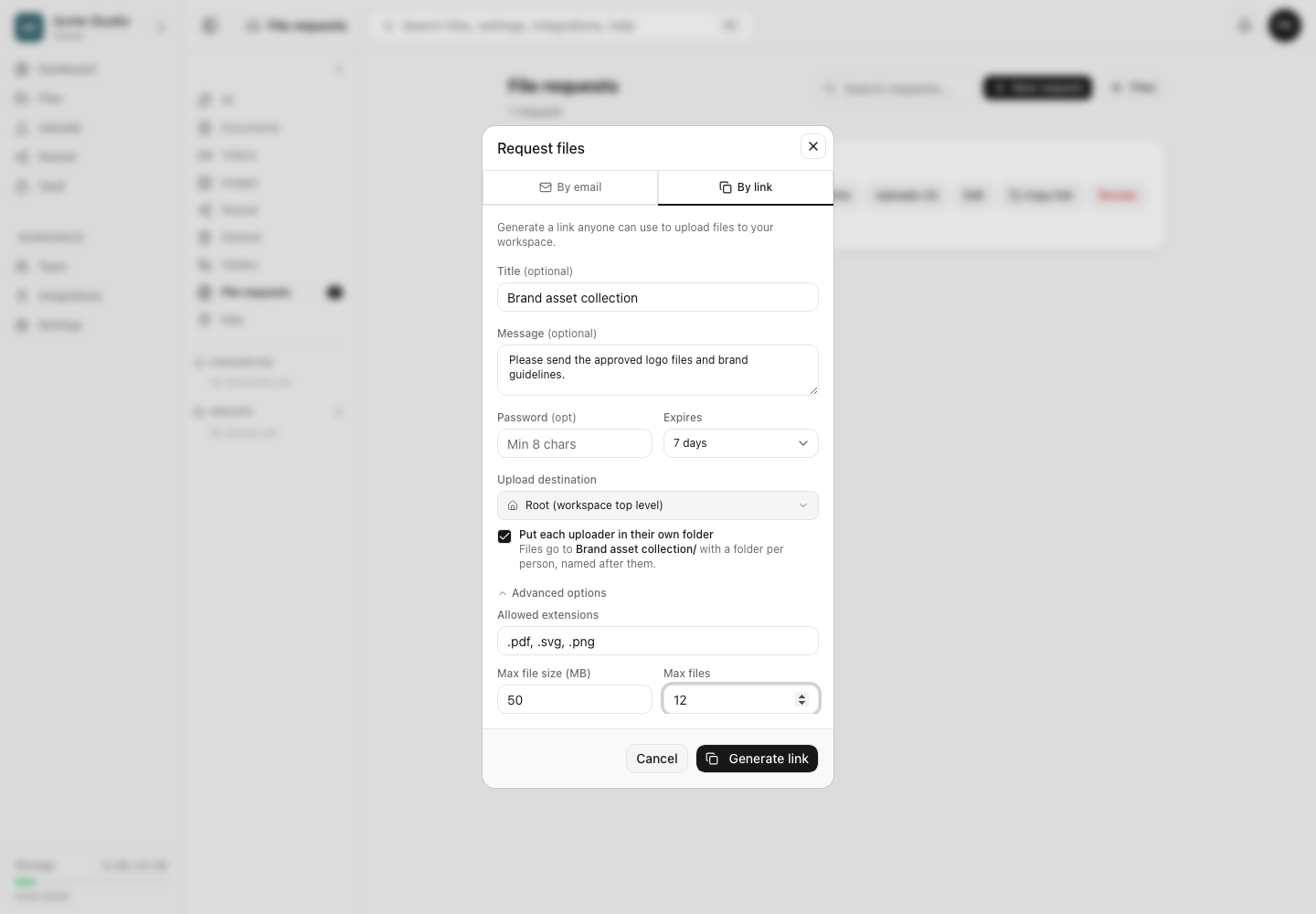
Also check that the destination folder still exists and is inside your permitted folder scope. A hidden destination or full lock can stop the request. Workspace storage limits still apply even when the request itself has no size limit.
Expected result
A corrected, permitted file reaches the persistent receipt on the public page and appears in the owner’s request table and destination folder. A blocked request instead gives enough status for the owner to change or replace it.
Limits and escalation details
Share the request title, the time and time zone, device and browser, file extension and approximate size, and the exact redacted message. Do not send the request password, the full private request URL, account credentials or confidential file contents in a public support channel.
The request owner is usually the right first contact because only they can change its rules, deadline and destination. Contact Dosya support when a compliant small test still fails after the owner confirms an active request, usable destination and available workspace storage.
Frequently asked questions
Should I rename a rejected extension?
Only when the suffix is genuinely wrong for the file. Renaming an executable or another format to an allowed suffix does not convert it and can produce an unusable or unsafe submission.
Does selecting fewer files help with a full request?
Only when your current selection itself exceeds the remaining slots. If completed submissions already reached the maximum, the owner must act.
Should I keep retrying a transfer that fails at the same point?
No. Reload once, test a small permitted file and ask the owner to check the request and workspace. Repeated identical attempts do not fix a rule, quota or closed request.
Related guides
Was this helpful?
Loading helpfulness results…
Voting saves a necessary ballot cookie for up to 180 days so you can change your answer.
Questions and replies
Ask about the steps in this guide. Questions are reviewed before publication.
Keep account details, credentials and private files out of public questions. Use private support for those.
Loading questions…
Sign in to your Dosya account to ask a question.