Setting file-request types, sizes, counts and expiry
Choose what a request accepts, where submissions land, when uploading stops and how uploader folders are organized.
Last reviewed
Open File requests → New request, choose By link or By email, and expand Advanced options. Use Allowed extensions for file types, Max file size (MB) for each file and Max files for the request’s total slots. The public page displays the active rules before an uploader selects anything.
Before you start
- Choose a live destination that you can access. Hidden, missing or fully locked folders cannot become a public upload destination.
- Estimate the largest intended original file and the total number of submissions. Test uploads consume request slots too.
- Check the receiving workspace’s available storage. Leaving a field blank does not bypass storage or workspace policy.
- Decide whether each uploader should receive a separate folder. This option is selected by default for new requests.
Steps: set the request rules
- Open File requests and select New request.
- Choose By link for a URL you distribute yourself, or By email to create tracked invitations.
- Enter a clear title and message. These tell uploaders what to submit.
- Choose Expires: Never, 1 day, 7 days, 30 days or 90 days. The initial selection is 7 days.
- Choose Upload destination. If no folder is selected, the control shows Root (workspace top level).
- Keep Put each uploader in their own folder selected when submissions should stay separated. With a title, Dosya creates a title folder and then a folder for each uploader beneath it.
- Expand Advanced options.
- Enter comma-separated Allowed extensions with leading dots, such as
.pdf, .svg, .png. - Enter Max file size (MB) for the largest permitted individual file.
- Enter Max files for the total completed-file slots across the request.
- Generate or send the request, then open its public page privately and verify the displayed Accepts, Per file and Slots rows.
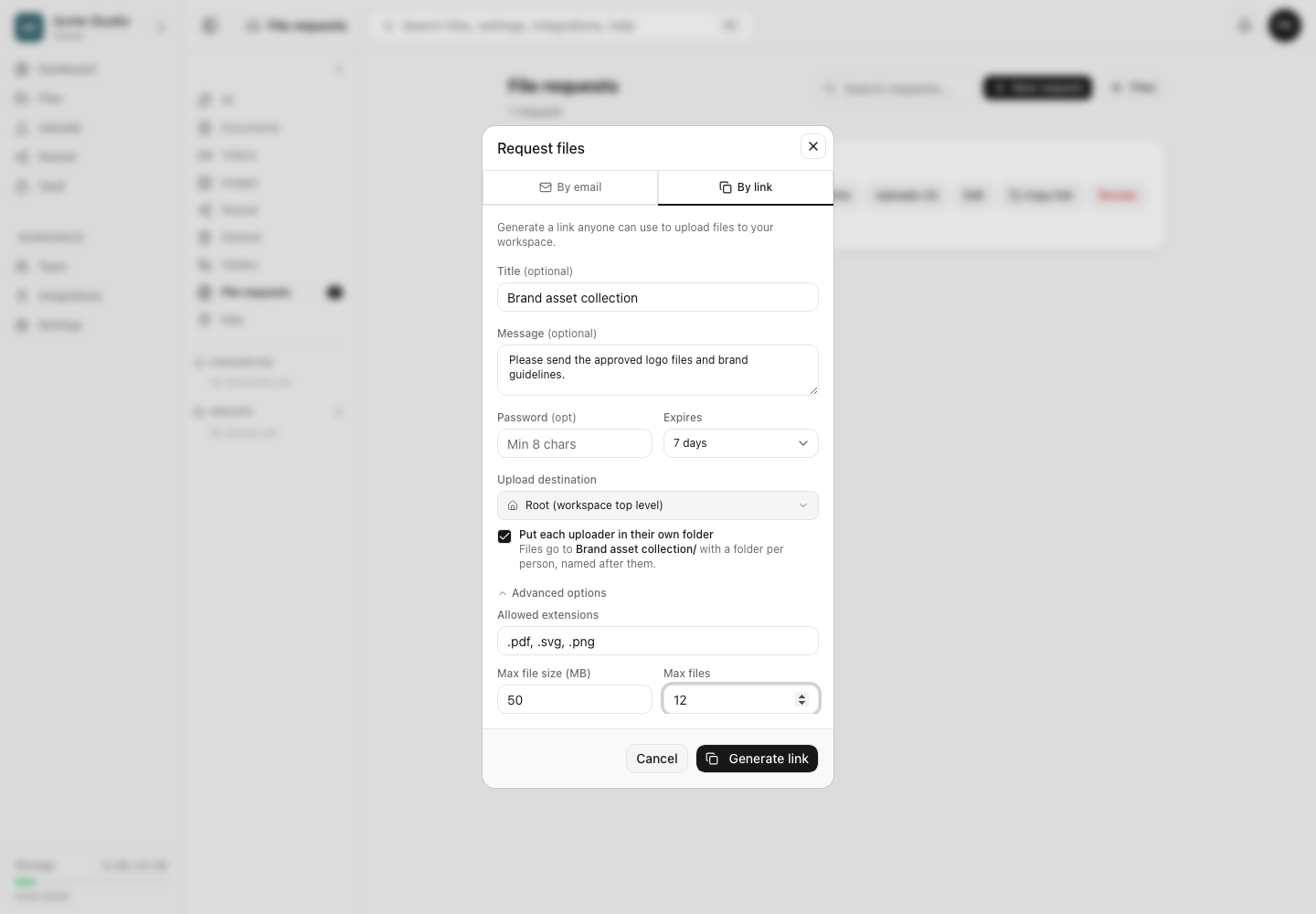
How each limit behaves
Allowed extensions compares the final filename extension without regard to letter case. A file with no extension cannot pass the browser’s type check when a list is present. Renaming an extension does not convert file contents.
Max file size (MB) applies to one file. It is not a combined transfer-size limit. The browser rejects an oversized staged file before upload, and the API checks again before storing it.
Max files counts completed uploads across the request. The public page subtracts the existing upload count and shows the remaining slots. Once every slot is taken, it closes the drop area and says the request is full.
Expires stores a deadline from the time you create or edit the request. After the deadline, the public page stops accepting files. Never removes this request-level deadline; revocation, storage and other gates still apply.
Uploader folders and destination
When uploader folders are enabled, Dosya chooses a folder label from the typed name, verified invitation address, typed email, dropped folder name or a generated guest code. If two people choose the same name, the code keeps their folders distinct.
Folder picks remain subject to workspace boundaries. A confined member can only target their allowed subtree. A request cannot point into a fully locked folder, even when its creator temporarily unlocked that folder in their own session.
Expected result
The public request page states the active rules. Accepted files can be staged and submitted; disallowed extensions, oversized files, empty files and files beyond the remaining slot count are marked before transfer. Completed files land in the selected destination, organized into uploader folders when enabled.
Limits and editing behavior
- Blank advanced fields add no request-specific restriction for that field.
- Zero clears the size or count restriction when editing through the current controls; negative and non-finite values are rejected by the API.
- Editing a rule affects later submissions. It does not rewrite or remove files already received.
- Request limits do not reserve storage. Another upload or workspace policy can consume capacity before an uploader finishes.
Troubleshooting
A valid file is marked not accepted. Compare the final extension with the displayed chips. Export the file to an accepted format rather than only changing its name.
The request says every slot is full. Open its detail page and review completed uploads. Raise Max files or create a new request when more submissions are intended.
A file fits the request but still fails. Check workspace storage, folder locks and service status. The request’s size limit is only one of the upload gates.
The destination cannot be selected. Confirm the folder exists, is visible to your role and is not fully locked. Choose another accessible folder if needed.
Frequently asked questions
Is Max files per uploader?
No. It is the request’s total completed-file count across uploaders.
Does Max file size apply to the whole batch?
No. It applies to each file independently.
Can I change the limits after sending the link?
Yes, while you can still manage the request. Re-test the same public URL after saving because later uploads use the updated rules.
Related guides
Was this helpful?
Loading helpfulness results…
Voting saves a necessary ballot cookie for up to 180 days so you can change your answer.
Questions and replies
Ask about the steps in this guide. Questions are reviewed before publication.
Keep account details, credentials and private files out of public questions. Use private support for those.
Loading questions…
Sign in to your Dosya account to ask a question.