Uploading files through a file request
Open a request without an account, check its rules, stage valid files, finish the transfer and keep the receipt.
Last reviewed
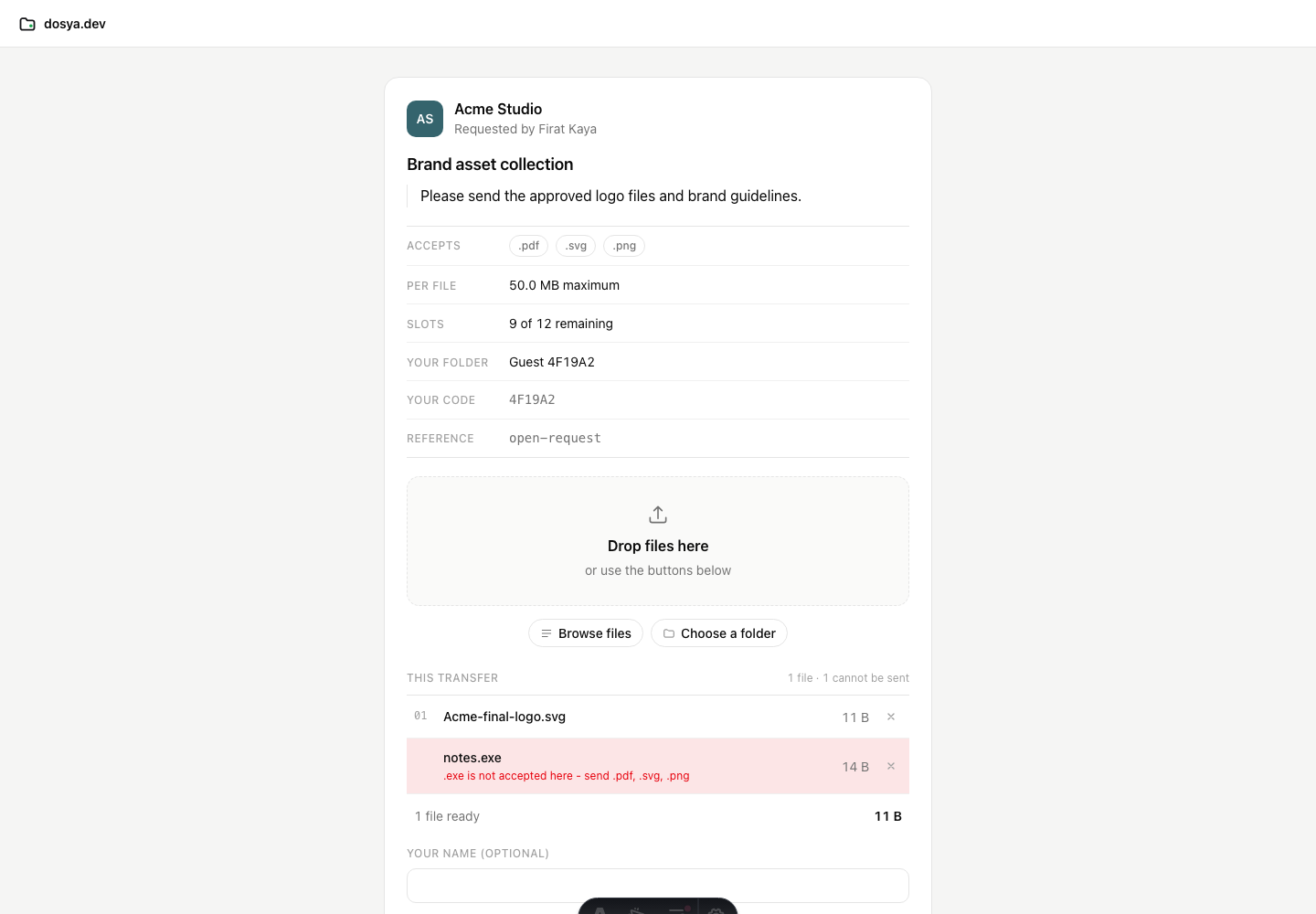
Open the request URL, review who requested the files and the displayed rules, then choose or drop files. Selection only stages them. Select the numbered Upload files action and wait until the page records that the requester has the completed files.
You do not need a Dosya account. The link, any request password and its current expiry determine whether the upload page opens.
Before you start
- Confirm the sender and receiving workspace shown on the page.
- Read the message, accepted extensions, per-file maximum and remaining slots.
- Keep the browser page open until every intended file has a receipt.
- Use the original files. Changing a filename extension does not convert its format.
- Avoid uploading secrets to a link received unexpectedly; confirm the request through another channel.
Steps: stage the files
- Open the complete request URL.
- If the page is locked, enter the separate request password and select Unlock.
- On a desktop, drop files into Drop files here, select Browse files, or select Choose a folder. On supported touch devices, choose Photo library, Take a photo or Browse files.
- Review This transfer before uploading. Accepted files receive a number. A rejected row explains the extension, size, empty-file or slot problem.
- Remove a mistaken row with its X control. Correct the source file or ask the requester to change a rule when the intended file is rejected.
- Optionally enter Your name and, on an ordinary public link, Your email. These labels are not verified identity.
- When uploader folders are enabled, review Your folder and Your code. The destination workspace remains private; you can only see files associated with your recipient token or browser visitor record.
Steps: complete and verify the transfer
- Select Upload 1 file, Upload 2 files or the equivalent count shown by the primary button.
- Watch each line. Active rows display transferred bytes and percentage. You can cancel an active transfer from its row or use Cancel all.
- If a row fails, read its message and select Retry. Large multipart uploads reuse their session so already accepted parts do not need to be sent again.
- If the password grant expires, use Unlock and continue and enter the current request password.
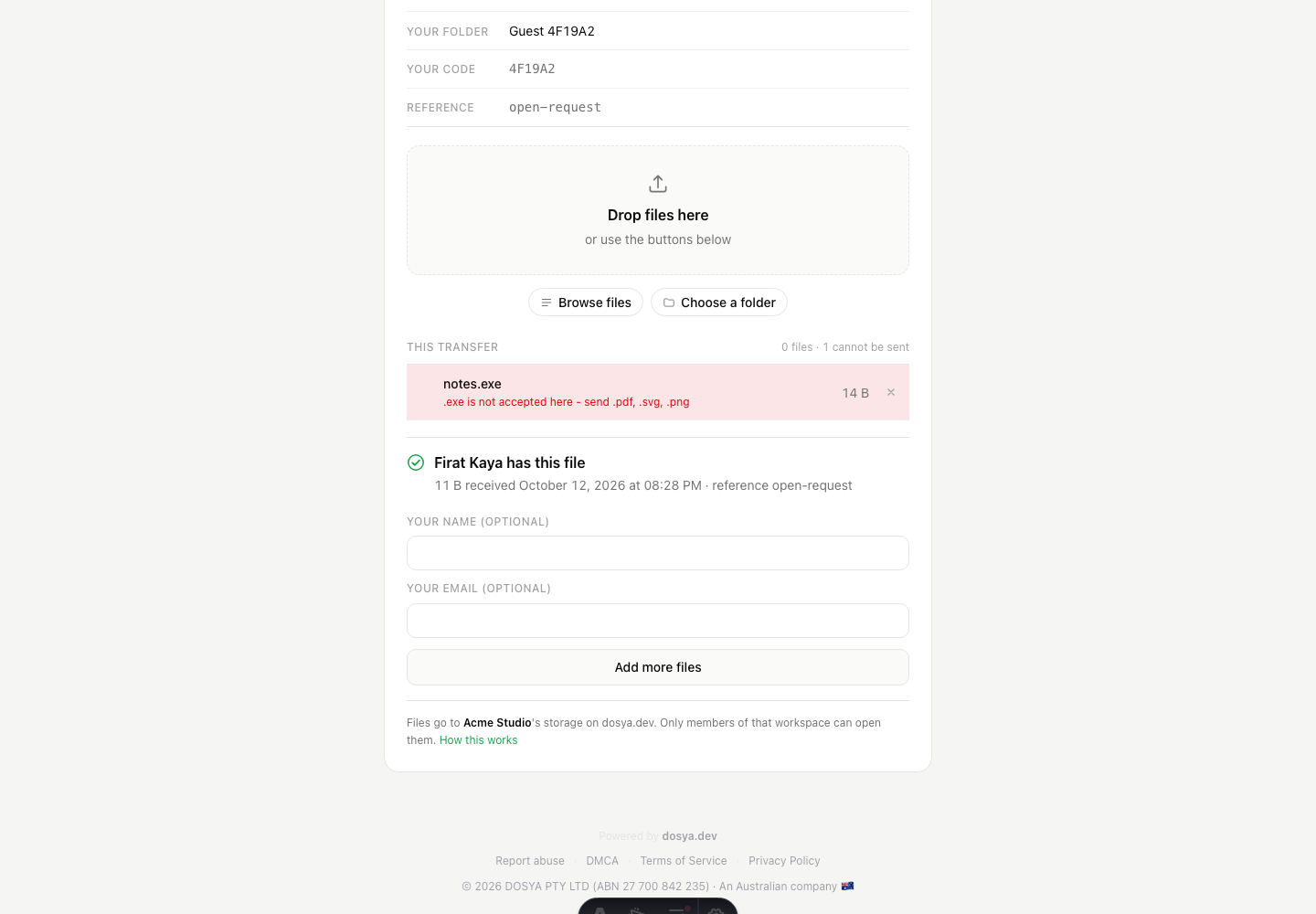
- Wait for the green receipt stating that the requester has the file or files. Record the timestamp and request reference when you need delivery evidence.
- Use Add more files only when more slots remain and another submission is intended.
- Reopen the same URL in the same browser to confirm your earlier received files still appear when needed.
Folder uploads and returning visits
A chosen or dropped folder keeps its relative folder structure beneath the request destination. Paths that try to escape that destination are refused.
For an ordinary public link, Dosya stores a one-way visitor identifier in a browser cookie for 30 days. It lets that browser list and withdraw its own earlier request uploads. An invited URL can also use its recipient token for that purpose. Neither route exposes another uploader’s files.
Clearing cookies, switching browsers or losing the recipient-specific URL can remove that returning view without removing the files already delivered to the workspace.
Expected result
Every completed row is stored in the request’s chosen workspace destination. The owner sees it in the request detail and Files. The public page shows a receipt and never exposes the rest of the workspace.
Limits
- The requester can expire or revoke the request while you are working. A later API step can refuse even when the page opened earlier.
- Workspace storage, folder locks and request limits are rechecked by the server. Browser preflight is an early explanation, not the final authority.
- The optional name and email fields label the submission but do not verify a person. A recipient-token email is stronger attribution to the invitation URL, still not proof of who held it.
- Removing one of your earlier uploads from the public page deletes that received workspace file. Use the control only when you intend to withdraw it.
Troubleshooting
The file is red before upload. Read the row. Choose an accepted extension, stay within the per-file maximum, use a non-empty file or ask for another slot.
The connection dropped. The row says nothing was saved for that failed attempt. Select Retry after the connection stabilizes; multipart files resume from accepted parts when possible.
The request is full. Ask the requester to raise Max files, remove an unwanted submission or create another request.
The receipt appeared, but the owner cannot find the file. Send the request reference, filename, size and receipt time privately. The owner should check the request detail, destination folder and active workspace.
The page is expired or closed. Ask for a fresh request. Files already shown as received remain with the requester.
Frequently asked questions
Does choosing files upload them immediately?
No. They are staged until you select the primary upload button.
Can I upload a folder?
Yes on supported desktop browsers. Dosya preserves safe relative folders beneath the request destination.
Can I see another person’s submission?
No. The public page only lists uploads associated with your browser visitor record or recipient token.
Related guides
Was this helpful?
Loading helpfulness results…
Voting saves a necessary ballot cookie for up to 180 days so you can change your answer.
Questions and replies
Ask about the steps in this guide. Questions are reviewed before publication.
Keep account details, credentials and private files out of public questions. Use private support for those.
Loading questions…
Sign in to your Dosya account to ask a question.