Adding a password to a file request
Protect a public upload page with a separate password, test the unlock flow and understand the 30-minute browser grant.
Last reviewed
Enter a password of at least eight characters while creating or editing a file request. Uploaders must unlock the public page before they can read its message and rules, stage files or view their earlier submissions from that request.
Use a request password that is different from your Dosya account password. Send it through a separate trusted channel when the link itself travels by email or chat.
Before you start
- Decide who should receive both the link and password.
- Prepare a private browser window for testing. Your owner session does not represent the uploader experience.
- Keep the request’s expiry and recipient settings in mind. Password protection does not replace those controls.
- If immediate shutdown may be required, know where the request’s Revoke action is located.
Steps: protect a new request
- Open File requests and select New request.
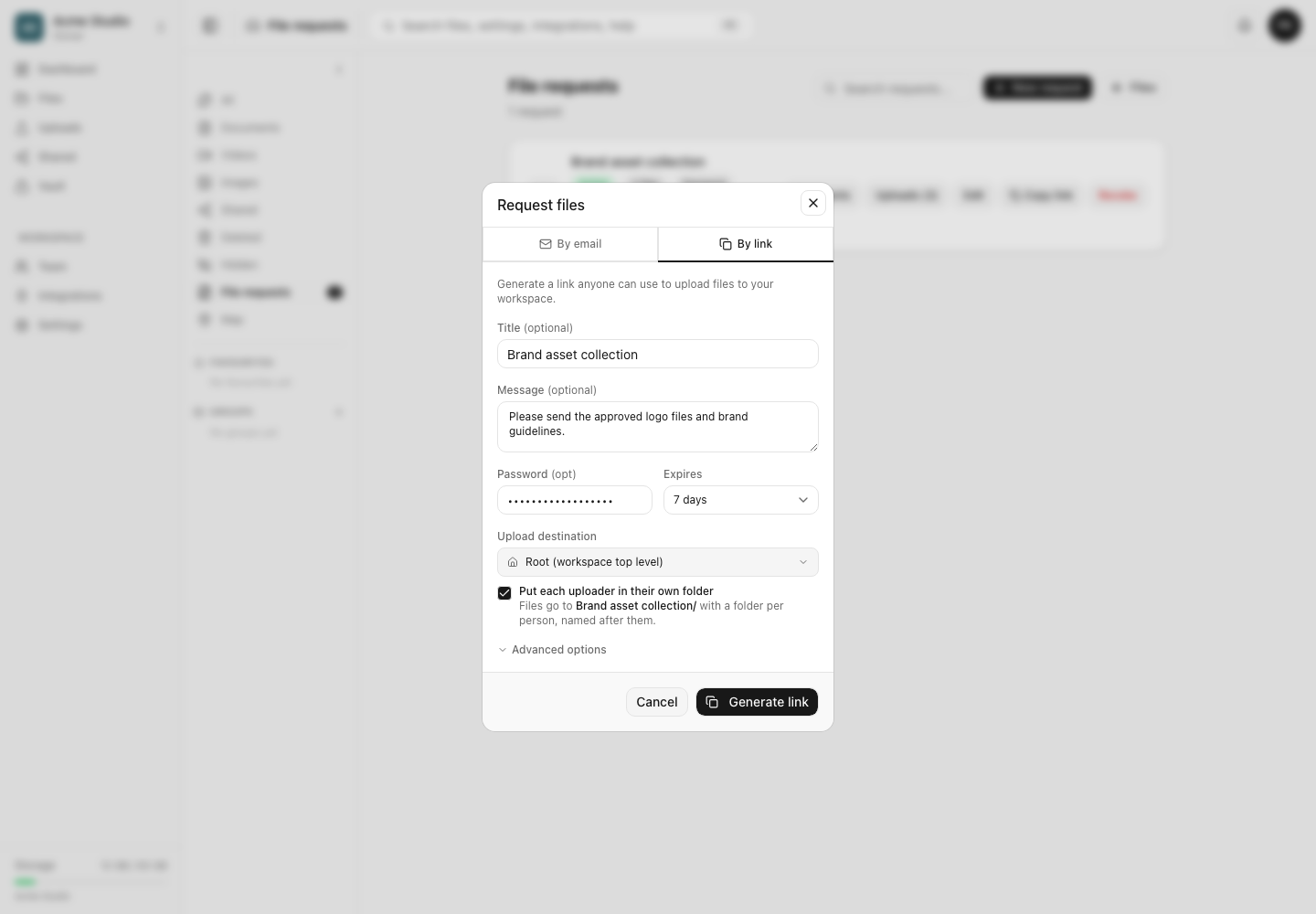
- Choose By link or By email and complete the title, message and destination.
- Enter the request password under Password (opt). Surrounding spaces are removed and the remaining value must contain at least eight characters.
- Review expiry and advanced limits, then generate or send the request.
- Open the resulting URL in a private browser window.
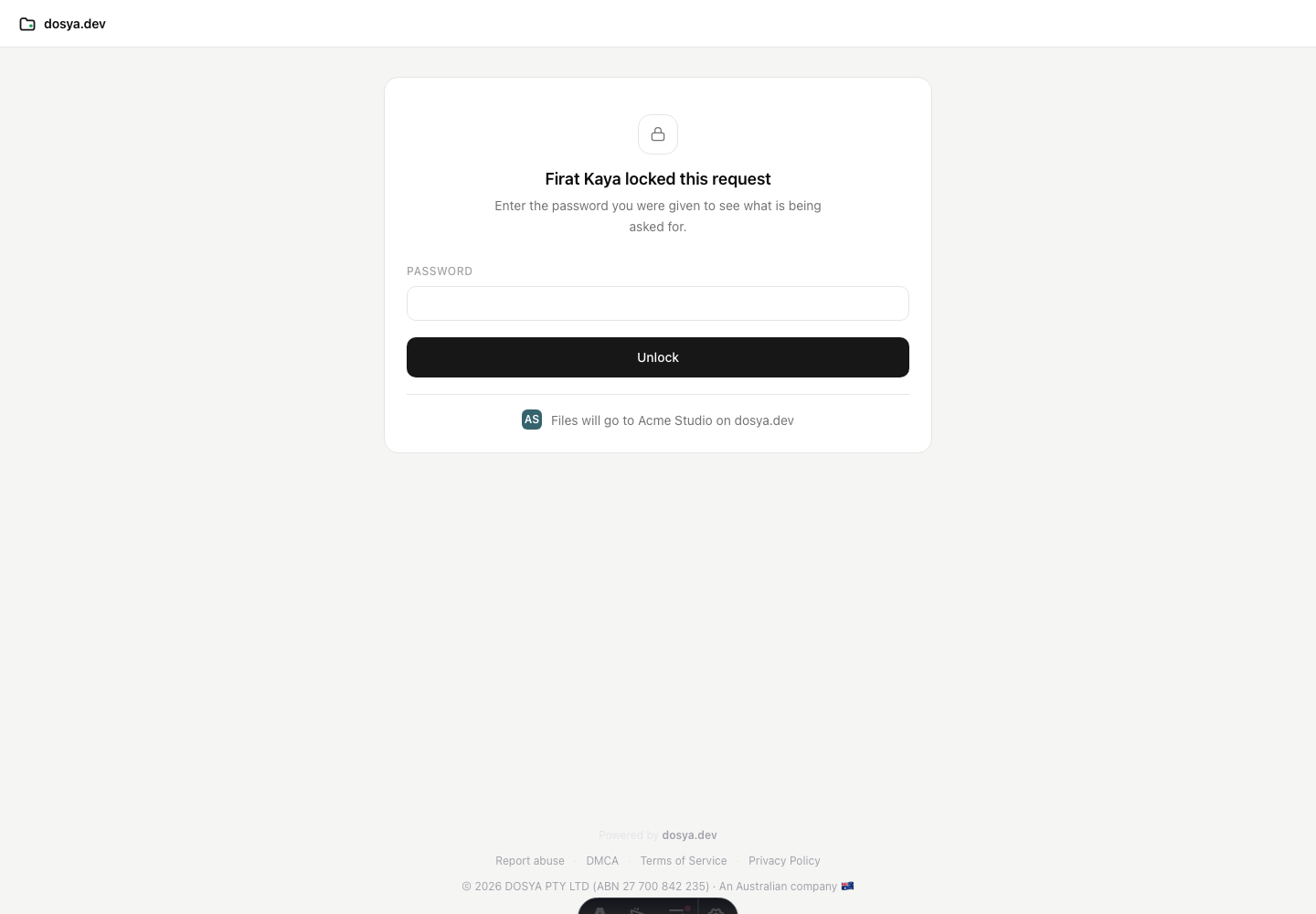
- Confirm the page says that the requester locked the request and identifies the receiving workspace.
- Enter the password and select Unlock. After a correct password, confirm the requested title, message, upload rules and file picker appear.
Steps: change or remove the password
- Open File requests and choose Edit on the request.
- To replace the password, leave Remove password clear and enter a new value of at least eight characters.
- To remove protection, select Remove password. The dialog shows that it will be removed.
- Select Save changes and test the public URL again in a fresh private window.
- Tell intended uploaders when the password changed. Do not place the new password beside the URL in a public message.
Access timing and attempt limits
A correct unlock gives that browser a signed request-access cookie for 30 minutes. When it expires during a transfer, the page can show Your access timed out and Unlock and continue. Re-enter the current password to continue.
Unlock attempts are limited to five per 15 minutes for the request token and client IP. After that, the page pauses unlocking for 15 minutes. This is a signal to obtain the password from the sender rather than keep guessing.
Changing the password controls new unlocks. A browser that already unlocked can retain its existing grant until that 30-minute grant expires. Revoke the request when access must stop immediately, then create a new request if collection should resume.
Expected result
A visitor with only the URL sees the locked page. The correct password reveals the request and permits uploads for the browser grant’s lifetime. Incorrect passwords reveal no request message or acceptance rules.
Limits
- A request password is shared knowledge. It does not identify the person who entered it.
- Named-recipient tracking and password protection are independent. An invited recipient may still need the password, and someone with the public URL and password can upload even if they were not invited.
- Password protection does not add storage, bypass file rules or reopen an expired or revoked request.
- Removing the password makes the active URL open to anyone who has it, subject to expiry and upload limits.
Troubleshooting
Password must be at least 8 characters. Count the value after leading and trailing spaces are removed. Use a longer unique phrase.
The correct password is rejected. Confirm you opened the latest request URL and received the latest password. After repeated attempts, wait for the 15-minute pause to end.
The page asks again during upload. The 30-minute browser grant expired. Use Unlock and continue so remaining files can proceed.
I changed the password but an already-open browser still works. Its earlier signed grant can remain valid for the rest of its 30-minute lifetime. Revoke the request for immediate shutdown.
Frequently asked questions
Is this my Dosya login password?
No. It is a separate password for one file request.
Do invited uploaders skip the password?
No. Invitation tracking and password access are separate controls.
Can I recover the current request password?
The interface does not display the stored password. Set a replacement through Edit when it is lost.
Related guides
Was this helpful?
Loading helpfulness results…
Voting saves a necessary ballot cookie for up to 180 days so you can change your answer.
Questions and replies
Ask about the steps in this guide. Questions are reviewed before publication.
Keep account details, credentials and private files out of public questions. Use private support for those.
Loading questions…
Sign in to your Dosya account to ask a question.