Use a recipient verification code
Use a private share's six-digit email code, accounting for the email's 10-minute wording and the server's actual 15-minute acceptance window.
Last reviewed
A private Dosya share opens only after the visitor proves control of an address invited to that link. The server keeps the six-digit code usable for 15 minutes and a successful check grants this browser or app access for 30 minutes. A Dosya account is not required.

Before entering a code
This gate appears only for a link created with Only these people can open it. Enter the exact invited address; Dosya compares a normalized lowercase value. The request response always says If that address was invited, a code is on its way. whether the address is listed or not, so it cannot reveal the sender’s recipient list.
Requesting again replaces the earlier outstanding code. Each issued code allows five incorrect guesses. Code requests are limited to five per link and visitor IP in 15 minutes, while verification submissions are limited to ten over the same interval. These endpoint limits are separate from the five wrong-code ceiling.
Steps
- Open the private share URL. On mobile, the screen says This link is for you only.
- Enter the address to which the sender delivered the share and choose Send me a code.
- Find the email with subject Your dosya.dev access code. It names the sender or shared item when that information is available. The message currently says the code expires in 10 minutes, while the server stores and accepts it for 15 minutes.
- Return to the same share page and type the current six-digit value in the code field.
- Select Verify. Dosya refreshes the share after setting the recipient grant for that specific URL.
- If the link also has a password, complete the separate Password required prompt.
- Open or download the file as allowed. View-only shares omit downloads even after successful identity verification.
Fix verification problems
- That code is not correct spends one of the five attempts. Confirm the latest message and retype all six digits.
- That code has expired. Request a new one. means more than 15 minutes passed; return to the address step and send a fresh value.
- Too many incorrect codes. Request a new one. appears after the fifth wrong guess and requires reissuing the code.
- Request a new code to continue means no active code is stored for that recipient.
- Could not send the code. Try again shortly. indicates email delivery failed; wait before another request.
- A throttling response requires the stated retry period. Repeated clicks do not extend the old code.
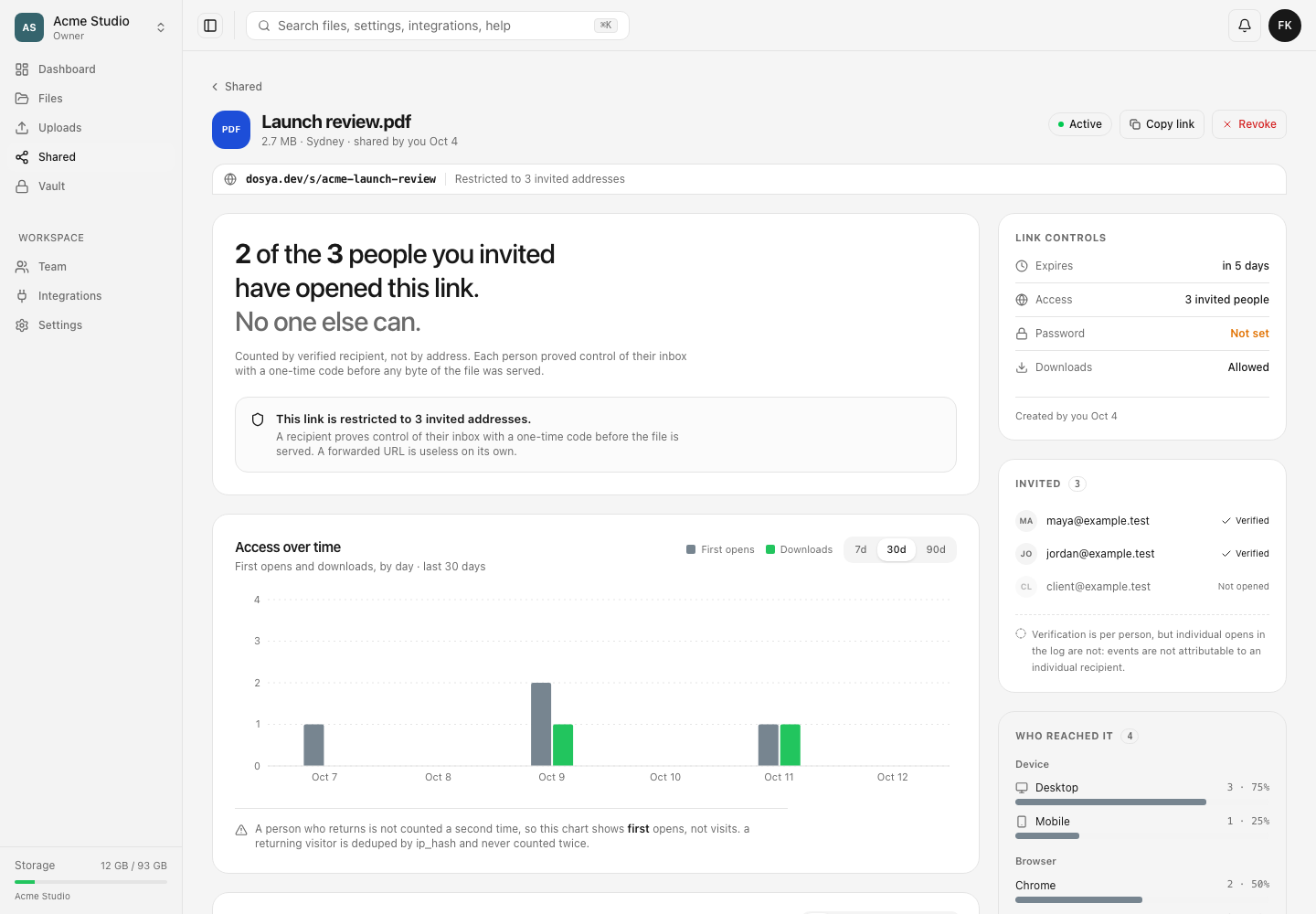
Successful verification records the address as verified and sends the share creator an in-app event identifying which invited email passed. The access grant expires after 30 minutes, so a later visit can require another code even though the owner’s invited list still shows Verified.
The 10-minute email wording and 15-minute server lifetime do not currently match. During minutes 11–15, the newest code can still succeed when attempts remain and the link itself is available. Requesting another code replaces it immediately, and after the server’s 15-minute lifetime the expired-code error applies.
Expected result
The shared item loads only after the current code for an invited inbox succeeds. Uninvited addresses receive no access, exhausted or expired codes fail, and a forwarded URL alone remains insufficient.
Related guides
Was this helpful?
Loading helpfulness results…
Voting saves a necessary ballot cookie for up to 180 days so you can change your answer.
Questions and replies
Ask about the steps in this guide. Questions are reviewed before publication.
Keep account details, credentials and private files out of public questions. Use private support for those.
Loading questions…
Sign in to your Dosya account to ask a question.