Clear stale WebDAV credentials
Remove a stale Dosya WebDAV login from the client or operating-system credential store, then reconnect with the correct email and API key safely.
Last reviewed
A WebDAV client can keep submitting an old password after you update the visible mount. Dosya uses HTTP Basic authentication: the username must match the API-key owner’s email without regard to case, and the password must be a valid full dos_… key. An account password, masked key prefix, revoked key, or key owned by another email receives 401 Unauthorized.

Before deleting credentials, copy the current endpoint from Integrations → WebDAV and record the intended workspace ID. Clearing a host-wide credential can affect other mounts that deliberately use the same api.dosya.dev login, so remove the narrowest matching entry and be ready to reconnect those mounts.
Steps
- Finish active transfers, close files opened from the mount, and disconnect or unmount the affected Dosya volume. A client may keep an authenticated connection alive until the mount closes.
- Open the credential store used by that client. On macOS this may be Keychain Access; on Windows it may be Credential Manager; some WebDAV apps keep passwords in their own connection profile.
- Search for
api.dosya.dev, the WebDAV endpoint, or the saved account email. Delete only the stale Internet/network credential or clear the password in the specific client profile; do not remove unrelated browser or system sign-ins. - In Dosya Profile → API keys, confirm the replacement key is active, includes WebDAV, reaches the endpoint’s workspace, and is owned by the email you will enter. Generate a new dedicated key if the full old secret is no longer available.
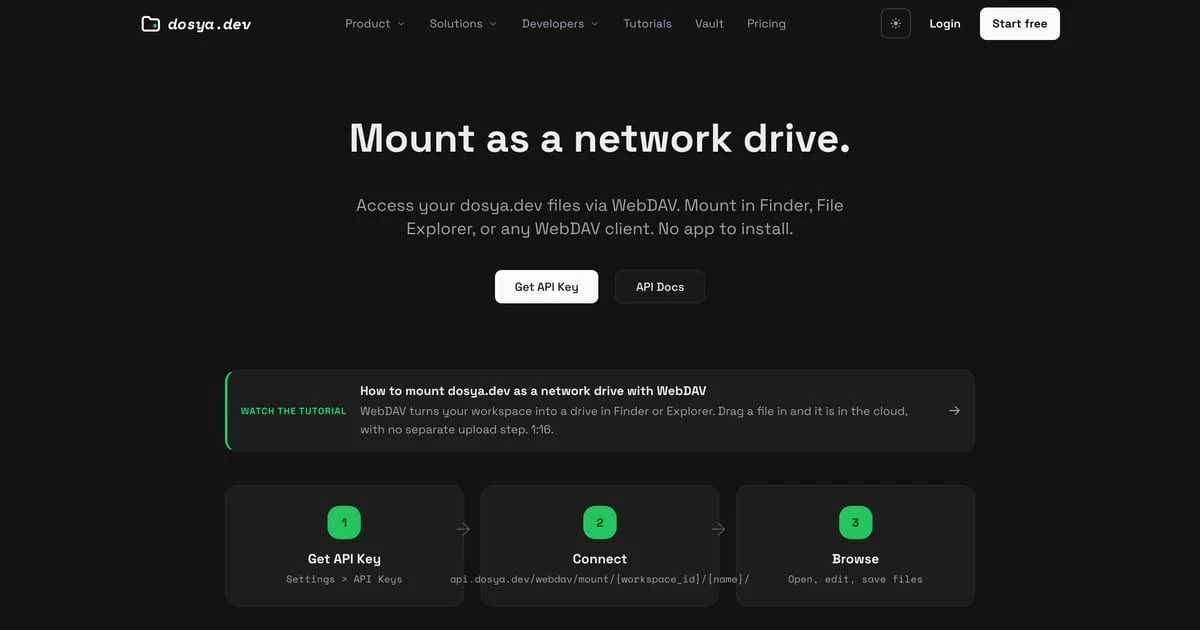
- Reconnect with the labelled URL copied from the integration page, enter the key-owner email as username, and enter the full API key as password. Refuse any prompt that asks for your normal Dosya account password.
- For an unanchored mount, open All; for a folder-anchored mount, use the permitted folder that opens as the root. List a known folder inside that available tree. Download a harmless file, then perform a disposable write only when the key scope and role allow it; this distinguishes successful authentication from a later permission refusal.
A 401 after clearing the store still points to Basic-auth input: malformed header, missing dos_ password, invalid or revoked key, wrong owner email, or a WordPress site key. A 403 means authentication succeeded but a protocol, active-hours/IP condition, workspace pin, membership, or role gate refused the request. Server-side authentication lookup failure returns 500 rather than another password prompt.
Revoking the stale API key in Dosya stops later use but does not remove copies saved on devices, and deleting a local credential does not revoke the key elsewhere. Use both actions when access must end completely.
Expected result
The client prompts for and saves the intended email/API-key pair, the correct workspace mount opens, and a known read succeeds. Any remaining refusal now identifies a WebDAV scope, workspace, role, condition, or content rule rather than a hidden stale password.
Related guides
Was this helpful?
Loading helpfulness results…
Voting saves a necessary ballot cookie for up to 180 days so you can change your answer.
Questions and replies
Ask about the steps in this guide. Questions are reviewed before publication.
Keep account details, credentials and private files out of public questions. Use private support for those.
Loading questions…
Sign in to your Dosya account to ask a question.