Upload a file over SFTP
Upload a file through Dosya SFTP, wait for CLOSE to commit it, verify the remote bytes, and avoid unsupported resume or empty-file behavior.
Last reviewed
SFTP receives write chunks during the transfer but does not start the Dosya cloud upload until the client closes the file handle. The decisive receipt is a successful CLOSE, followed by the expected remote name and size. A progress bar at 100% before that response is not final confirmation.

Use a Full access key for a normal client that must browse and upload. An Upload only key can send bytes but cannot download and often cannot perform the listings a graphical client expects. The workspace role must separately allow SFTP and file uploads.
Steps
- Connect to
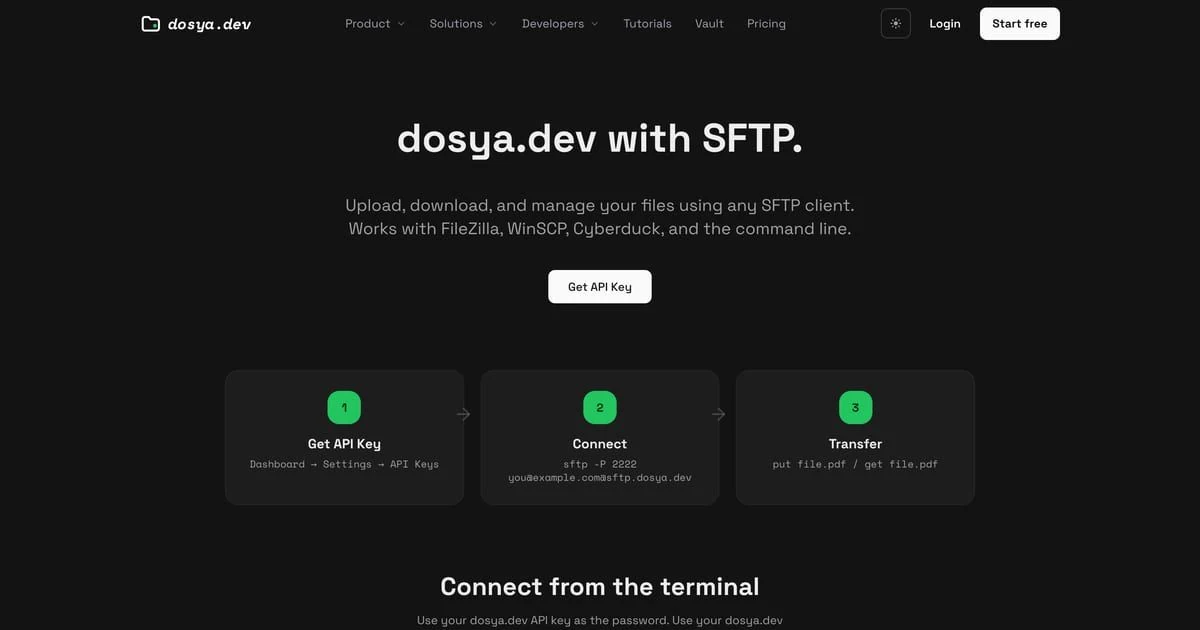
sftp.dosya.dev:2222, open the intended workspace, and enter an existing writable folder. Confirm the destination path before choosing the local file. - Select a non-empty source no larger than the active SFTP per-file ceiling. The deployed service sets 352 MiB; workspace file-size policy, key or role limits, quota, and extension rules can lower the effective limit.
- Upload under a unique name with
putor the client’s Upload action. Do not use append or resume; a write handle begins without the old prefix and unsupported read-write/append modes are refused. - Keep the session open after the byte counter finishes. Wait for the final CLOSE result, which can still report Permission denied,
close failed: API 429, policy/quota detail, or access to this workspace was revoked while the upload was in flight. - Relist the folder and compare the remote size with the local source. Open Dosya Files in the same workspace and verify the same name and location; directory cache is invalidated after a successful commit.
- Download the uploaded object to a different local path and compare SHA-256 when integrity matters. Remove the disposable test only through an approved delete path after that comparison.
Uploading to an existing filename passes its file ID into the versioned upload path, changing the current bytes and adding a version rather than creating an independent copy. Preserve the original or use a new name before replacing it. A zero-byte CLOSE currently creates no file.
The gateway retries safe rate-limit responses and selected multipart parts, but it cannot provide durable upload resume across a disconnected session. If a close result is ambiguous, inspect the destination and version state before repeating the write.
Expected result
The final CLOSE succeeds, the remote listing and Dosya Files show the intended name, folder, and byte size, and a downloaded verification copy matches the local source. Any overwrite is recognized as a new current version.
Related guides
Was this helpful?
Loading helpfulness results…
Voting saves a necessary ballot cookie for up to 180 days so you can change your answer.
Questions and replies
Ask about the steps in this guide. Questions are reviewed before publication.
Keep account details, credentials and private files out of public questions. Use private support for those.
Loading questions…
Sign in to your Dosya account to ask a question.