Download a file over SFTP
Download a Dosya file over SFTP, verify the local byte count or checksum, and understand offset reads, permissions, and stale-path failures.
Last reviewed
Dosya SFTP supports ordinary and offset reads. Files smaller than 64 MiB use an in-memory read path; files at or above 64 MiB use bounded range requests, so a large download can take longer to start or run at a different speed. There is no SFTP download-size ceiling, although role, key, egress, and concurrency limits can still refuse the request.

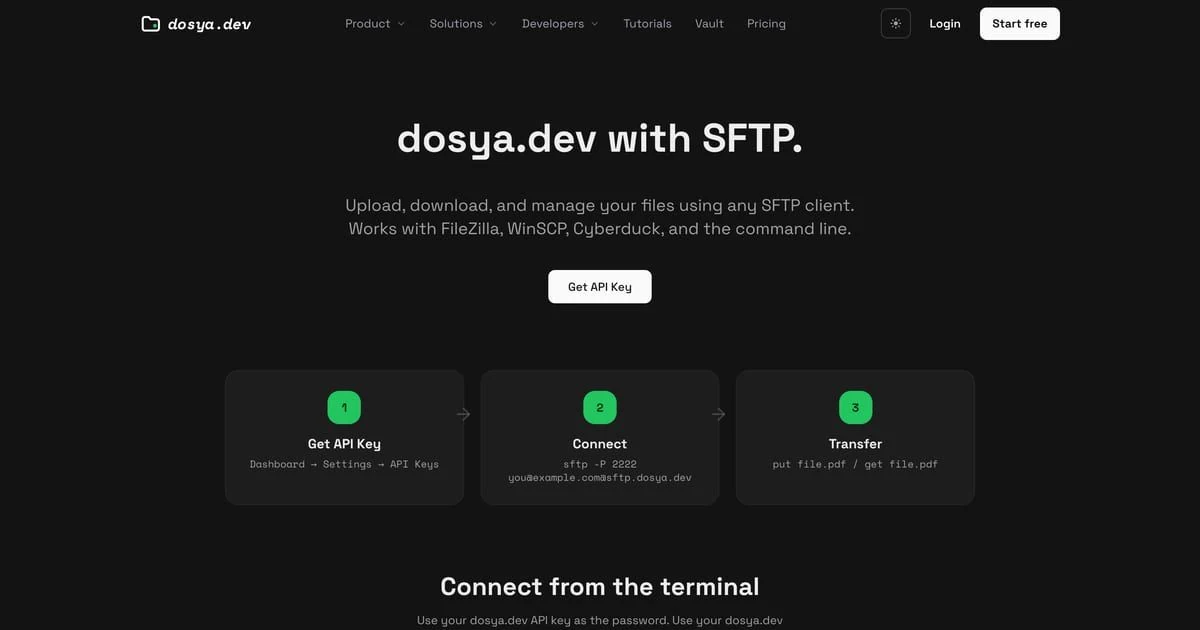
Use a Read only or Full access API key that includes the SFTP protocol and the intended workspace. The login username must exactly match the key owner’s email, including letter case. At /, choose a listed workspace name or slug before addressing its folders.
Steps
- Connect to
sftp.dosya.devon port2222, runls, and enter the workspace that owns the file. Record the remote pathname and the size reported bystator the client listing. - Choose a new local destination so an older partial copy cannot be mistaken for this run. In OpenSSH, use
get "remote-name.ext" "./remote-name.ext"; a GUI client can use Download. - Wait for the transfer to finish without a
read failed, Permission denied, or No such file response. A missing path is rechecked once when the directory cache had reported a miss. - Compare the local byte count with the remote listing. For an integrity check, calculate SHA-256 on the downloaded file and compare it with a trusted checksum or with a separately verified source copy.
- If the transfer stopped but the remote file has not changed, resume through a client that performs offset reads. Restart from zero whenever the remote name, size, or current version changed during the interruption.
- Open the completed local file, then relist the remote directory. Keep the client log and exact operation if a second download returns different bytes; SFTP has no shell or server-side hash command.
Permission denied can mean the workspace role lacks SFTP or download access. No such file covers an absent or hidden path, and a replaced file may make one cached identifier stale; the gateway refreshes the path once when the old object returns 404. Rate-limited reads honor Retry-After for up to three retries, while transient GET network or 500/502/504 failures receive at most two retries.
A successful download creates only a local copy. It does not remove, share, or change the remote Dosya file, and local deletion cannot affect cloud storage unless the client sends a separate remote delete.
Expected result
One complete local file exists at the chosen destination, its size matches the current remote listing, and any checksum comparison uses the bytes actually downloaded. The original remains in the same Dosya workspace and folder.
Related guides
Was this helpful?
Loading helpfulness results…
Voting saves a necessary ballot cookie for up to 180 days so you can change your answer.
Questions and replies
Ask about the steps in this guide. Questions are reviewed before publication.
Keep account details, credentials and private files out of public questions. Use private support for those.
Loading questions…
Sign in to your Dosya account to ask a question.