Verify video duration and file details
Verify video duration after the mobile player loads, compare it with the timeline, and distinguish decoder metadata from stored file details.
Last reviewed
Video duration in the Dosya mobile viewer comes from the active player after media status loads. It is not a duration field stored in the general file record.

Before comparing values
Confirm the exact filename, size, and current version. Created or modified timestamps are dates, not playback lengths. The mobile viewer obtains a signed media URL and lets the native player, or its VLC fallback, report duration when the selected platform can decode the content.
Steps
- Open the video from Files in the Dosya mobile app. Wait for the first frame and playback controls rather than reading the initial loading state.
- Read the duration added to the viewer metadata line when it becomes a positive value. Compare it with the end of the seek timeline.
- Seek to a point near the end and play a short segment. This confirms that the reported duration and the playable timeline describe the same current version.
- Return to file details and compare filename, stored byte size, type, and version. Do not expect the general details surface to reproduce a decoder-derived duration.
- If the platform cannot decode the file, use the permitted save action and inspect the local copy with a compatible player. Saving creates a separate device copy and leaves the cloud file unchanged.
If duration never appears
A slow connection, expired media grant, unsupported codec, or decoder failure can prevent loaded status. The mobile viewer waits 15 seconds for a first frame before showing Still loading. Retry on a stable connection and verify access to the unlocked current version.
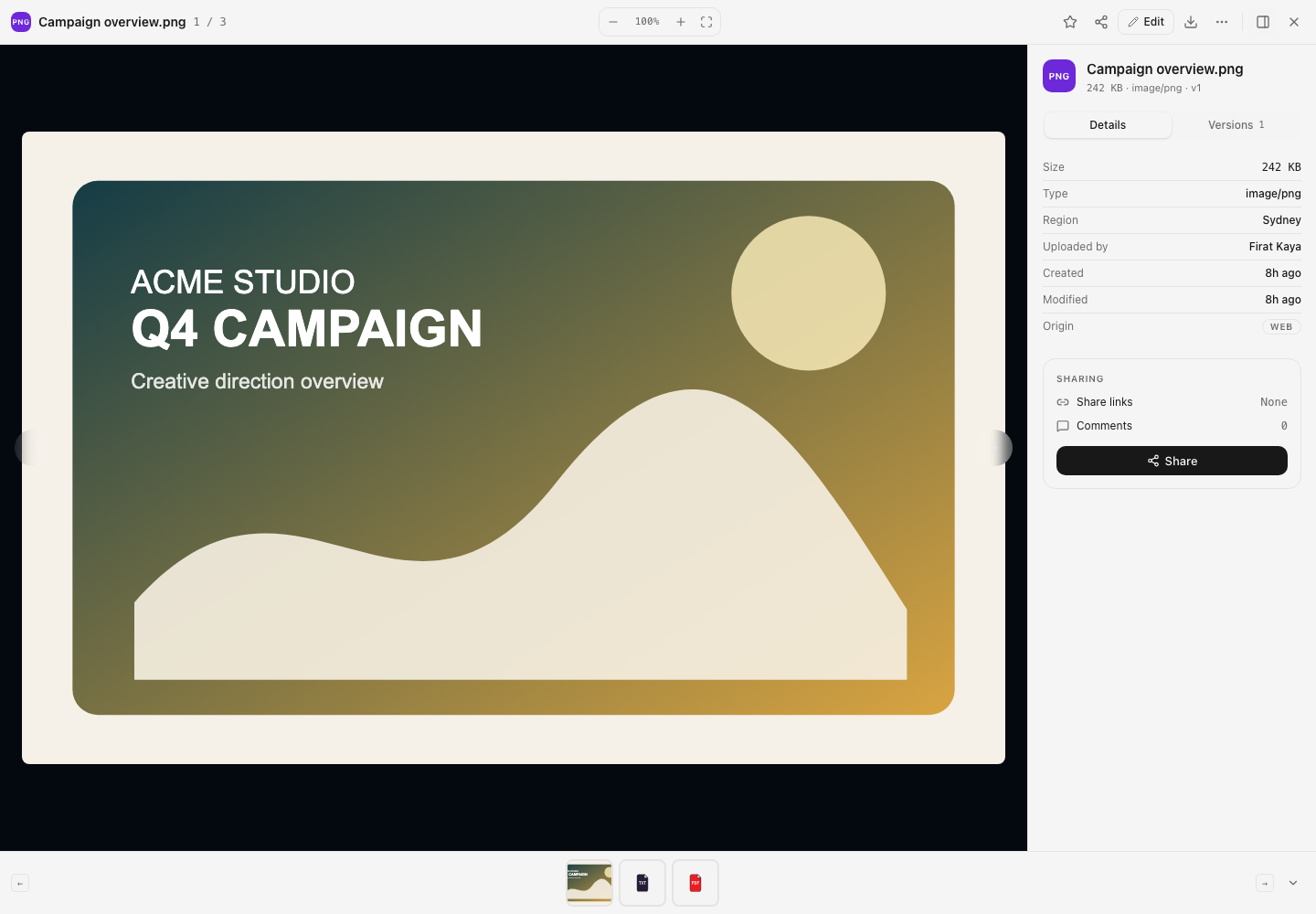
A recognized filename extension does not guarantee that the device supports its codec. The browser preview shown here exposes common file metadata, while duration for this task must come from the mobile playback stage.
Expected result
The player reports a finite duration that agrees with its seek timeline for the current video, and the verification does not alter the cloud file or create a version.
Related guides
Was this helpful?
Loading helpfulness results…
Voting saves a necessary ballot cookie for up to 180 days so you can change your answer.
Questions and replies
Ask about the steps in this guide. Questions are reviewed before publication.
Keep account details, credentials and private files out of public questions. Use private support for those.
Loading questions…
Sign in to your Dosya account to ask a question.