Pausing, resuming or stopping desktop sync
Pause one folder or all transfers, resume or run a fresh cycle, and remove a pairing without deleting its existing local or cloud files.
Last reviewed
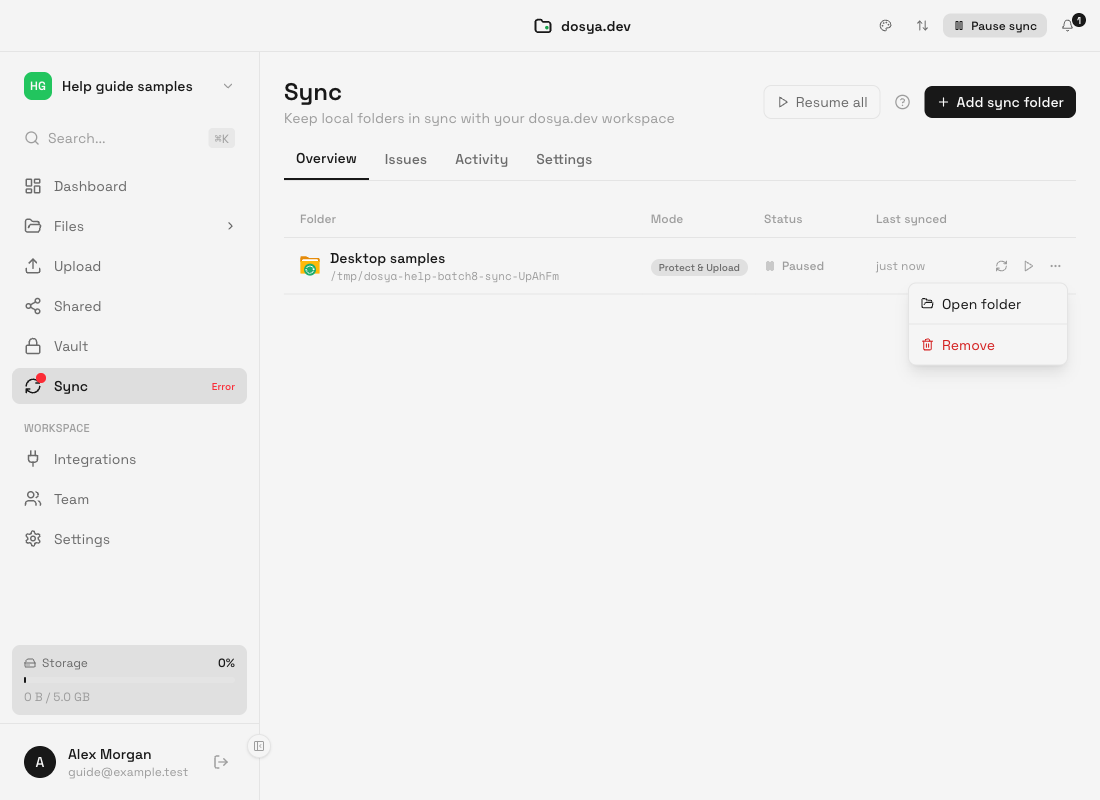
Use the controls in Sync → Overview to pause one pair, pause the workspace’s pairs, resume them or request Sync now. To stop managing a folder as a pair, open its three-dot menu and choose Remove. Removing the pair leaves existing local and cloud files in place.
Before you start
- Identify the pair by its cloud folder, local path and mode.
- Check Activity for work already in progress and allow important transfers to finish when possible.
- Preserve separate copies of important files before allowing the two sides to diverge during a pause.
- Record the mode and exclusion list before removing a pair because a recreated pair performs a fresh comparison.
Choose the action you need
| Goal | Action |
|---|---|
| Temporarily stop one folder | Select its Pause control |
| Temporarily stop every pair shown for the workspace | Select Pause all at the top of Sync |
| Stop every pair across the app for a while | Use the tray or app menu Pause Sync, or the timed pause in the app’s Sync settings/menu where offered |
| Restart a paused pair | Select Resume on its row |
| Ask for a fresh comparison | Select Sync now after fixing any cause |
| End the relationship between two folders | Open the row menu and select Remove |
Steps: pause and resume one folder
- Open Sync and stay on Overview.
- Match the pair by its cloud folder, local path and mode.
- Select the pause icon in that row. Wait for Status to show Paused.
- Make any safe local or cloud changes only when you understand what the selected mode will do after resuming.
- Select the row’s Resume control. Check Activity, then verify the intended destination when the cycle settles.
Pause or resume several folders
The top Pause all or Resume all control applies to the pairs shown for the active workspace. The tray and application Sync menu also offer a global pause and resume across the app. A timed Pause for 1 Hour or duration control resumes automatically.
Check the banner and each row after using a broad control. A folder can also need permission, be offline or have its own error; global resume does not repair those conditions.
Use Sync now
Sync now requests a fresh cycle for one row. Use it after restoring a drive, connection or permission, or when you want the app to compare changes without waiting for the normal poll. It does not override a pause, exclusion, conflict decision, workspace permission or storage limit.
Avoid pressing Sync now repeatedly during an active cycle. Follow progress in Activity and check Issues or the failed-file badge if completion is not clean.
Remove a pairing
- Wait for active transfers to finish, or pause the pair and inspect Activity.
- Record the cloud folder, local path, mode and exclusions in case you need to recreate it.
- Keep a separate copy of important work and check both sides.
- Open the row’s three-dot menu and select Remove.
- Confirm that the row disappears, then check that the existing local folder and cloud files remain.
Remove clears the saved sync relationship and its local sync state. It does not send a delete operation for all files on either side. Adding the folders again later creates a fresh pair and a fresh comparison, so review the mode before doing that.
Closing the window and quitting
Closing the main window is not the same as pausing sync. The desktop app can continue running from the menu bar or system tray. Use Quit when you intend to stop the application process. After reopening, inspect Sync rather than assuming a prior temporary state.
Computer sleep, shutdown and a quit app cannot perform transfers. Resume with the app open, the local path available and the network connected.
Expected result
A paused pair shows Paused and stops starting new sync work until resumed. A resumed pair returns to its normal cycle. A removed pair disappears from Overview while the existing local and cloud files remain available in their respective locations.
Limits and important boundaries
- Pausing does not roll back a transfer that already completed.
- Files changed while paused are compared when the pair resumes, according to its mode and conflict strategy.
- Removing a pair is different from deleting files. Deleting through Files or the operating system can propagate in modes that carry deletions.
- A global resume does not grant a missing macOS folder permission or reconnect an unavailable drive.
- Sync now is a request to run; it is not proof that every file synced. Check Issues and the destination.
Troubleshooting
The row still says Paused after Resume. Check for a global pause banner, then use the global Resume all. If it remains paused, restart the app and inspect Issues.
Closing the window did not stop transfers. The app is designed to continue from the tray or menu bar. Pause sync or quit the app explicitly.
A removed pair returned. Confirm the removal completed and that another device or separate pair is not targeting the same cloud folder. Restart the app and inspect Overview.
Changes made while paused produced a conflict. Preserve both versions and follow the conflict guide. The pause allowed the two sides to diverge; resuming did not choose which edit to discard.
Resume starts but a file remains missing. Check the mode, exclusions, Issues, failed-file list and available storage. Resume only releases the paused state.
Frequently asked questions
Does Remove delete my files?
No. It removes the pair and its saved sync state. Existing local and cloud files remain.
Is closing the desktop window enough to pause sync?
No. The app can keep running in the tray or menu bar. Use a pause control or Quit.
Can I pause only one workspace?
Use Pause all in the active workspace’s Sync view for the pairs shown there. Use the row control for the narrowest pause.
Related guides
Was this helpful?
Loading helpfulness results…
Voting saves a necessary ballot cookie for up to 180 days so you can change your answer.
Questions and replies
Ask about the steps in this guide. Questions are reviewed before publication.
Keep account details, credentials and private files out of public questions. Use private support for those.
Loading questions…
Sign in to your Dosya account to ask a question.