Uploading from desktop without creating a sync pair
Choose a workspace folder on the desktop Upload page, drop or browse for files, and verify completion without creating an ongoing local-folder relationship.
Last reviewed
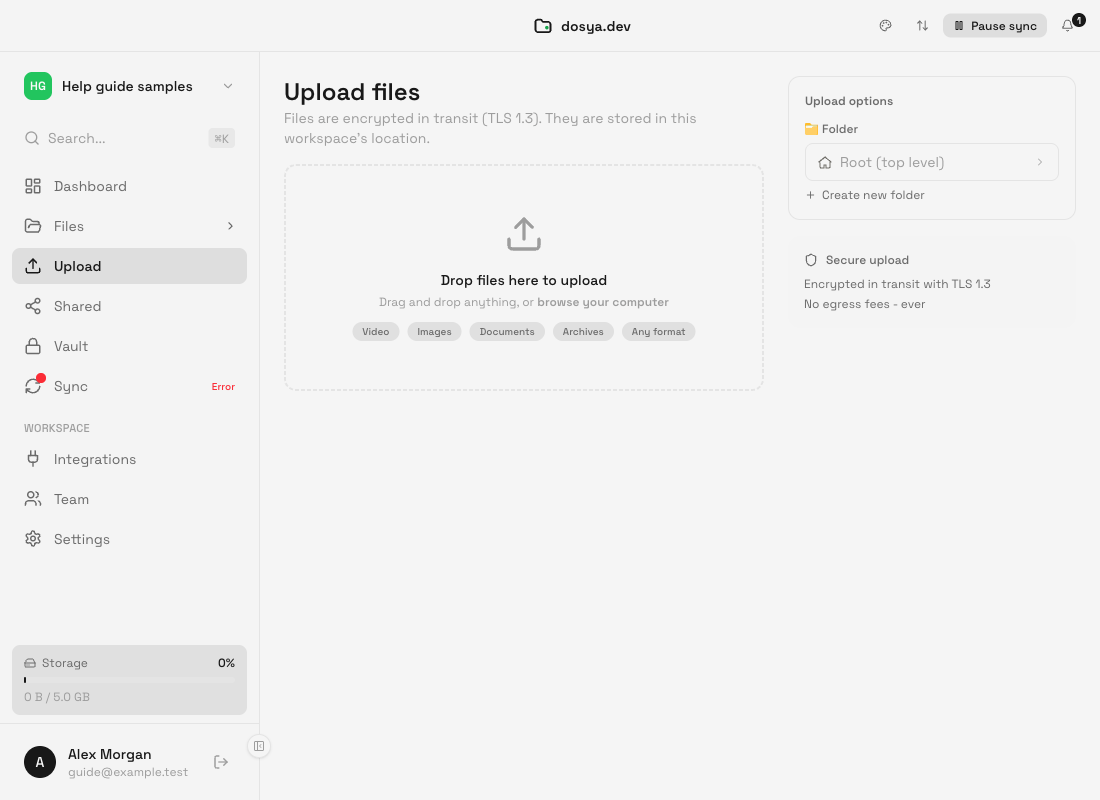
Open Upload in the desktop sidebar when you want to send selected files once without pairing a local folder. Choose the destination before adding files, then wait for every queue row to reach Complete and verify the cloud copy in Files.
One-off upload compared with sync
A one-off upload sends the selected file to the chosen workspace folder. Later edits to the local original are not watched or uploaded automatically.
A sync pair creates an ongoing relationship between a local folder and a cloud folder. Its mode can carry later edits and, in some modes, deletions. Use one-off upload for an occasional handoff; use Sync when you deliberately want continuing behavior.
Before you start
- Select the correct workspace in the sidebar.
- Decide which cloud folder should receive the file. The default is Root (top level).
- Keep the app open and the computer awake for the transfer.
- Check workspace storage and your upload permission.
- Use a harmless small sample first if the destination or account is new.
Steps: choose the destination
- Select Upload in the sidebar, or use Upload files from Dashboard.
- In Upload options, select Folder.
- Choose Root (top level) or a listed folder, then select Select folder. You can also create a folder from the Upload page.
- Check the destination name shown near the Upload heading before adding files.
Upload the files
- Drag files from your file manager onto Drop files here to upload, or select the drop zone and browse your computer.
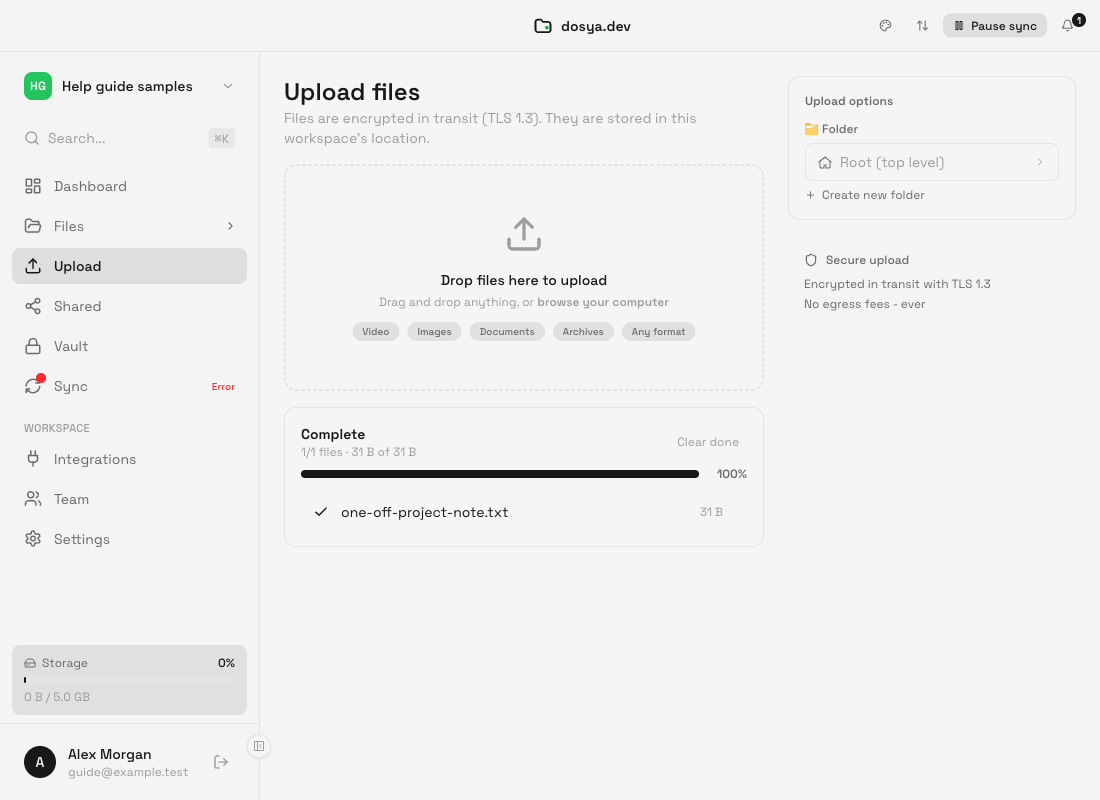
- Watch each item in the queue. Up to three items can transfer concurrently.
- Use the queue’s pause control to stop starting pending work temporarily. Cancel returns active items to the pending state and pauses the queue.
- If an item shows an error, correct the cause and use its Retry control or Retry all failed.
- Wait until the header says Complete and each intended row has a check mark.
- Open Files, browse to the chosen destination and open or download your sample to verify it.
What happens during transfer
Files larger than 50 MB use the desktop app’s resumable multipart path; smaller files use a single upload request. The service still enforces its current upload and workspace limits.
The destination is captured when a file enters the queue. Changing the folder selector afterward does not retarget items already queued. Choose the new destination before adding the next files.
Switching to another workspace while a queue contains items cancels the queue rather than silently sending them to the old workspace. Select the new workspace and add the files again after checking its destination.
Expected result
Every intended row reaches Complete, and the file appears in the chosen workspace folder. No sync pair is created, and later changes to the local original do not update the uploaded cloud copy automatically.
Limits and safety notes
- The page uploads files, rather than creating an ongoing relationship or mirroring a folder tree.
- Leaving the page aborts active requests. Wait for completion before navigating away.
- Pause affects this upload queue. It is separate from the desktop Sync pause controls.
- Removing a pending or failed row removes it from the current queue; it does not delete a cloud file that already completed.
- Clear done only clears completed rows from the screen.
- Uploads use the workspace’s configured storage location; the Upload page chooses the folder, not a region.
Troubleshooting
The file went to the wrong folder. Check the destination that was selected when the file entered the queue. Move the completed cloud file in Files, then choose the intended destination before adding another file.
The queue paused. Select Resume on the queue. If the app or computer was offline, reconnect first.
An item failed. Read its error, check the connection, storage and permission, then use Retry. For repeated failure, test a small harmless file in the workspace root.
The queue cleared after switching workspace. This is deliberate. It prevents pending files from uploading to a workspace that is no longer active. Add them again in the new workspace.
Complete is shown but I cannot find the file. Recheck the workspace and folder selected at enqueue time, refresh Files and search for the exact filename. Do not create a sync pair to compensate for an unknown destination.
Frequently asked questions
Does a one-off upload sync later edits?
No. Upload the changed file again to create a new cloud version or use a deliberately configured sync pair.
Can I upload without opening the Sync page?
Yes. Use Upload in the sidebar or Upload files from Dashboard.
Can I change the destination after files are queued?
The new selection applies to files added afterward. Each queued item keeps the workspace and folder captured when it was added.
Related guides
Was this helpful?
Loading helpfulness results…
Voting saves a necessary ballot cookie for up to 180 days so you can change your answer.
Questions and replies
Ask about the steps in this guide. Questions are reviewed before publication.
Keep account details, credentials and private files out of public questions. Use private support for those.
Loading questions…
Sign in to your Dosya account to ask a question.