Resolving desktop sync conflicts and keeping both copies
Recognize an automatic conflict copy, use Keep both for an unresolved conflict, and verify both versions before choosing what to retain.
Last reviewed
With Keep both copies, the desktop app normally preserves a conflict automatically and reports it in Sync → Issues. The local version is renamed as a dated conflict copy; the cloud version returns under the original filename on a following cycle. If an unresolved conflict card remains, select Keep both, let sync finish and verify both files before removing either.
Before you start
- Select the workspace and pairing containing the affected file. Check the cloud folder, local path and Mode in Sync → Overview.
- These steps use Full Sync, where changes can travel in both directions. One-way modes have different transfer rules; do not change a pairing’s mode as a first response to a conflict.
- Close the file in applications that might keep saving it while you resolve the conflict. Ask other collaborators to finish their edits before you choose a final version.
- Keep separate copies of important versions before selecting an action that can replace or remove one. If you are unsure which version to keep, retain both.
- Leave the desktop app open, with the relevant drive connected and a working network, so the renamed copy can upload and the original can download.
Why a conflict happens
A conflict can occur when the same file changes on this computer and in the cloud before either side has received the other change. It can also occur when the same path already exists on both sides without a shared sync history.
For a new Full Sync pairing, the wizard defaults to Keep both copies under Conflict resolution. Existing pairings retain their saved rule. Last write wins can choose one update based on modification times; it does not always create a second copy. A later time does not establish which version contains the work you want.
Steps: find an automatically kept conflict copy
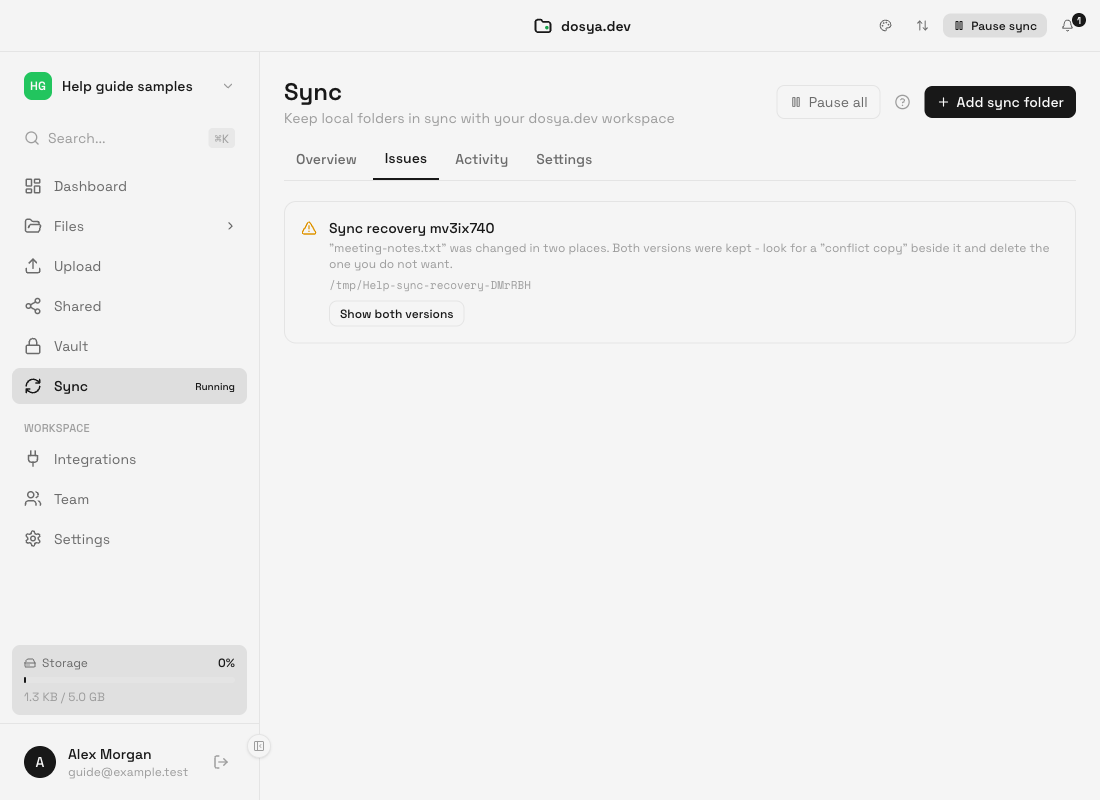
- Open Sync → Issues. Find the notice for the affected folder. A notice that both versions were kept means the app handled the conflict rather than waiting for a manual choice. You may see this notice without a card containing resolution buttons.
- Select Show both versions. This opens the local sync folder. The same folder is available through Overview → the row’s three-dot menu → Open folder. Look beside the original filename for a name containing conflict copy, a date and time, and the device name.
- Allow the following cycle to finish. The local version was renamed, so the original filename may be temporarily absent. In Full Sync, the cloud version is downloaded to that original path on a following cycle. Check Activity or use the row’s Sync now control if a fresh cycle is needed. Check Overview for failed files if either transfer has not completed.
- Verify both versions. Open your own files and confirm which changes each contains. The dated conflict copy represents the local version at the time it was renamed; the original filename receives the cloud version. Confirm both files also appear in the intended cloud folder before you rely on that destination as a copy.
Steps: use Keep both on an unresolved conflict
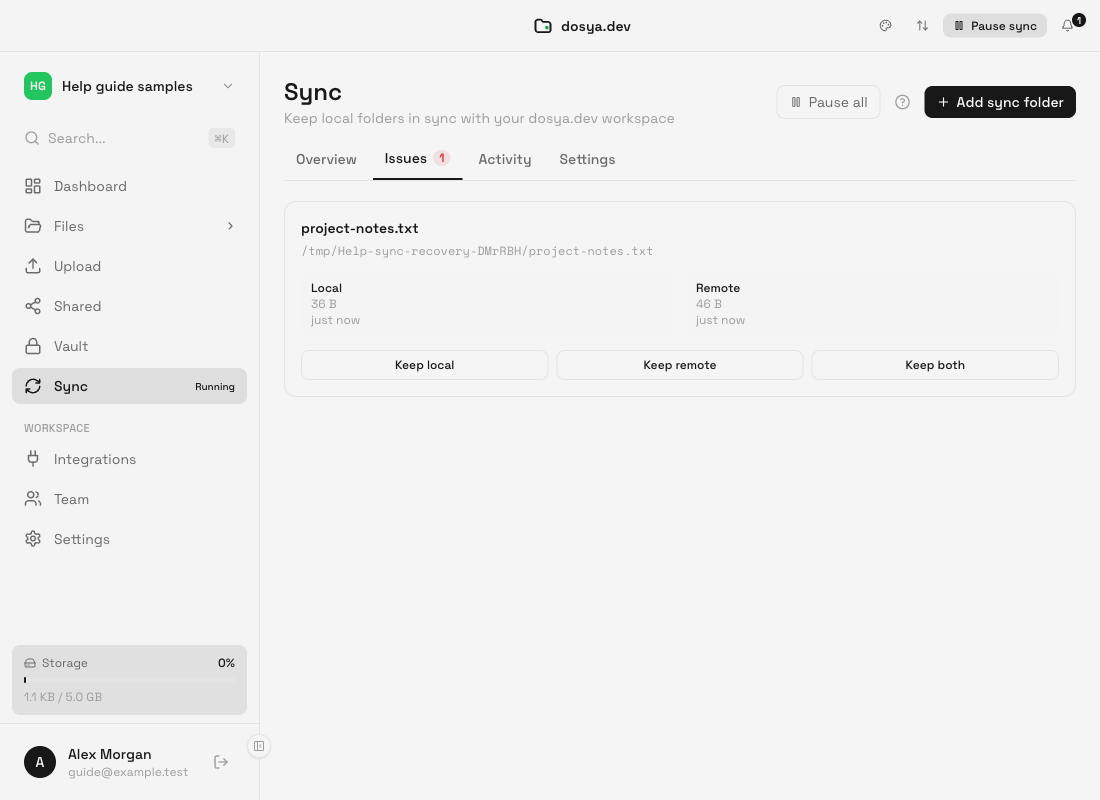
- Find the conflict card in Issues. Match its filename and local path to the affected pairing. The card has Local and Remote details and three buttons: Keep local, Keep remote and Keep both. Local means this computer; Remote means the cloud counterpart.
- Check the local folder is available. Reconnect its drive and resolve any access error. If the automatic copy could not be created, correct that cause before trying again. The sizes and displayed times help identify the versions; they do not prove which version should win.
- Select Keep both. This preserves the local version under a separate conflict-copy filename and uploads that copy. For Full Sync, let a following cycle bring the cloud version back under the original filename. Do not choose Keep local or Keep remote merely to clear the card.
- Confirm the outcome. Return to Overview and Activity, let the transfers finish, then check the local and cloud folders. The conflict card should disappear after successful resolution. Confirm both versions are present and contain the changes you expected. A Conflict resolved toast alone is not sufficient proof.
Expected result
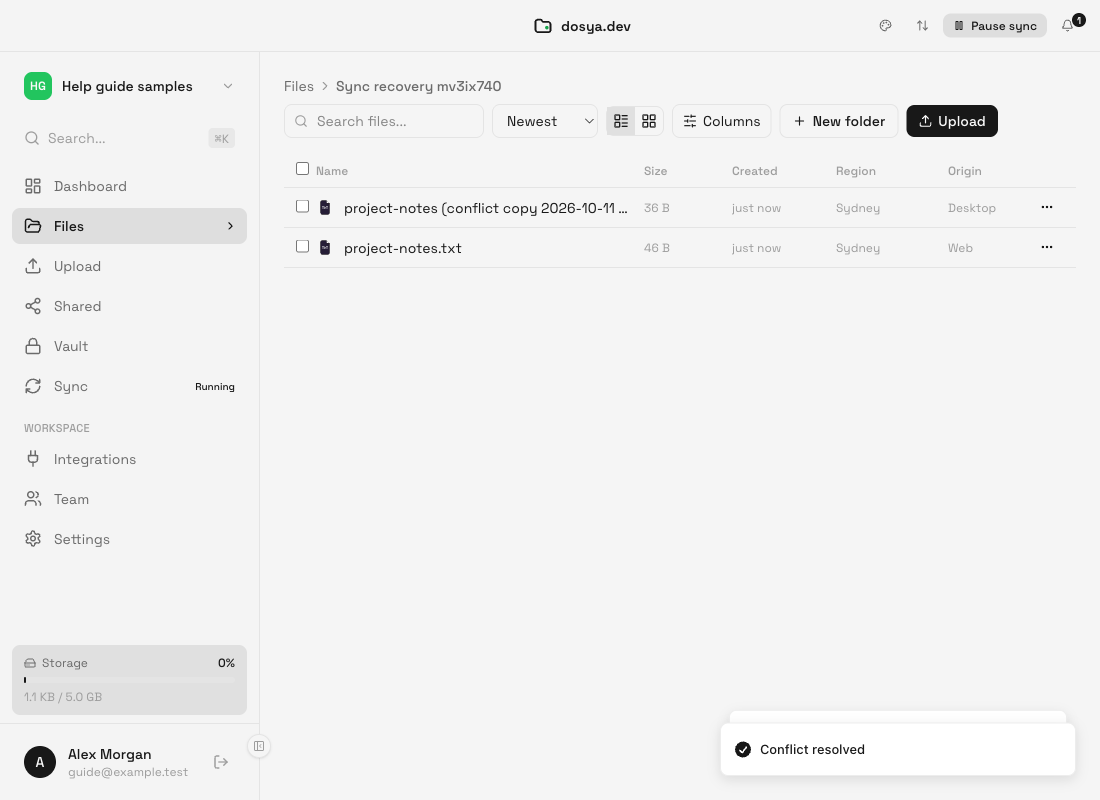
After Full Sync settles, the folder contains the cloud version under its original filename and the local version under a name such as notes (conflict copy 2026-10-11 09-30-00 from My Computer).txt. The actual date, time and device name vary. The filename extension is retained; an additional numbered suffix can distinguish copies created at the same time.
Both versions should be available at the intended destinations, with no unresolved conflict or failed-file entry for their transfers. An informational conflict-copy notice can remain after the conflict card is gone. Open and check your own copies before treating the recovery as complete.
Choose a final version after preserving both
If you want to compare or combine the versions, pause the pairing in Overview while you work on your own copies. Keep a separate backup of both originals, then use the appropriate application to create the version you want. Resume the pairing when you are ready for the resulting changes to transfer and verify the cloud copy again.
Deleting a conflict copy is optional. In Full Sync, deleting a local file can delete its cloud counterpart, and deleting it in the cloud can remove the local counterpart. Keep both until you have verified the final version and no longer need the other copy.
What the other buttons do
Keep local sends the current local version to replace the cloud version. Use it only after confirming that this computer holds the version you want. It does not retain a separate conflict copy automatically.
Keep remote chooses the cloud version. It can remove the tracked local file before downloading the cloud version. The app attempts the operating system’s trash first, but can permanently remove the local file if trash is unavailable. Preserve a separate local copy before selecting it when that version matters.
These choices do not merge edits. If a version was replaced already, check Version history for an available earlier version. Its availability and retention limits apply; do not assume every replaced version is recoverable.
Limitations
Keep both is a preservation step, not a decision about which version is correct. Copies need sufficient cloud storage, local disk space and the relevant permissions to finish transferring. If the copy or upload fails, a conflict can remain or return.
The card’s sizes and relative time labels are identification hints. Times can be affected by clocks, timestamp handling and the last known sync record. Do not use them as the sole reason to discard a version.
The original-name download described here is the Full Sync workflow. Upload-only and download-only modes have different behavior, so do not assume that Keep both turns a one-way pairing into a two-way mirror. This guide covers regular folder sync, not Vault.
Troubleshooting
I see Show both versions but no Keep both button. The default rule can resolve the conflict automatically. Use the notice to open the folder and verify the resulting copies.
The original filename is missing after Keep both. The local version was renamed. Leave the app open for the following Full Sync cycle, check Activity and look for failed files in Overview. Do not delete the renamed copy while waiting.
The conflict returns after a success message. Check the actual files and the failed-file list. If a dated conflict copy already exists, preserve it and check its transfer before choosing Keep both again. A copy can be created before its upload fails, so repeating the choice can affect a different file now at the original path. Restore folder access, connectivity or available storage and use the failed-file recovery controls to finish transferring the preserved copy. If no copy was created and the original local version is still present, retry the unresolved conflict after correcting the cause. Further edits from either side can also produce another conflict.
I cannot find the conflict copy. Open the exact local path shown for the pairing, rather than another folder with the same name. Look for conflict copy in the filename and check the intended cloud folder. Use Issues and Activity to diagnose an incomplete transfer.
I keep getting more conflict copies. Stop editing on both sides at once while you resolve the versions. Coordinate with collaborators, pause the pairing while combining your own copies, and resume when the intended final version is ready. If new copies appear without further edits, pause the pairing and use Help → Report a Problem… to report the filename, mode and relevant Issues/Activity messages before deleting copies.
An update was replaced without creating a copy. The pairing may use Last write wins. Check available Version history and preserve the current version before restoring an older one. Do not recreate the pairing as an undo operation.
Frequently asked questions
Does the local version keep the original filename?
With Keep both, the current desktop engine renames the local version as the conflict copy. In Full Sync, the cloud version returns under the original filename on a following cycle.
Does Keep both combine the changes?
No. It keeps separate files so you can compare or combine your own versions in the appropriate application.
Must I delete the extra copy?
No. You can retain both. If you remove one later, review your mode’s deletion behavior and keep a separate backup if you still need that version.
Will every conflict have a card with three buttons?
No. Keep both copies normally handles a conflict automatically and leaves a notice. An unresolved card offers the manual choices when a conflict remains.
Related guides
Was this helpful?
Loading helpfulness results…
Voting saves a necessary ballot cookie for up to 180 days so you can change your answer.
Questions and replies
Ask about the steps in this guide. Questions are reviewed before publication.
Keep account details, credentials and private files out of public questions. Use private support for those.
Loading questions…
Sign in to your Dosya account to ask a question.