Read a desktop sync activity row
Interpret desktop Sync Activity timestamps, pair names, raw messages, live elapsed state, and the separate structured transfer progress view.
Last reviewed
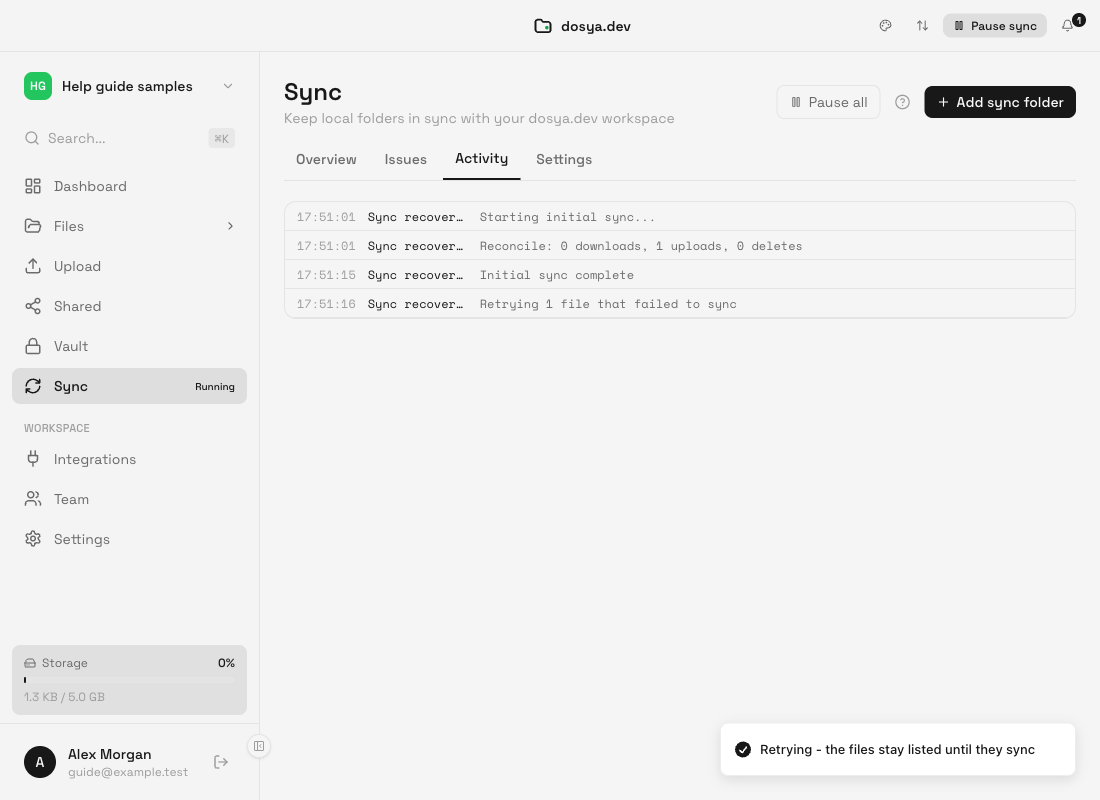
A row in Sync > Activity is a timestamped engine message, not a structured transfer receipt. File direction, byte progress, percentage, and ETA appear separately on Overview while a transfer is active.

Before you start
- Open Sync and identify the pair or remote folder involved.
- Remember that Activity receives the global recent log list; changing workspaces does not prove every visible line belongs to the selected workspace.
Steps
- Select Activity. When no entries exist, the page says No sync activity yet and Activity will appear here when syncing starts.
- Read the first column as local time with hours, minutes, and seconds. It marks when the engine appended the message, not a server-side completion receipt.
- Read the second column as the remote folder name. If the current pair list cannot resolve the log’s pair ID, Dosya shows the first eight ID characters instead.
- Read the remaining text as the raw engine message. Interpret exactly what it says; the row has no separate direction, progress, or final-state fields.
- Use the live header above the log for currently syncing pairs. It shows the remote folder,
statusTextor Syncing…, and an elapsed clock that updates every second. - Switch to Overview for active upload/download icons, filenames, bytes transferred, file counts, percentage, speed context, and ETA. At most five active transfer rows appear before a
+N more transferring...line.
Expected result
The correct interpretation ties a time and raw message to a pair without inventing structured fields. The engine retains up to 200 log entries, while each status response exposes the latest 50.
If progress appears stalled, compare the live header and Overview status before reporting it. Activity can stay quiet during a long phase even while the one-second elapsed clock confirms the pair remains active.
Related guides
Was this helpful?
Loading helpfulness results…
Voting saves a necessary ballot cookie for up to 180 days so you can change your answer.
Questions and replies
Ask about the steps in this guide. Questions are reviewed before publication.
Keep account details, credentials and private files out of public questions. Use private support for those.
Loading questions…
Sign in to your Dosya account to ask a question.