Identify the current Dosya session
Find the Current badge in Dosya, understand cookie and mobile-token matching, and avoid trying to revoke the credential you are using on this device.
Last reviewed
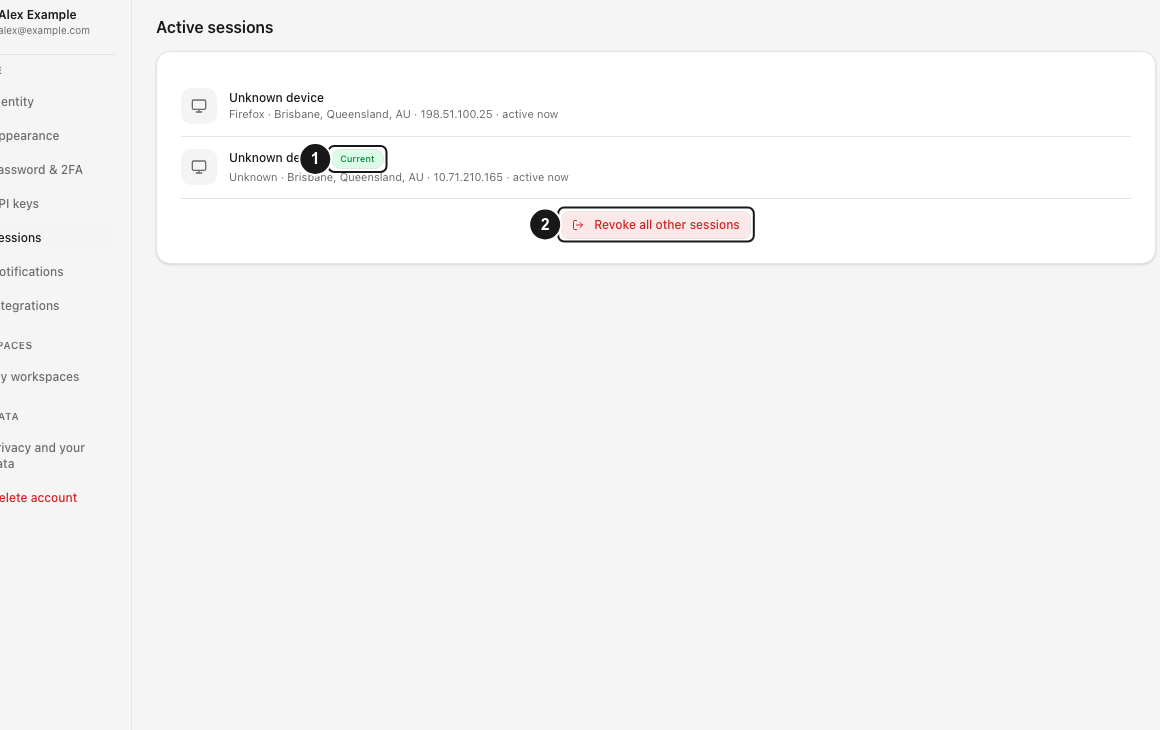
Dosya marks the credential that loaded Active sessions with a green Current badge. The server checks the browser session cookie and mobile bearer token separately, so the current row can be a browser or the Dosya app.

Steps
- Open Profile → Sessions from the device you want to keep signed in.
- Locate Current beside a device label. Its metadata ends with active now.
- For a browser, compare browser name and platform-derived label: Mac, Windows PC, Linux, iPhone, iPad, Android Phone, or Android Tablet. Unrecognized agents show Unknown device.
- A native phone credential can appear as Mobile app and dosya.dev app when its user agent cannot name the phone model.
- If no row is current after loading, do not assume the newest one is yours. Reload and sign in again; bulk revocation can return No active session when neither credential is valid.
- Use normal sign-out to end the current credential. Direct revocation refuses it with Cannot revoke your current session. Use logout instead.
A linked iOS Files or macOS File Provider credential belongs to its parent device. Bulk revocation preserves linked credentials minted by the caller while removing children of other devices.
Expected result
The credential making the request is identified as Current and reads active now. You can choose the device to preserve before using Revoke all other sessions, rather than guessing from recency.
Related guides
Was this helpful?
Loading helpfulness results…
Voting saves a necessary ballot cookie for up to 180 days so you can change your answer.
Questions and replies
Ask about the steps in this guide. Questions are reviewed before publication.
Keep account details, credentials and private files out of public questions. Use private support for those.
Loading questions…
Sign in to your Dosya account to ask a question.