Finding your way around the web app
Use the workspace switcher, sidebar and search to find files, uploads, sharing, team controls, integrations and settings in the Dosya web app.
Last reviewed
The Dosya web app keeps the active workspace in the upper-left corner, common destinations in the left sidebar and search across the top. Check the workspace name before uploading, sharing or changing settings: each workspace has its own files, members, integrations and policies.
The exact menu can vary with your role. An owner normally sees every workspace destination. A custom role or folder-restricted membership can hide pages or show only the content that role can reach.
Before you start
- Sign in at app.dosya.dev in a current browser.
- If you belong to more than one workspace, know which one contains the file or team you want to manage.
- Finish or skip the welcome tour if it covers the dashboard. You can still use the sidebar while an empty workspace shows its first-run upload screen.
- Use the menu labels you see in your account. Ask a workspace owner when a guide names a page that your role does not show.
Steps: navigate the web app
- Read the workspace name above the left sidebar and switch when it is not the intended destination.
- Choose the sidebar page that matches your task: use Uploads to transfer, Files for completed copies and Shared for existing sharing activity.
- Use the top search field when you know a file or folder name but not its location.
- Check the page title and active workspace again before creating, moving, sharing or deleting anything.
- Use the profile control for account security and the sidebar’s Settings entry for workspace settings.
Read the main screen
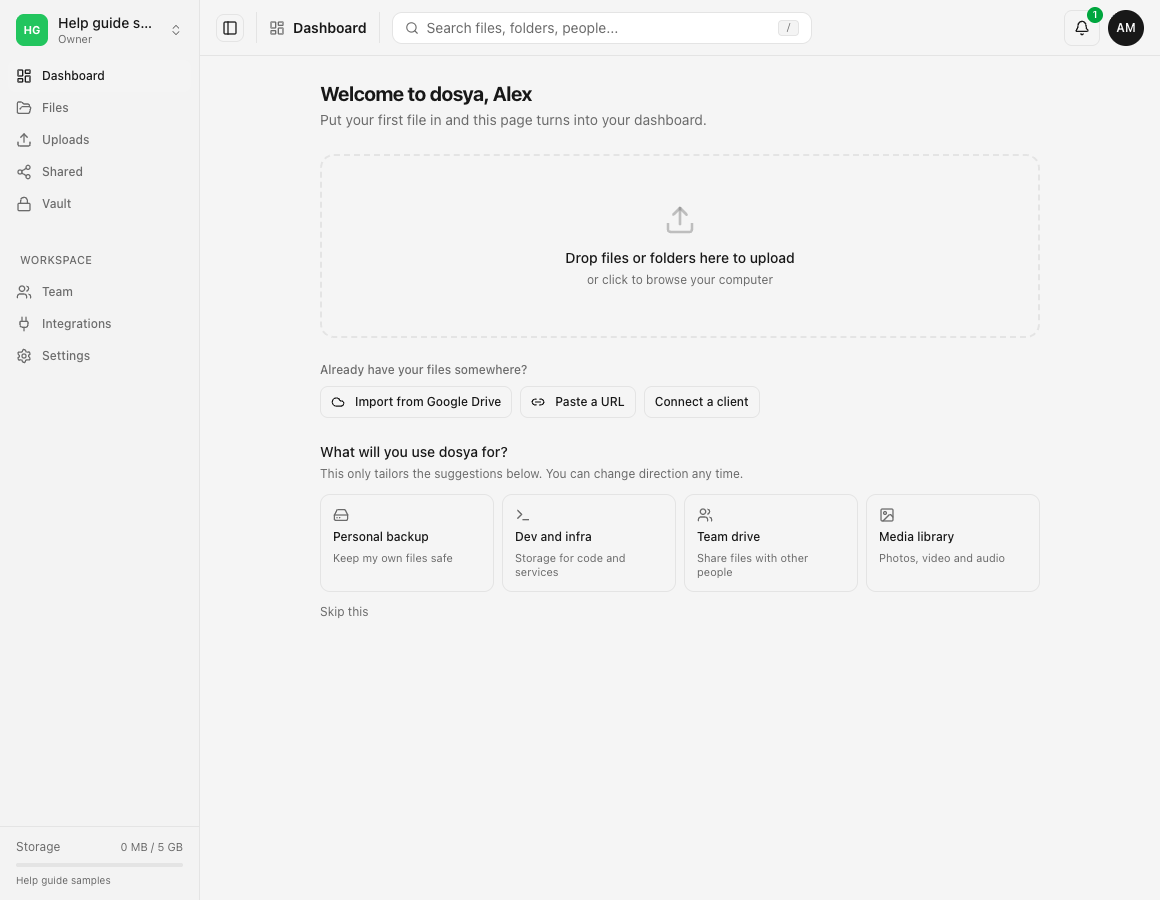
Use these areas for the matching task:
| Area | What it is for |
|---|---|
| Dashboard | A workspace overview. An empty workspace shows the first upload and import choices; an established workspace shows storage and recent activity. |
| Files | Browse the workspace’s completed cloud files and folders. Rename, move, preview, download and organize items here when your role permits it. |
| Uploads | Start a file or folder upload and watch transfer progress. An item can appear here before it has finished and become available in Files only after completion. |
| Shared | Review links and other sharing activity available to your account. Use a file or folder’s sharing controls to create a new link. |
| Vault | Open encrypted Vault content. Vault has its own unlock and recovery workflow and is separate from ordinary workspace files. |
| Team | Review members, invitations and roles for the active workspace. This entry can be hidden when your role lacks team access. |
| Integrations | Connect imports, automation and supported file clients for the active workspace or account. |
| Settings | Manage the active workspace’s details and policies that your role can change. Account-wide profile and security controls are available from the profile menu. |
The storage indicator at the bottom of the sidebar applies to the active workspace. It helps explain why an upload can fail in one workspace while another still has room.
Files and Uploads are different
Use Uploads to begin and monitor a transfer. Use Files to work with the copy that successfully reached Dosya.
For example, a large file can be listed in an upload queue as queued, uploading or failed without appearing as a completed file. After the transfer finishes, open Files and confirm its name, size and destination. Do not treat a progress bar alone as proof that the final cloud copy is ready.
See Uploading files and folders for the complete workflow.
Switch workspaces safely
- Select the workspace name at the top of the sidebar.
- Review Your workspaces. A check marks the current one; each row shows its name and available storage when that information is available.
- Select the intended workspace. Dosya returns to its dashboard while loading that workspace’s data.
- Confirm the new workspace name above the sidebar before uploading, sharing or opening Settings.
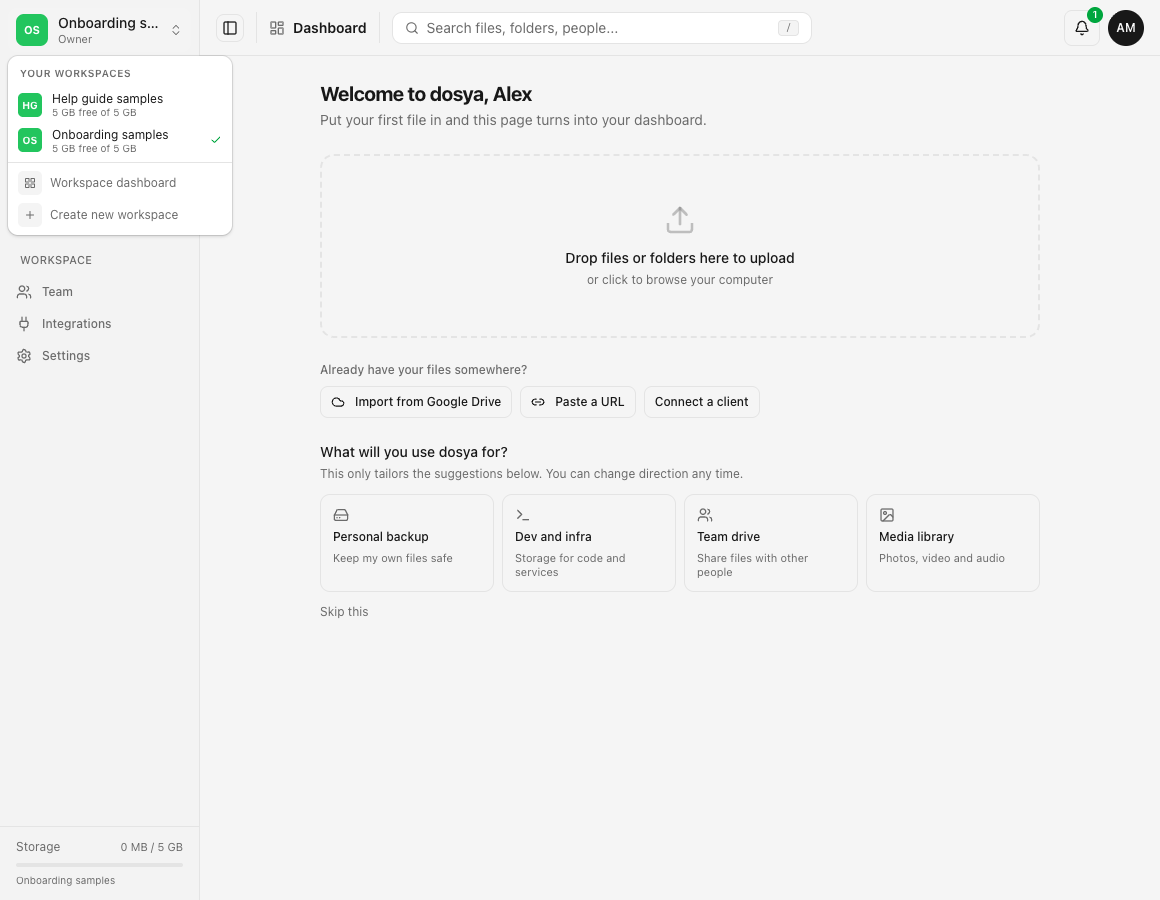
Switching workspace context does not move or copy a file. If an expected file disappears after a switch, return to the previous workspace and check its Files page before assuming it was deleted.
Search and profile controls
Use the search field across the top to look for files and folders available to your account in the current context. Search cannot reveal content your workspace role or folder restriction does not permit.
The profile control in the upper-right opens account-wide actions such as profile, security and sign out. Workspace Settings in the sidebar affects the selected workspace; profile and security settings affect your signed-in account. Check which surface you are on before changing a name, session or policy.
Navigation limits on a narrow screen
On a phone-sized browser, open the navigation control to reveal the same main destinations. The sidebar may collapse to icons on an intermediate width. Use the visible page title and active workspace name to confirm where you are after opening a link.
Keyboard users can move through standard links and buttons with Tab and activate them with Enter or Space. The search shortcut is displayed inside the search field on supported desktop browsers.
Expected result
The intended workspace name remains visible, the selected sidebar entry opens the matching page and searches return only items available in that workspace and role. Completed uploads appear in Files; changing workspaces updates the visible file tree without moving data.
Troubleshooting
A menu item from this guide is missing. Your workspace role may not allow that page. Confirm the active workspace and ask its owner which role or folder restriction applies. Vault and Integrations can also depend on account or plan availability.
Files look missing after switching. Read the workspace name at the top of the sidebar. Switching changes the active workspace; it does not combine their file lists.
The dashboard is empty. A new or empty workspace intentionally shows the first-run upload screen. Upload a harmless sample, import from a connected service, paste a supported URL or connect a client.
An upload is visible but the file is not. Open Uploads and wait for a completed state or inspect the error. Then check the correct destination in Files.
Search does not find an item. Confirm the active workspace, try the exact filename and browse the expected folder. A folder-restricted membership sees only its permitted subtree.
The page keeps loading. Check Dosya status, reload once and test another page. If the issue persists, contact private support with the page, time, browser and visible error; do not include a password or private share link.
Frequently asked questions
Does changing workspaces move my files?
No. It changes which workspace the web app is showing. The files remain in their existing workspace.
Why can another member see more menu items?
Page access follows the member’s role and any folder restriction. Owners and admins can expose different controls from viewers or custom roles.
Where do I manage my account instead of the workspace?
Use the profile control in the upper-right for account-wide profile and security tasks. Use Settings in the sidebar for the active workspace.
Where do I create a sharing link?
Open the file or folder in Files, then use its sharing action. See Creating a sharing link or Sharing a folder with a link.
Related guides
Was this helpful?
Loading helpfulness results…
Voting saves a necessary ballot cookie for up to 180 days so you can change your answer.
Questions and replies
Ask about the steps in this guide. Questions are reviewed before publication.
Keep account details, credentials and private files out of public questions. Use private support for those.
Loading questions…
Sign in to your Dosya account to ask a question.