Sharing a folder with a link
Create one link to a workspace folder, choose access settings, and check what recipients can browse or download.
Last reviewed
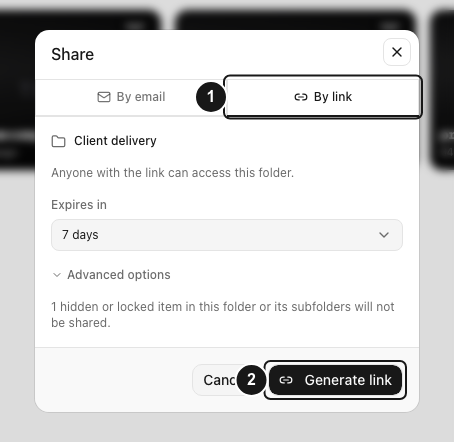
In Files, open the folder’s Share action, choose By link, review its expiry and access settings, then select Generate link. Recipients can use one URL to browse the folder’s available files and subfolders.
Before you start
- Sign in to the Dosya app, select the intended workspace and wait for the folder’s uploads to finish.
- You need permission to create sharing links and access to the folder. Hidden or locked folders can prevent sharing.
- Choose one folder. A folder share covers that folder’s tree; the dialog does not combine several folders, or a folder plus separately selected files, into one link.
- Decide whether anyone holding the URL should be able to open it. By link creates a public link subject to its password, expiry and other settings. Anyone receiving it can forward the URL.
Steps
- Open Files and locate the folder you want to share. To share the folder itself, use its row or card in the containing folder.
- Open the folder’s three-dot menu and select Share, or right-click it and choose Share.
- Check the folder name displayed near the top of the Share dialog, then select By link. The dialog initially opens on By email, so choose the tab explicitly.
- Review Expires in. Select an appropriate duration, Custom date… or Never. A custom date must be valid and in the future. Workspace sharing policy may impose a shorter expiry, so check the resulting link in Shared after creation.
- Open Advanced options if you need additional restrictions. Password accepts an optional password of at least 8 characters. View only removes download controls; visible material can still be captured. Download limit accepts a whole number of at least 1, or can be left empty for no configured count limit.
- Read any notice near the bottom of the dialog stating that hidden or locked items in this folder or its subfolders will not be shared. The notice shows a count, not a list of names. Confirm that recipients do not need those omitted items before continuing.
- Select Generate link. Wait until Share link created appears with the resulting URL. The app tries to copy the link automatically; Link copied confirms that clipboard operation succeeded.
- Use the copy icon beside the URL if you need to copy it again, then select Done.
- Open the URL in a private browser window. Check the folder name, browse its subfolders, and confirm the files you intend to deliver are available. Test the password if you set one, and check the download controls against your chosen settings.
- Send the tested URL to your recipient. For a password-protected link, provide the password through a separate channel.
Expected result
One link opens the shared folder’s public page. Recipients can browse the available descendants without joining your workspace, subject to the link’s access settings. Where downloads are allowed, they can download available files or request a ZIP of the folder’s shared contents, within archive and link limits.
A folder link refers to the folder rather than a fixed snapshot. Eligible files added to that folder later can also become available through the existing link. Keep that in mind when reusing the folder for another project or delivery.
Limitations
- Hidden or locked items can be omitted. Check the recipient’s view before sending the link.
- A view-only link does not guarantee that visible material cannot be saved or captured. It also prevents downloading the folder as a ZIP.
- ZIP downloads have archive size and entry limits. A folder that can be browsed is not necessarily downloadable as one archive. If an archive request exceeds its limits, share smaller folders or download available files separately.
- A link can stop working after expiry, revocation, a configured download limit, or changes that make its underlying folder unavailable.
- This is ordinary workspace sharing. It is not the separate Vault encryption workflow.
On Free, a link creator can have up to five active sharing links, including folder links. Links expire within seven days even when you choose a longer duration or Never. A tighter workspace policy can shorten that further. Check the saved link’s Expiry in Shared before sending it. See the fair-use policy for current limits.
Troubleshooting
Share is unavailable or Generate link fails. Confirm that you selected just one live folder and that your role can create links. Read the dialog’s error before retrying. If it reports a locked folder, ask the workspace owner about its sharing settings.
The recipient sees fewer files than I do. Check whether those files finished uploading and whether a hidden or locked item, or one of its parent folders, is omitted. Compare the recipient’s view in a private window. Do not change privacy settings merely to dismiss the warning; choose the files intended for this delivery.
The recipient can browse but cannot download. Check whether View only was enabled, the link reached its download limit, or the ZIP request exceeded archive limits. Also confirm the link’s status and expiry in Shared.
For a persistent problem, use private support with the workspace name, approximate time and exact error. Keep confidential links and file details out of public questions.
Frequently asked questions
Will new files I add later appear through the same link?
Eligible files added under the shared folder can become available through it. The link remains subject to expiry, revocation and the folder’s access rules. Use a dedicated delivery folder when you want to control what you add afterward.
Can I restrict access to particular email addresses?
The By email tab has Only these people can open it., which uses email confirmation for the named recipients. These steps cover By link; a public URL alone does not limit access to particular people.
How do I stop the folder link working?
Open the link-management Shared page and revoke the link. Revocation applies to that URL; review other active links if you need to stop sharing the folder completely.
Related guides
Was this helpful?
Loading helpfulness results…
Voting saves a necessary ballot cookie for up to 180 days so you can change your answer.
Questions and replies
Ask about the steps in this guide. Questions are reviewed before publication.
Keep account details, credentials and private files out of public questions. Use private support for those.
Loading questions…
Sign in to your Dosya account to ask a question.