Choosing the web, desktop or mobile app
Choose the Dosya app that fits browser file management, background folder sync or phone backup, and check current platform availability before installing.
Last reviewed
Use the same Dosya account across the web app, desktop app and available mobile app. Choose by the job you need to do: the web app is the quickest way to manage files from a browser, the desktop app adds background folder sync, and the mobile app handles phone access and photo backup.
You can use more than one. Installing the desktop or mobile app does not create a separate storage area; select the same account and workspace to reach the same cloud files.
Before you start
- Know which device and operating-system version you will use.
- Sign in to your existing Dosya account, or create and verify an account first.
- Check the official desktop download page or mobile page at installation time. Versions, store listings and supported systems can change after this guide is reviewed.
- If you use a managed work or school device, confirm that its administrator permits software installation, background sync and access to your chosen workspace.
Steps: choose the right app
- Choose the web app when you need immediate browser access, one-off uploads, file organization, sharing, workspace management or settings.
- Choose the desktop app when a folder on Windows, macOS or Linux should continue syncing in the background, or when you regularly move files between the computer and Dosya.
- Choose the Android app for files on a phone or tablet and automatic photo and video backup. Install it through an official store when possible.
- For an iPhone or iPad, check the current mobile page before planning an install. At this review date, the iPhone app is still in App Store review and cannot yet be installed from a public App Store listing.
- Sign in, choose the intended workspace and confirm its name before uploading or enabling sync or backup.
Compare the apps
| Need | Best starting point | Why |
|---|---|---|
| Open Dosya without installing software | Web app | Runs in a current browser and covers uploads, files, sharing, workspaces, integrations and settings. |
| Upload a file or folder once | Web app | Opens immediately and shows transfer progress in the Uploads page. |
| Keep a computer folder synchronized | Desktop app | Adds continuous background sync and desktop transfer controls. |
| Work across Windows, macOS or Linux | Desktop app | Dosya publishes downloads for all three platforms from one page. |
| Back up phone photos and videos | Android app | The released mobile app supports automatic media backup from Android. |
| Save a page or browser download quickly | Browser extension | Connects a supported browser to your account; see the separate extension guide. |
| Use an iPhone or iPad today | Web app in Safari | The public iPhone app is still in review as of 2026-10-12. Check the mobile page for a later release. |
Web app
Open app.dosya.dev from a current browser. This is the simplest choice on a shared or temporary computer because there is no app to install. Sign out when finished on a device you do not control and avoid saving your password in its browser.
The web app is also the clearest place to review workspace names, storage usage, members, share links and integrations. See Finding your way around the web app.
Desktop app
The production download page detects the computer platform and keeps links to the other desktop builds visible.
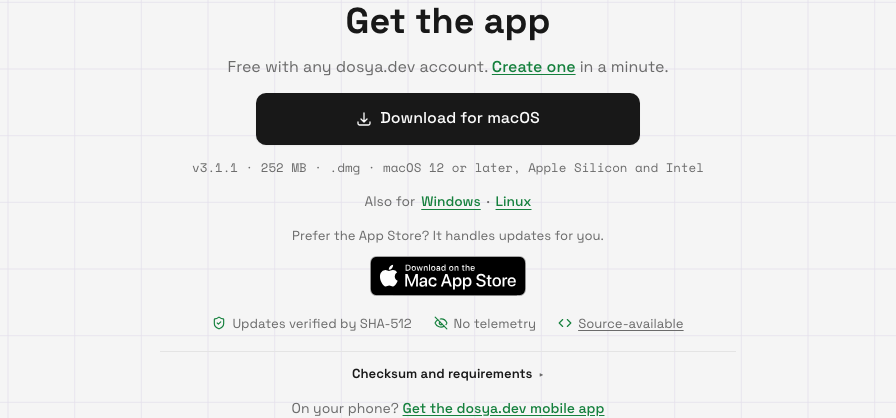
At this review date, the published minimums are Windows 10 or later on 64-bit x64, macOS 12 or later, and 64-bit x64 releases based on Ubuntu 22.04+, Fedora 38+ or Debian 12+. The macOS page states whether the current download supports Apple Silicon, Intel or both. Use the live page as the final source because build availability can change.
See Installing the desktop app and Syncing a desktop folder for setup.
Mobile app
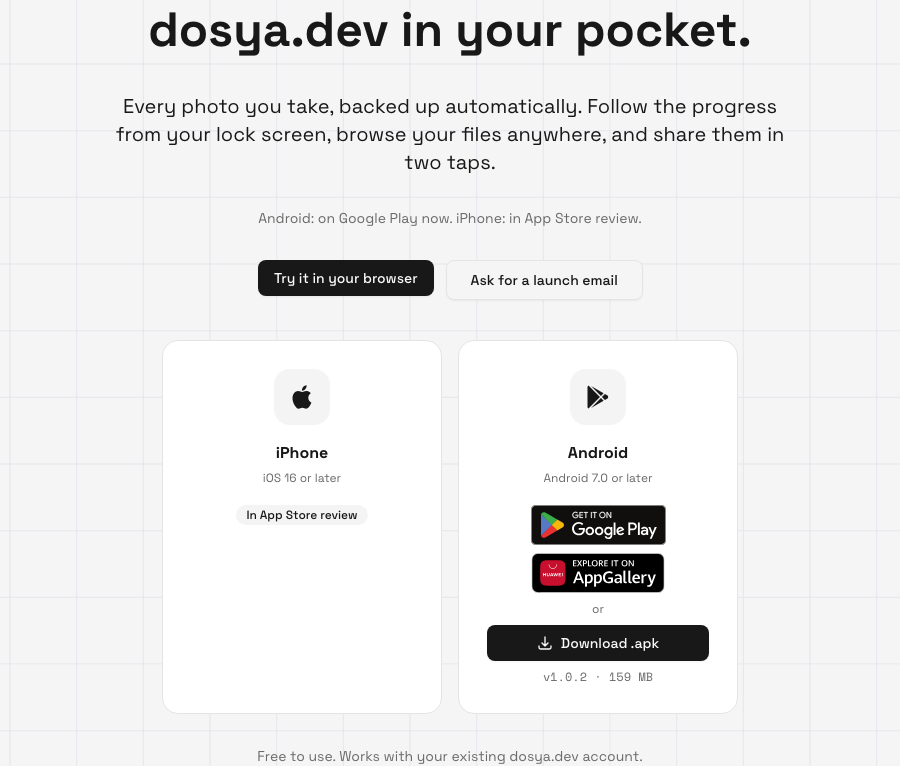
Android 7.0 or later is the published minimum. Google Play is the usual choice because the store manages updates; AppGallery is available for supported Huawei devices. A direct APK is offered for people who cannot use either store, but Android will ask for permission to install it and future updates may need manual action.
The iPhone card lists iOS 16 or later as the intended minimum, but the app remains in App Store review at this review date. Do not install a file or profile from an unofficial link claiming to be the Dosya iPhone app.
Expected result
You use the surface suited to the task, sign in with the same account and see the intended workspace. Browser actions appear in the web app, desktop sync runs from the selected local folder, and Android backup sends media to the workspace chosen in the mobile app.
Limits and availability
The web app needs a compatible browser and a connection while performing cloud actions. Background behavior in browsers can be paused by the operating system, so use the desktop app for continuous folder sync.
The desktop and Android apps must meet the operating-system requirements shown on their current download pages. Store publication varies by platform and country. An announced or review-stage app is not available until its official listing offers an install button.
Troubleshooting
The download page recommends the wrong desktop system. Use the visible Windows, macOS or Linux link to switch platforms. Confirm the file type and system requirement before opening it.
A desktop installer will not open. Confirm the operating-system version and processor architecture. Download a fresh copy from the official page, then follow Installing the desktop app.
Google Play says the Android device is incompatible. Check that it runs Android 7.0 or later and that the store is signed into the intended account. Use AppGallery only on a supported device, or the official direct APK when your device permits it.
There is no iPhone install button. The page is reporting availability accurately. Use the web app in Safari and check the mobile page later rather than using an unofficial download.
Files differ between two apps. Confirm the account and active workspace in both. A desktop sync folder and an Android backup destination can point at a different workspace from the one open in the browser.
Frequently asked questions
Do I need a different account for each app?
No. Sign in with the same Dosya account and choose the intended workspace.
Can I use only the web app?
Yes. Use the desktop app when you need background folder sync and the Android app when you need phone backup or mobile access.
Is the iPhone app available now?
At the 2026-10-12 review it is still in App Store review. The live mobile page is the current source after that date.
Should I install the direct Android APK?
Prefer Google Play or AppGallery when available because the store manages installation and updates. Use only the APK linked from Dosya’s official mobile page when a store is unavailable.
Related guides
Was this helpful?
Loading helpfulness results…
Voting saves a necessary ballot cookie for up to 180 days so you can change your answer.
Questions and replies
Ask about the steps in this guide. Questions are reviewed before publication.
Keep account details, credentials and private files out of public questions. Use private support for those.
Loading questions…
Sign in to your Dosya account to ask a question.