Change your account display name
Update the Full name field for every workspace, understand the 80-character limit, and verify the saved name without changing your email or password.
Last reviewed
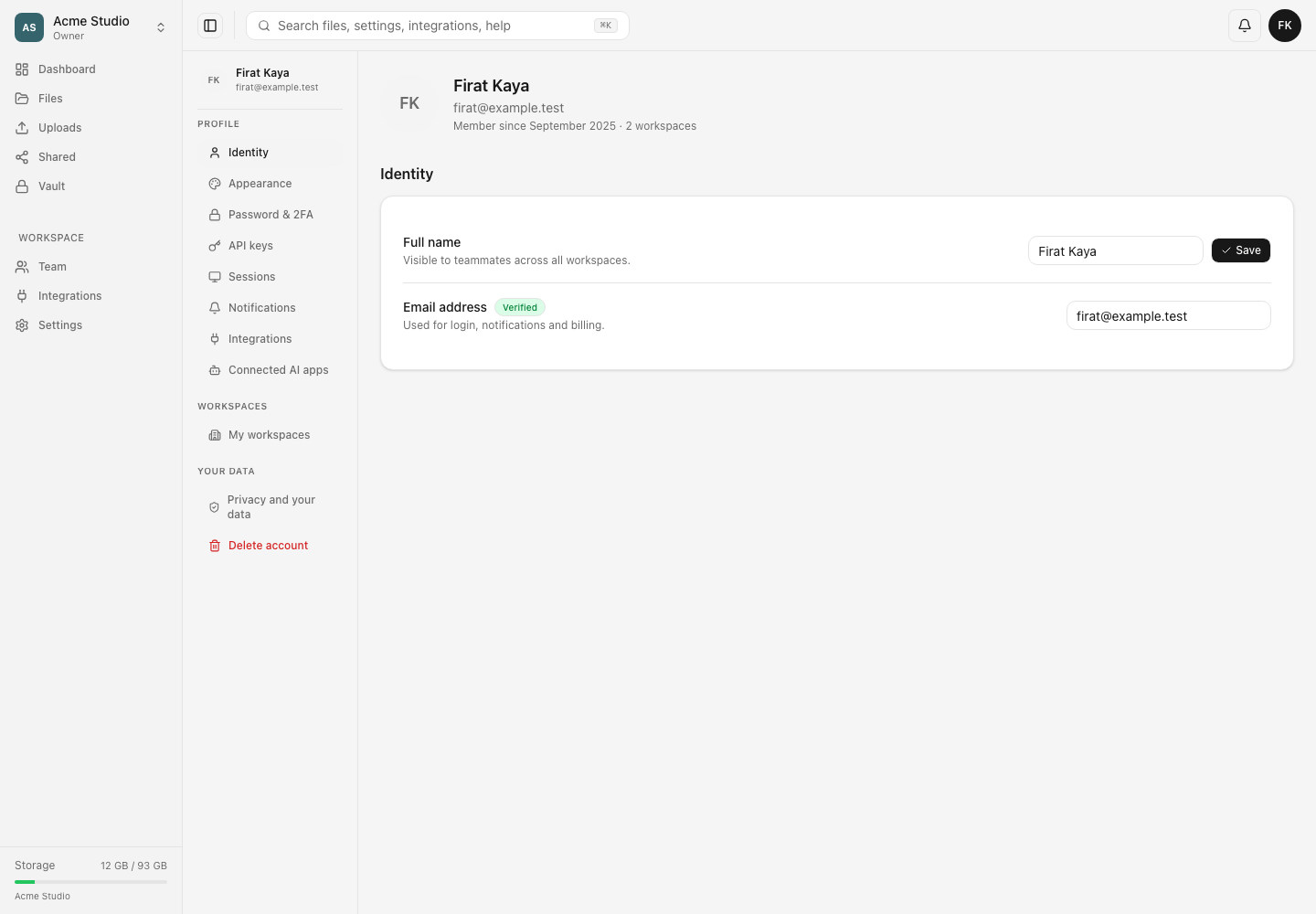
Your Dosya display name is the Full name under Profile → Identity. It is visible to teammates across all workspaces, so one save changes the name associated with this account everywhere it is displayed. It does not modify the account email, sign-in password, workspace ownership, or file ownership.
Names may use spaces, apostrophes, hyphens, and Unicode scripts. Dosya trims surrounding whitespace, removes invisible formatting characters, normalizes the stored text, and allows at most 80 characters. An empty or invisible-only value returns Name is required; an over-limit value returns Name is too long (max 80 chars).

Steps
- Open Profile → Identity. On the compact web layout, open Profile and choose Identity.
- Confirm the email shown beneath the current name so you edit the intended account.
- In Full name, enter the name teammates should see. Keep the normalized result within 80 characters.
- Select Save beside the field.
- Wait for the confirmation Saved — Your name has been updated.
- Reload Identity and open a workspace where another member can see your account name.
What changes after saving
The updated value is written to the user account and cached identity records for browser and mobile authentication are invalidated. The next identity read can therefore return the new name across clients. Existing sessions remain signed in.
The name may appear in workspace member lists, invitations, sharing activity, or other collaborative views. Because it is an account property, you cannot assign a different personal display name to each workspace.
Troubleshooting
If nothing happens when Save is selected, remove whitespace-only content. For a rejected long name, shorten it to 80 characters or fewer. A failed request appears as Update failed followed by the server message, or The change could not be saved. when no specific reason is available.
If the old name remains in one open view, refresh that view after the success toast. If the email changed or a verification code is requested, you are using the separate email-change control; cancel that flow before continuing.
Expected result
The new display name appears after refresh and in collaborative account surfaces, while the sign-in email and active sessions remain unchanged.
Related guides
Was this helpful?
Loading helpfulness results…
Voting saves a necessary ballot cookie for up to 180 days so you can change your answer.
Questions and replies
Ask about the steps in this guide. Questions are reviewed before publication.
Keep account details, credentials and private files out of public questions. Use private support for those.
Loading questions…
Sign in to your Dosya account to ask a question.