Creating a workspace and choosing its storage location
Understand the automatically created personal workspace, create another workspace and choose the permanent storage location before adding files.
Last reviewed
Every new account receives a personal workspace automatically. Dosya chooses that first workspace’s location from the signup request’s geographic suggestion, with a platform fallback when no location signal is available.
When you create an additional workspace, you choose its storage location in the creation form. The choice is fixed for that workspace, and new files in it use the workspace location. Check the location before creating the workspace and before uploading data that has geographic or contractual requirements.
Before you start
- Sign in to the web app and decide whether you need a separate workspace. A folder in an existing workspace may be enough when the files, team and policies can remain together.
- Estimate the storage you intend to allocate. The optional workspace storage limit cannot exceed the unallocated amount shown by the form.
- Choose a location based on your own operational, contractual and legal requirements. A city label by itself does not certify compliance with a particular law or standard.
- Do not upload files until you have confirmed the new workspace name and location. The location field cannot be edited after creation.
Understand your first personal workspace
Password signup and supported identity-provider signup create a workspace named Personal as part of account creation. After verification or provider login, the welcome flow opens that workspace.
You do not choose this first location in the signup form. Dosya uses the nearest catalog suggestion available from the signup request. If you need a specific location, create another workspace with that location before uploading the affected files.
Steps: create another workspace
- Select the current workspace name at the top of the left sidebar.
- Choose Create new workspace. You can also open Workspace dashboard and start creation from there.
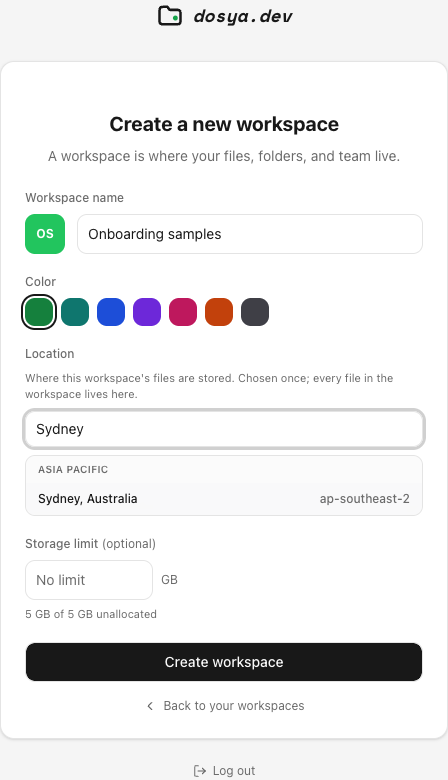
- Enter a clear Workspace name, up to 80 characters. The preview tile shows the initials that will appear in the switcher.
- Choose a colour to distinguish the workspace from others in your account.
- Under Location, review the preselected suggestion. Search by city, country or region code when you need a specific entry, then select that row.
- Optionally enter a Storage limit in GB. Leave No limit when you do not want a workspace-specific cap within the account’s available storage.
- Review the name, selected location and allocation, then select Create workspace.
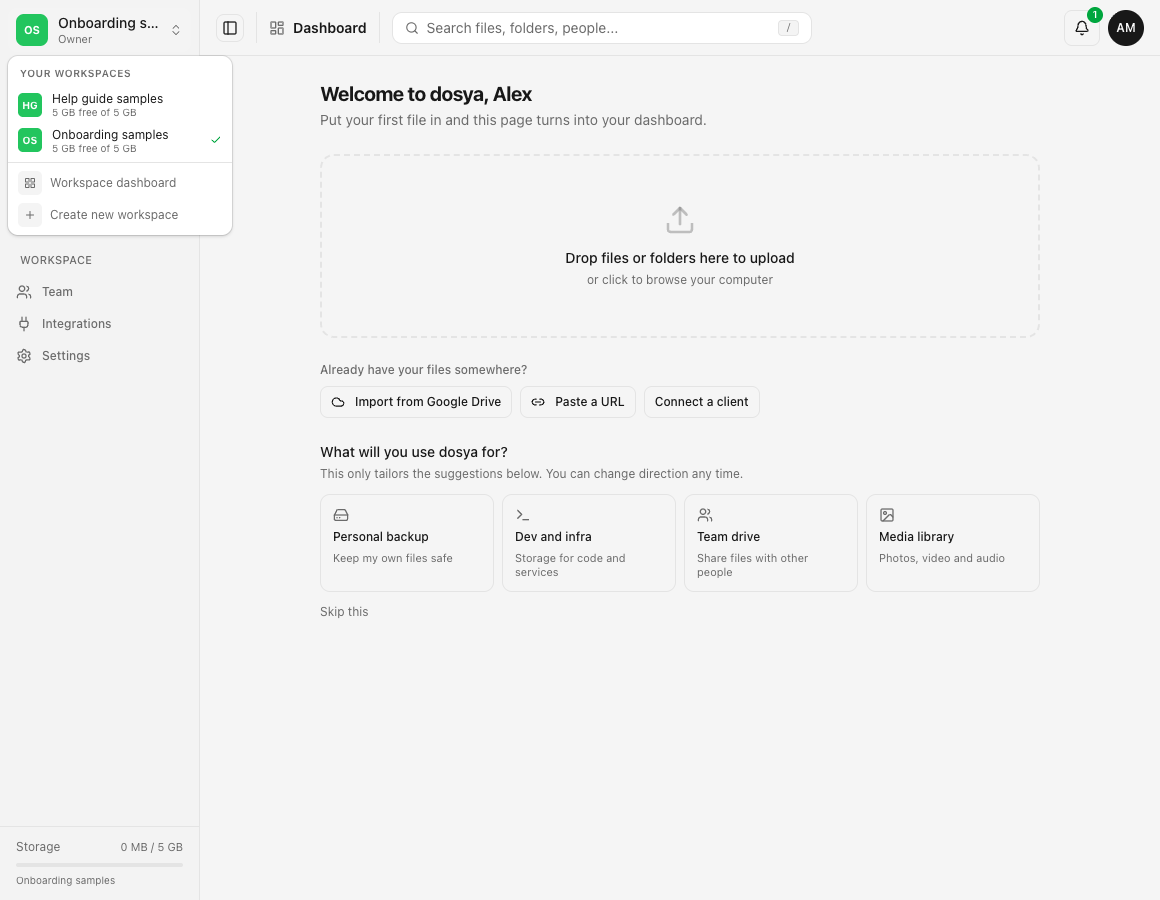
After creation, Dosya makes the new workspace active and opens its dashboard. An empty workspace shows the first-run upload screen. Confirm the workspace name at the top of the sidebar before adding a file.
Confirm the result
- Select the workspace name to reopen the switcher.
- Confirm that the new name appears under Your workspaces and carries the active check.
- Open Settings and review the workspace overview. The location is displayed as workspace information rather than an editable field.
- Upload a harmless sample file only after the name and location are correct.
- Return to the switcher and select another workspace to confirm that each keeps its own files, storage usage, members and settings.
Expected result
The new workspace appears in the switcher, becomes active and displays the location chosen during creation in its workspace information. It starts with its own empty file tree, membership and settings, ready for a verified sample upload.
Choosing a location
The location is a workspace-level choice. Every ordinary file uploaded to that workspace is labelled with the workspace’s location. The picker groups entries by continent and lets you search a city, country or region code.
Use a nearby location when latency is your main concern, but consider where collaborators work and what your organization requires. The transfer route a request takes and the location chosen for durable workspace storage are different concepts; a nearby network edge does not change the workspace’s selected location.
The web form prevents an unknown region code from being selected, and the API rejects unknown codes. If the location list cannot load, the form can let the server choose its current suggestion rather than permanently blocking workspace creation. Wait for the catalog and make an explicit choice when location matters to you.
Storage limits and ownership
The optional limit caps how much storage that workspace can use. It does not add storage to the account. The creation screen shows the plan total and how much remains unallocated; a value above the remainder is refused.
The person creating the workspace becomes its owner. After creation, use Team to invite members and assign suitable roles. Workspace roles do not merge accounts or copy files from another workspace.
Accounts and plans can limit how many workspaces one person owns. If creation is refused because of a workspace cap, review unused workspaces or the current plan instead of repeatedly submitting the same form.
Troubleshooting
The Create workspace button is unavailable. Enter a non-empty name and select a location from the loaded list. If the location catalog failed, use Try again and wait for it to load.
The location I need does not appear. Search the city, country and known region code. Do not substitute a similarly named city without confirming it meets your requirement. Contact private support if the current catalog does not offer the required location.
The storage limit is rejected. Enter a positive number no greater than the unallocated amount shown. A workspace limit cannot create capacity beyond the account plan.
I created the workspace in the wrong location. Stop before uploading additional files. The location is fixed and cannot be edited in workspace settings. Contact private support with the workspace name and requirement before reorganizing data; do not assume changing a label moves existing bytes.
My old files are missing. The new workspace starts with its own file tree. Open the switcher and return to the previous workspace. Creating or switching workspaces does not move files.
I cannot see Create new workspace. Your account or plan may have reached an ownership limit, or the current surface may be restricted. Open Workspace dashboard and review the available action; contact support if the reason is unclear.
Frequently asked questions
Can I change the workspace location later?
No. The current web app treats the location as fixed after workspace creation and refuses location edits.
Does switching workspace change where existing files are stored?
No. It changes the active view. Existing files remain with their original workspace.
Does the optional storage limit buy more storage?
No. It assigns a ceiling within the account’s available allocation. Plan and billing controls determine the total entitlement.
Why was my first workspace created without this picker?
Signup creates a personal workspace automatically and uses the request’s suggested location. Create another workspace before uploading when you require a specific location.
Related guides
Was this helpful?
Loading helpfulness results…
Voting saves a necessary ballot cookie for up to 180 days so you can change your answer.
Questions and replies
Ask about the steps in this guide. Questions are reviewed before publication.
Keep account details, credentials and private files out of public questions. Use private support for those.
Loading questions…
Sign in to your Dosya account to ask a question.