Complete your first upload and sharing task
Upload a harmless sample file, confirm its completed cloud copy, create a suitable sharing link, and test the recipient experience before sending it.
Last reviewed
This quick journey takes one harmless sample file from your device to a tested recipient link. It helps confirm your workspace, upload permission and sharing setup before you send important material.
Before you start
- Use a small, non-confidential sample file you can recognize and open.
- Select the intended workspace and check its name above the sidebar.
- Make sure your role permits uploads and share-link creation.
- Decide whether the recipient should download the file, whether the link needs a password and when it should expire.
- Use a private browser window for the recipient test so your signed-in session does not hide access problems.
Steps: upload and confirm the sample
- Open Uploads.
- Under Upload options, confirm the destination folder. Root (top level) means the workspace’s top level.
- Select browse for files, choose the sample and keep the browser tab open.
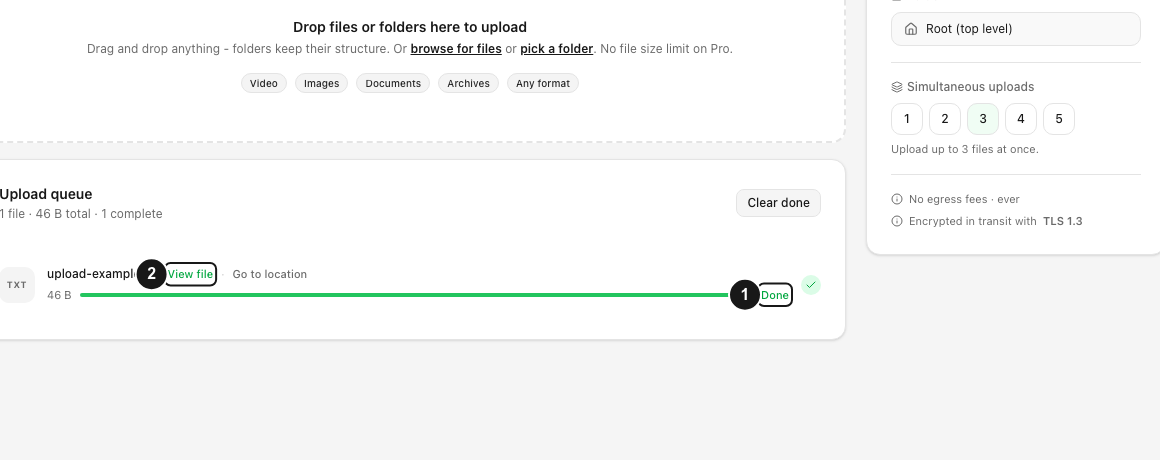
- Wait until the upload row says Done.
- Select View file or Go to location.
- In Files, confirm the name, size and destination. Open the sample if its format supports a preview.
Steps: create and test the sharing link
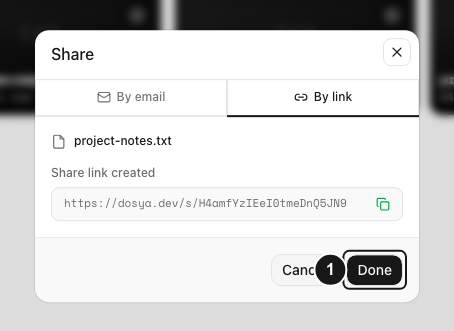
- From the confirmed file, choose Share, then By link.
- Review Expires in and open Advanced options if you need a password, view-only behavior or a download limit.
- Select Generate link.
- Copy the entire URL shown under Share link created.
- Open a private browser window and paste the URL.
- Confirm that the recipient page shows the intended file and enforces the password or other access choice.
- If the test succeeds, send the link. Share a password separately when practical.
Expected result
The sample appears in Files in the intended workspace. The tested URL opens the correct recipient page without relying on your signed-in session, and the configured password, expiry, view-only choice or download limit applies.
Limits and safety checks
- Done confirms the upload; selecting a file or seeing partial progress does not.
- A public link can be forwarded. Apply only the access settings suitable for that file.
- Your own test download can consume a configured download allowance.
- A share-link password protects that recipient route. It does not convert ordinary storage into Vault encryption.
- Link availability still depends on expiry, revocation, download limits, the underlying file and workspace policies.
Troubleshooting
The upload never reaches Done. Read the queue error and check connectivity, available storage, destination access and workspace policies. Retry only the failed item when offered.
Share is unavailable. Confirm the upload completed, the file is in the active workspace and your role permits share-link creation. A workspace policy can also disable links.
The private-window test asks for unexpected access. Return to the link settings and verify whether you created a public link, named-recipient delivery or password-protected link.
The link opens the wrong file. Revoke that URL in Shared, return to the intended file and generate a replacement. Do not send the mistaken URL.
The test works but the recipient cannot open it. Copy the URL again, confirm it was not truncated and check its status and expiry in Shared. If password protected, verify that the recipient has the exact password through a separate channel.
Related guides
Was this helpful?
Loading helpfulness results…
Voting saves a necessary ballot cookie for up to 180 days so you can change your answer.
Questions and replies
Ask about the steps in this guide. Questions are reviewed before publication.
Keep account details, credentials and private files out of public questions. Use private support for those.
Loading questions…
Sign in to your Dosya account to ask a question.