Start a streaming ZIP download
Start a streamed ZIP from Files, allow the browser time to accept it, and confirm the download begins without starting duplicate archive requests.
Last reviewed
Dosya does not build an archive job with a separate ready screen. Download ZIP navigates the browser to a streaming archive response, and the Files page immediately reports Download started with Your ZIP is being prepared by the browser. Keep the new archive tab or browser download active while the stream begins.
A single request can include at most 10,000 files and 5 GiB of source data. The archive is named dosya-download.zip. You need access to Files and the download_files permission; a denied role receives You don’t have download permission.

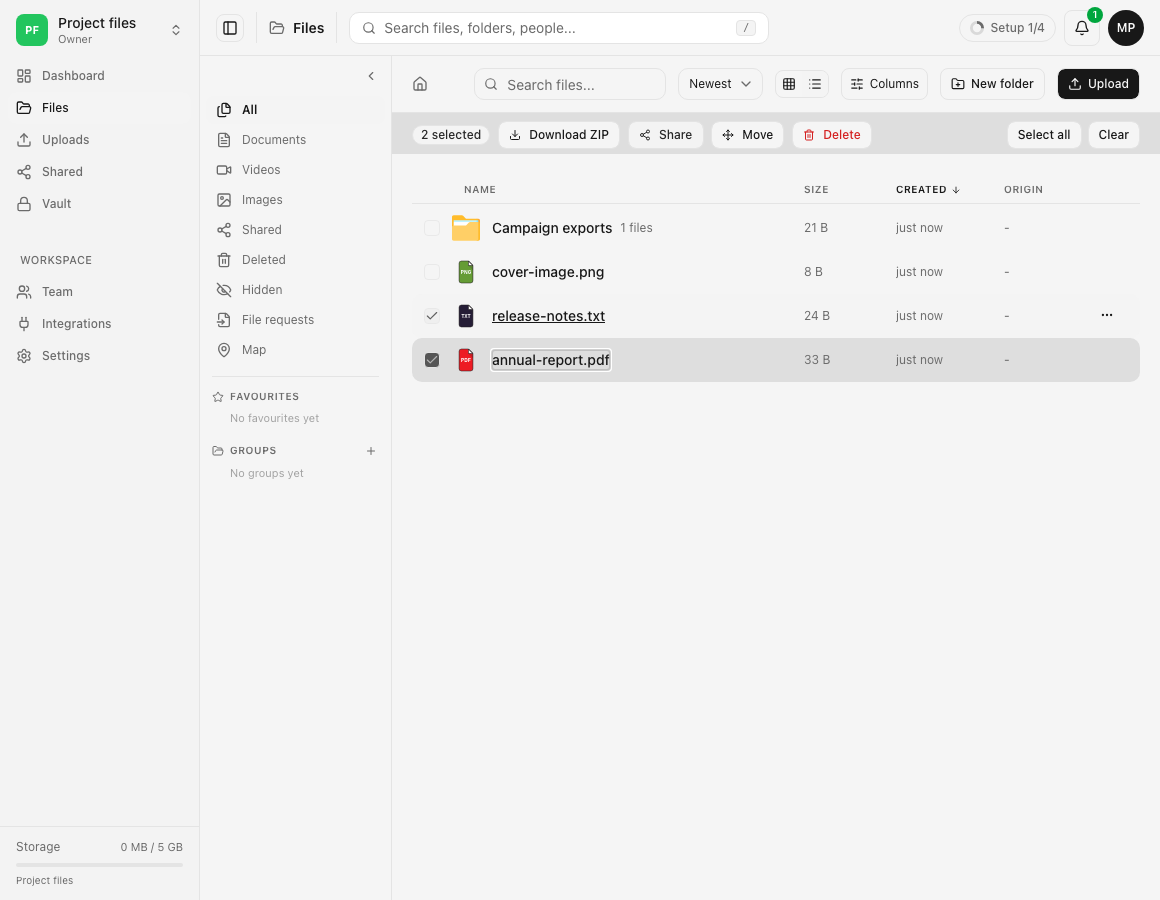
dosya-download.zip in the browser, and inspect its top-level names. Open full-size screenshot.Steps
- Open Files in the workspace that contains the source items, and confirm your role shows download actions.
- Select the required files or folders; the selection bar reports the selected count and exposes Download ZIP.
- Choose Download ZIP once. For one archive, Dosya opens the streaming endpoint in a new tab and shows Download started.
- Leave the new tab or browser transfer open while the server walks folders and begins the ZIP stream; there is no Dosya progress card to wait for.
- Open the browser’s downloads list and look for
dosya-download.zip; a visible JSON error page means the archive was refused before downloading. - After the transfer finishes, open the ZIP and compare its top-level names with the selection before deleting or moving any originals.
Expected result
The browser starts one download named dosya-download.zip. Dosya records the archive transfer before streaming, while the original files and folders remain unchanged.
If the new tab reports Too many files to archive at once (max 10000) or Archive too large (max 5 GiB), reduce the folder or selection and start separate archives. This folder is empty - there’s nothing to download means the chosen folder contains no downloadable files. A neutral No items found can also mean every candidate is hidden or blocked by a lock; return to Files and check visibility, own file locks and ancestor folders. Unlocking an eligible password-protected ancestor folder can help; a file’s own Password or View only mode must be deliberately removed by a permitted manager for ZIP inclusion. Unlocking only the file preview does not include it in an archive.
Related guides
Was this helpful?
Loading helpfulness results…
Voting saves a necessary ballot cookie for up to 180 days so you can change your answer.
Questions and replies
Ask about the steps in this guide. Questions are reviewed before publication.
Keep account details, credentials and private files out of public questions. Use private support for those.
Loading questions…
Sign in to your Dosya account to ask a question.