Understand Dosya Vault
Learn what Vault protects, how browser-side encryption and Spaces work, and when ordinary files or password-protected share links are more suitable.
Last reviewed
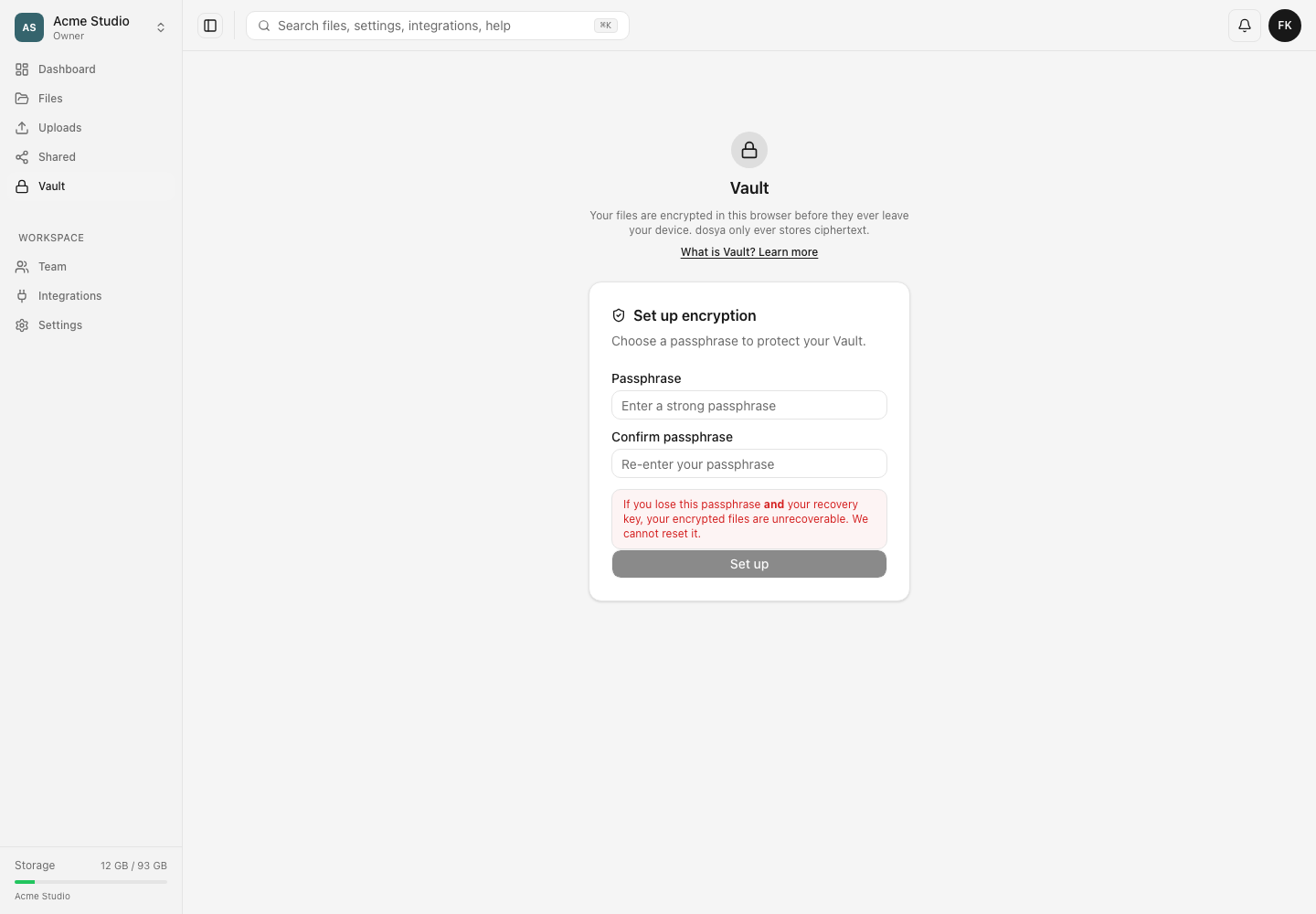
Dosya Vault is a separate area for end-to-end encrypted files. Your browser encrypts a file before it leaves the device, and Dosya stores ciphertext. You unlock the Vault locally with your Vault passphrase or recovery key.
Before you start
- Decide whether the file needs Vault protection or the collaboration features of ordinary storage.
- Use a current browser on a device you trust.
- Plan where to store the recovery key before setup. Dosya shows it once.
- Remember that your Dosya account password and Vault passphrase protect different things.
Steps: choose the right storage method
- Use ordinary files when you need the normal file browser and standard sharing workflows.
- Use a password-protected share link when a recipient needs a link protected by a password. This does not turn the stored file into a Vault file.
- Use Vault when you need browser-side encryption and can manage a separate passphrase plus recovery key.
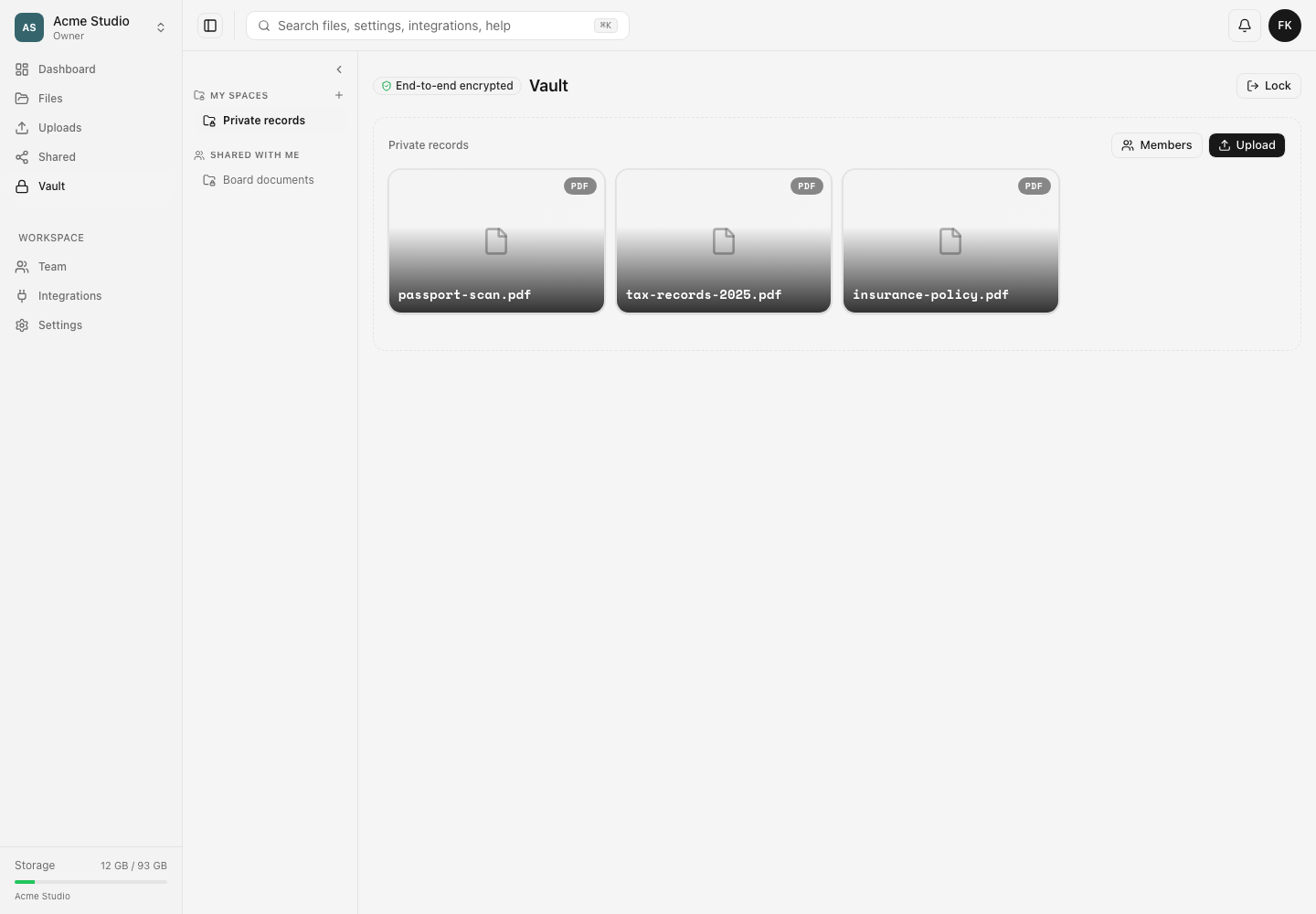
- Inside Vault, choose or create a Space. My Spaces are yours; Shared with me contains encrypted Spaces to which another member granted access.
- Lock Vault when you finish, especially on a shared device. Locking clears the active in-memory Vault session.
Expected result
When Vault is unlocked, you can see the Spaces available to you and work with their encrypted files. Upload encryption and download decryption happen in the browser. When you lock Vault or end the session, you must unlock it again to read those files.
Limits and security boundaries
- Dosya cannot reset a forgotten Vault passphrase or reconstruct a lost recovery key.
- Folders are not supported in Vault yet. Dropping a folder uploads supported loose files at the Space root rather than recreating its folder tree.
- Ordinary share links and their passwords are separate from Vault access and do not decrypt Vault files.
- Anyone with your recovery key can use it to unlock your Vault identity. Store it like a high-value secret.
- End-to-end encryption protects file contents in the Vault flow. It does not remove the need to secure the device, browser session and account.
Troubleshooting
Vault asks for a different password. Enter the Vault passphrase created during setup, rather than your normal account password.
A folder did not appear after dropping it. Vault does not preserve folder structures yet. Upload individual files and organize them by Space.
A teammate cannot open an ordinary share link to a Vault file. Vault uses encrypted Space membership. Add the intended member through the Vault access flow rather than sending a standard file link.
The files disappeared after locking. Unlock Vault again. Locking removes the local session; it does not delete the encrypted Space or its files.
Related guides
Was this helpful?
Loading helpfulness results…
Voting saves a necessary ballot cookie for up to 180 days so you can change your answer.
Questions and replies
Ask about the steps in this guide. Questions are reviewed before publication.
Keep account details, credentials and private files out of public questions. Use private support for those.
Loading questions…
Sign in to your Dosya account to ask a question.