Troubleshoot a cloud import
Resolve connection, selection, permission, quota and partial-result problems when importing from Google Drive, OneDrive or Dropbox.
Last reviewed
Troubleshoot cloud imports in order: connection, source access, destination permission, available storage and job result. This avoids reconnecting an account when only one selected item or destination is the problem.
Before you start
- Record the provider, connected email, Dosya workspace, destination and visible error.
- Keep source files unchanged while diagnosing.
- Check Dosya service status and the provider’s own status.
- Never send provider tokens, passwords or private file links in a public report.
Steps: isolate the failure
- Confirm the connected account email can open the source directly at the provider.
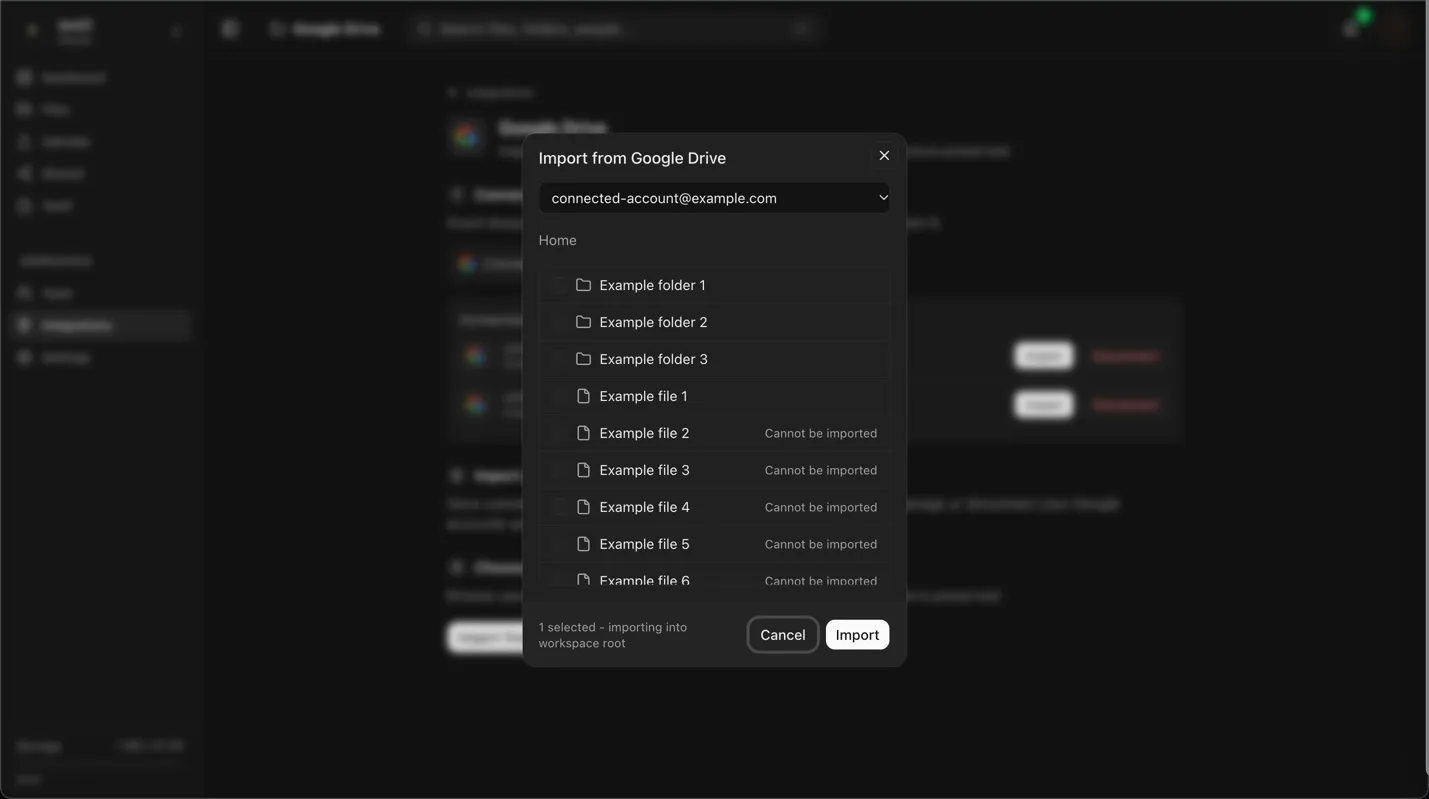
- Reopen the provider picker and test one small ordinary file.
- Choose a writable Dosya folder with enough storage.
- Start the small import and inspect its job state.
- If it succeeds, retry only the failed original items in smaller groups.
- Verify completed items before removing the provider originals or restarting a whole folder.
Expected result
The controlled file reaches the destination, or produces a narrower error tied to provider access, source type, destination permission, quota or connectivity.
Limits and common causes
- Organization policies can block the connection or selected shared content.
- Provider-native documents, shortcuts and shared-drive objects may not import like ordinary files.
- Expired authorization can affect a previously connected account.
- A partial job can leave valid completed files beside failed items.
- Retrying an entire completed selection can create duplicates and consume storage.
Troubleshooting by symptom
The account cannot connect. Check pop-ups, provider organization policy and the chosen account. Disconnect a stale row before reconnecting when appropriate.
The picker is empty. Confirm the connected email, provider permission and whether the content is shared with that account.
Import cannot start. Select a supported source item, a writable destination and the correct active workspace.
The job partially completed. Verify successful items and retry only failures. Keep a list of missing paths.
The job reports quota or policy failure. Compare available storage and workspace upload rules with the affected item.
A repeat created duplicates. Use the duplicate review and compare paths and sizes before removing any copy.
Related guides
Was this helpful?
Loading helpfulness results…
Voting saves a necessary ballot cookie for up to 180 days so you can change your answer.
Questions and replies
Ask about the steps in this guide. Questions are reviewed before publication.
Keep account details, credentials and private files out of public questions. Use private support for those.
Loading questions…
Sign in to your Dosya account to ask a question.