Connect a cloud account for imports
Connect Google Drive, OneDrive or Dropbox to Dosya, verify the provider account, and begin an import without exposing provider credentials.
Last reviewed
Connect a supported provider when you want Dosya to browse and import files without downloading them through your device first. The provider sign-in happens on the provider’s authorization page; never enter that password into a Dosya form.
Before you start
- Select the Dosya workspace that should receive imported files.
- Know which Google Drive, OneDrive or Dropbox account contains the source.
- Check that pop-ups and redirects are allowed for the authorization step.
- Use an account you are authorized to connect and review the permissions shown by the provider.
Steps: connect the provider account
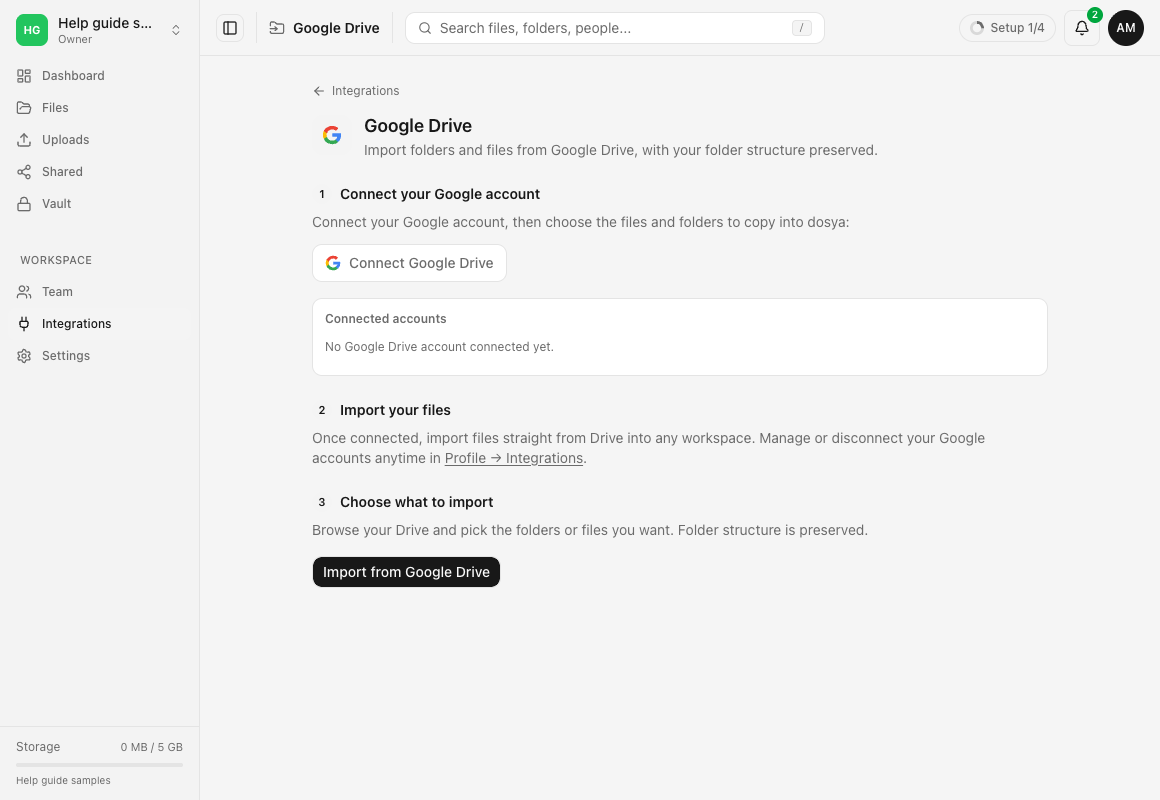
- Open Integrations and choose Google Drive, OneDrive or Dropbox.
- Select Connect account.
- On the provider page, verify the provider domain and choose the intended account.
- Review the requested permission, approve it, and wait to return to Dosya.
- Under Connected accounts, confirm the expected email and provider.
- Select Import only after checking the active Dosya workspace.
Expected result
The account appears under Connected accounts and can open the provider picker. Connecting an account does not import everything automatically; you still choose source items and a Dosya destination.
Limits and security boundaries
- Supported providers use their own authorization flow; provider passwords are not Dosya API credentials.
- Provider policies or an organization administrator can block authorization.
- A connection grants the permissions described on the provider screen until it is disconnected or revoked.
- Vault is a separate encrypted workflow. Cloud imports enter ordinary workspace storage.
Troubleshooting
The provider page does not open. Allow pop-ups and redirects, then start again from the integration page.
The wrong provider account was selected. Return without importing, disconnect the mistaken account, and connect the correct one.
Authorization is refused by an organization. Ask the provider administrator whether third-party application access is permitted.
Dosya returns without listing the account. Reload the integration page once. If it remains absent, reconnect and record the visible provider error for private support.
Related guides
Was this helpful?
Loading helpfulness results…
Voting saves a necessary ballot cookie for up to 180 days so you can change your answer.
Questions and replies
Ask about the steps in this guide. Questions are reviewed before publication.
Keep account details, credentials and private files out of public questions. Use private support for those.
Loading questions…
Sign in to your Dosya account to ask a question.