Choose a cloud-import destination
Select provider files and folders, choose the correct Dosya workspace folder, and verify the destination before starting a cloud import.
Last reviewed
An import has two locations to check: the selected provider items and the destination in the active Dosya workspace. Confirm both before starting because switching the visible workspace later does not relocate a running job.
Before you start
- Connect the provider account and select the intended Dosya workspace.
- Create the destination folder first when you need a specific structure.
- Check available storage and your upload permission.
- Avoid importing the same source selection twice unless duplicate copies are intentional.
Steps: select source items and destination
- Open the provider integration and select Import for the correct connected account.
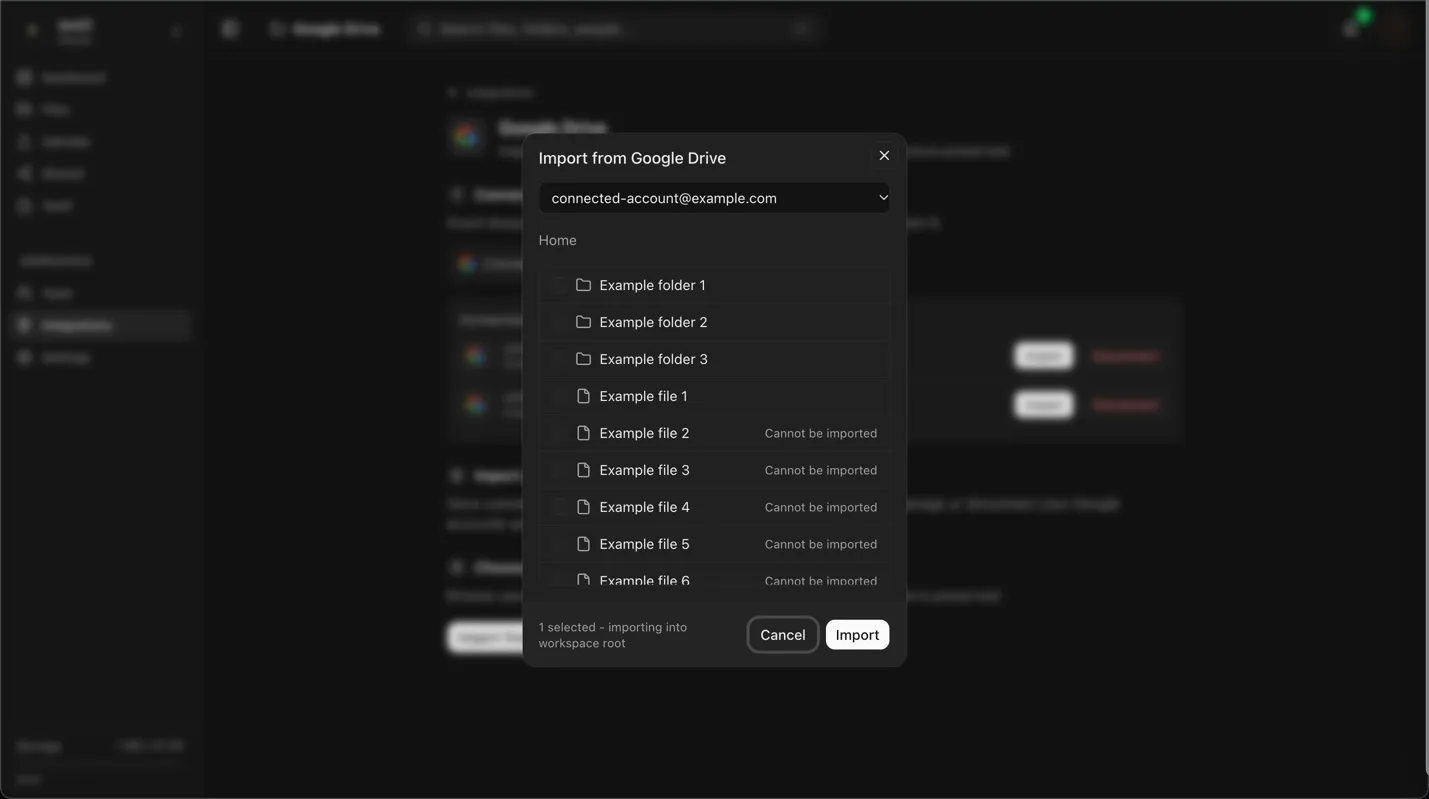
- Browse the provider folders and select the required files or folders.
- Review the selection count and remove any unintended item.
- Choose the Dosya destination folder. Confirm its name and active workspace.
- Start the import and wait for the job confirmation.
- Open the import progress view rather than starting a second job when the picker closes.
Expected result
Dosya creates an import job for the selected items and records the chosen workspace folder as its destination. Completed items appear there with their imported names and supported folder structure.
Limits and destination rules
- The destination must be writable by your current role.
- Changing the active workspace after starting does not safely move the job.
- Provider shortcuts, shared items and unsupported item types can behave differently from ordinary files and folders.
- An existing item with the same name may create a collision or duplicate; inspect the result before deleting either copy.
Troubleshooting
The destination folder is missing. Confirm the active workspace and your access to that folder. Create it in Files first if needed.
The Import button remains disabled. Select at least one supported source item and a valid writable destination.
The wrong destination was chosen. Let the current result finish or cancel it when the job offers cancellation. Verify completed files before moving or deleting them.
A shared provider item is absent. Confirm the connected provider account can open it directly and that the provider exposes it through the authorized connection.
Related guides
Was this helpful?
Loading helpfulness results…
Voting saves a necessary ballot cookie for up to 180 days so you can change your answer.
Questions and replies
Ask about the steps in this guide. Questions are reviewed before publication.
Keep account details, credentials and private files out of public questions. Use private support for those.
Loading questions…
Sign in to your Dosya account to ask a question.