Monitor and verify a cloud import
Read cloud-import progress, distinguish completed and failed items, and verify imported files before removing the source or retrying.
Last reviewed
Cloud imports run as jobs. Use the progress view to tell whether the whole selection completed, partially completed or stopped before you retry or remove anything from the provider.
Before you start
- Keep the connected provider account active until the job finishes.
- Leave the source files in place during transfer.
- Know the selected Dosya workspace and destination folder.
- For important data, plan to compare representative files after completion.
Steps: monitor and verify the job
- Start the import from the provider picker.
- Open the import progress card or indicator for the active workspace.
- Read the total, completed and failed counts instead of relying on a single overall label.
- Wait until no item remains active.
- Open the destination in Files and compare names, folder placement and representative file sizes.
- Open or download an important sample before treating the migration as complete.
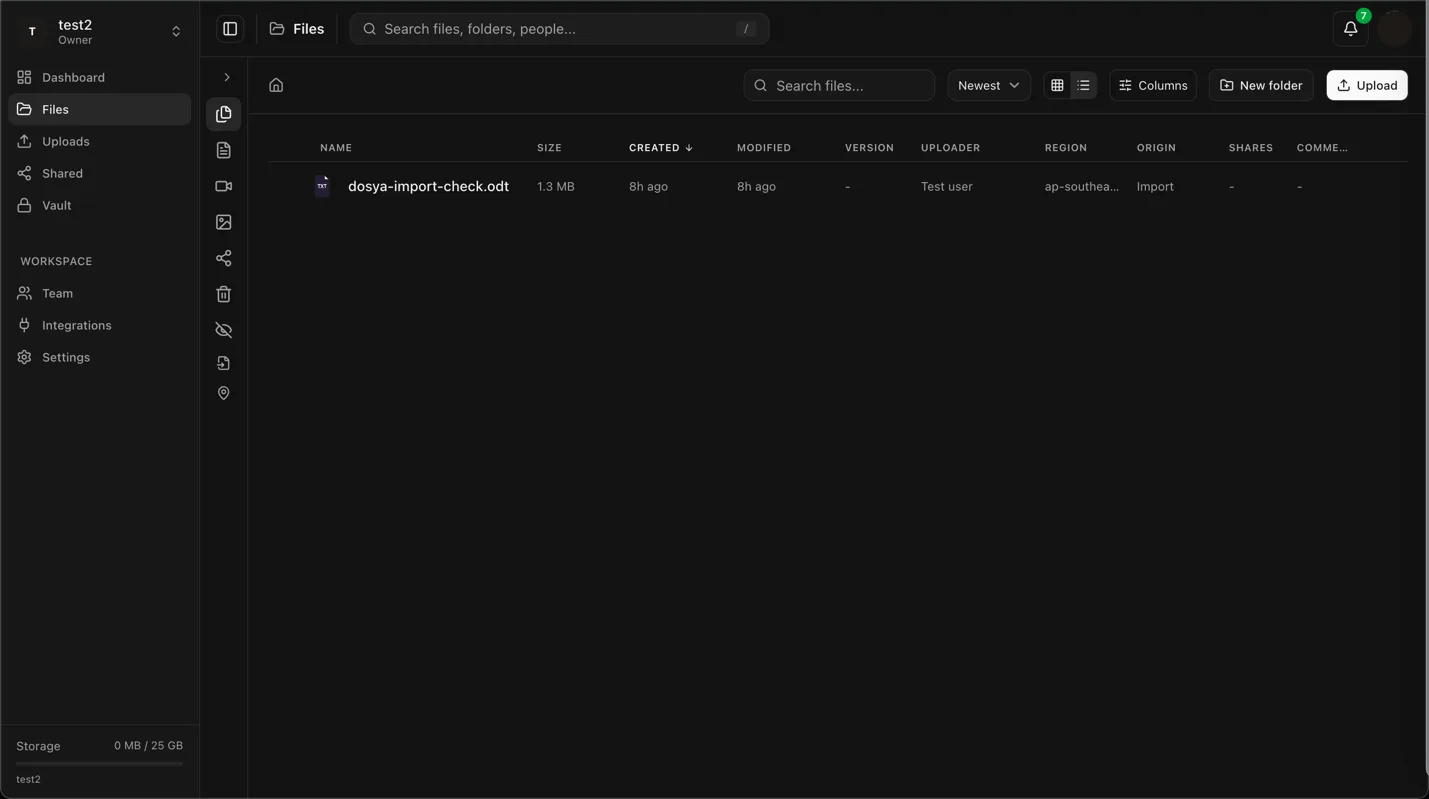
Expected result
The job reaches a terminal state, and each successful item appears in the intended destination. Any failure remains identifiable so you can retry only what is missing.
Limits and verification scope
- A job can partially succeed. Do not restart the whole selection without checking completed items.
- Provider access can expire while a long import is running.
- Import completion does not prove that an unsupported provider object was converted into a normal file.
- Imported copies consume Dosya storage and remain separate from the provider originals.
Troubleshooting
Progress stopped changing. Check service status and the provider connection, then reload the job view once. Do not immediately create a duplicate job.
Some items failed. Record their names and errors, verify successful items, then retry only the missing selection.
Files are not in the expected folder. Confirm the active workspace and the destination recorded when the job started.
Storage usage increased more than expected. Check for repeated imports, retained duplicates and the actual sizes of imported folders.
Related guides
Was this helpful?
Loading helpfulness results…
Voting saves a necessary ballot cookie for up to 180 days so you can change your answer.
Questions and replies
Ask about the steps in this guide. Questions are reviewed before publication.
Keep account details, credentials and private files out of public questions. Use private support for those.
Loading questions…
Sign in to your Dosya account to ask a question.