Upload and download encrypted Vault files
Create or select an encrypted Space, upload files after browser-side encryption, download and verify them, and work within current Vault limits.
Last reviewed
Files in Vault belong to an encrypted Space. Your browser encrypts an upload before sending it and decrypts a download after receiving it, so keep the Vault unlocked until the operation finishes.
Before you start
- Set up and unlock Vault.
- Choose which Space should hold the file, and confirm you have access to it.
- Keep enough local disk space for the original file and the completed download.
- Upload individual files. Vault does not currently preserve folder structures.
- For an important file, retain the source until you have downloaded and opened a verification copy.
Steps: upload an encrypted file
- Open Vault and unlock it.
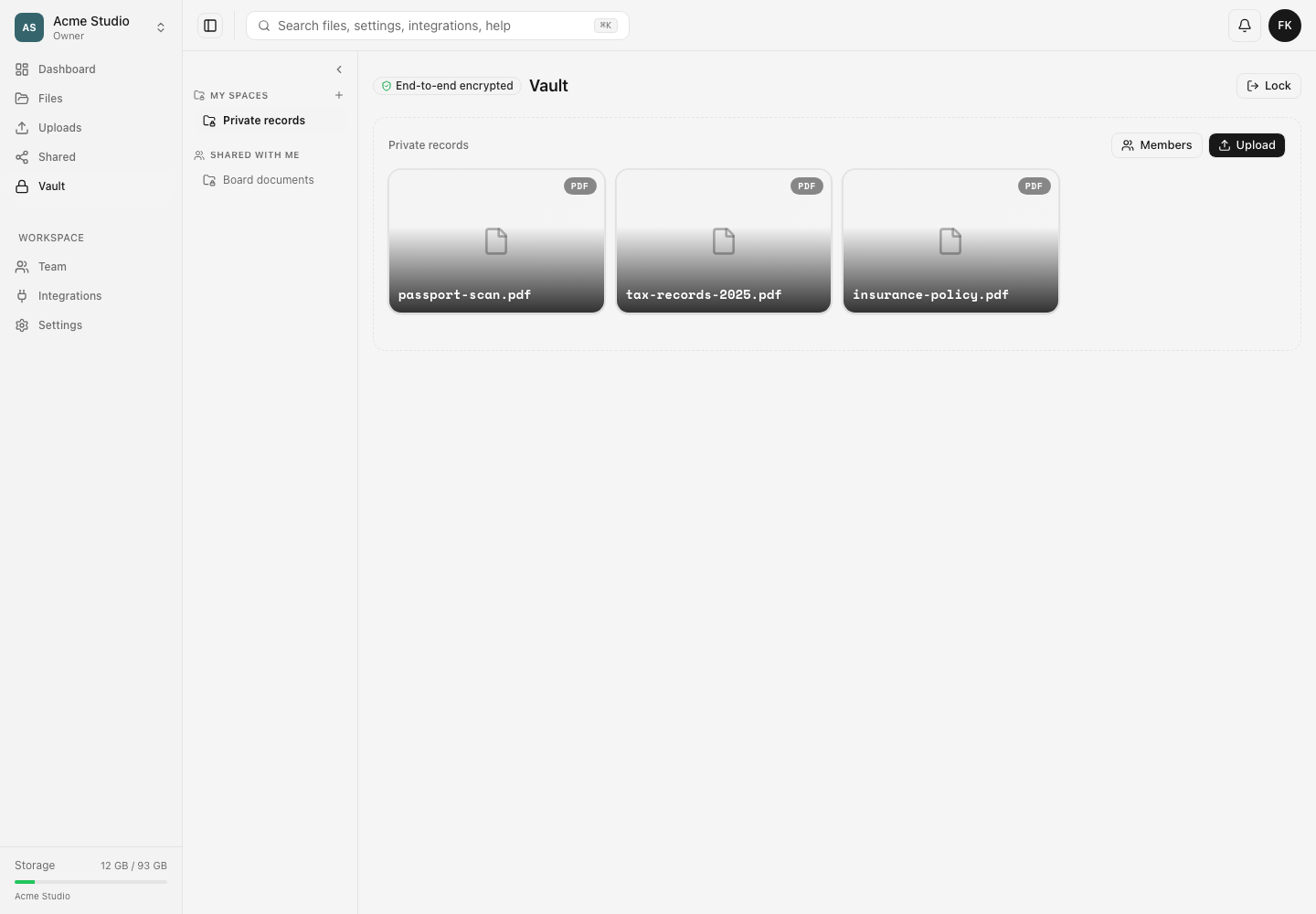
- Select an existing Space under My Spaces or Shared with me, or create the appropriate Space if the interface offers that action.
- Select Upload and choose one or more files.
- Keep the tab open while the browser encrypts and uploads each file.
- Wait until the files appear in the selected Space without an active transfer state.
- Confirm the displayed file names and sizes before removing your local originals.
Steps: download and verify a file
- Unlock Vault and open the Space containing the file.
- Open the file’s action menu and choose Download.
- Keep Vault unlocked and the tab open while the browser receives and decrypts the file.
- Open the downloaded copy locally.
- For critical data, compare its size, format and contents with the expected original before treating the copy as verified.
Expected result
An uploaded file appears in its selected Space and remains available after you lock and unlock Vault. A completed download opens as the original readable file on your device; ciphertext is not presented as the final download.
Limits and sharing boundaries
- Folders are not supported yet. A dropped folder does not recreate its directory structure in Vault.
- Ordinary Dosya share links do not grant decryption access to a Vault file. Use encrypted Space membership for the intended people.
- Closing the tab, locking Vault or losing connectivity can interrupt an active operation.
- Available actions depend on your access to that encrypted Space.
- Vault encryption does not scan or repair a damaged source file. Verify the source before upload and the local copy after download.
Troubleshooting
The upload stopped. Unlock Vault if needed, confirm the network connection and retry while keeping the tab active. Check whether the file already appears before creating a duplicate.
Only loose files appeared after dropping a folder. Vault does not support folders. Upload the needed files directly and use separate Spaces where a broader division is required.
The downloaded file will not open. Wait for the browser download to finish, then retry while Vault remains unlocked. Compare the downloaded size with the listed file and verify that a suitable local application supports its format.
A collaborator cannot see the file. Confirm that they have access to the same encrypted Space. Membership in an ordinary workspace or possession of a standard share link does not by itself grant Vault decryption access.
Related guides
Was this helpful?
Loading helpfulness results…
Voting saves a necessary ballot cookie for up to 180 days so you can change your answer.
Questions and replies
Ask about the steps in this guide. Questions are reviewed before publication.
Keep account details, credentials and private files out of public questions. Use private support for those.
Loading questions…
Sign in to your Dosya account to ask a question.