Give or remove access to a Vault Space
Invite another Dosya user to an encrypted Space, verify the contact before trusting the key, and revoke future access with re-keying.
Last reviewed
Vault access is granted per encrypted Space. Invite the person’s Dosya email from the Space’s Members panel, verify the contact through another channel, and revoke access there when it should end.
Before you start
- Unlock Vault and open the exact Space you intend to share.
- Confirm the recipient’s Dosya account email through a trusted channel.
- Ask the recipient to set up Vault encryption first. An account without an encrypted identity cannot be invited yet.
- Remove files that do not belong in the shared Space before granting access.
- Understand that revocation cannot erase copies already downloaded by the member.
Steps: invite a member
- Open Vault, unlock it and select the intended Space.
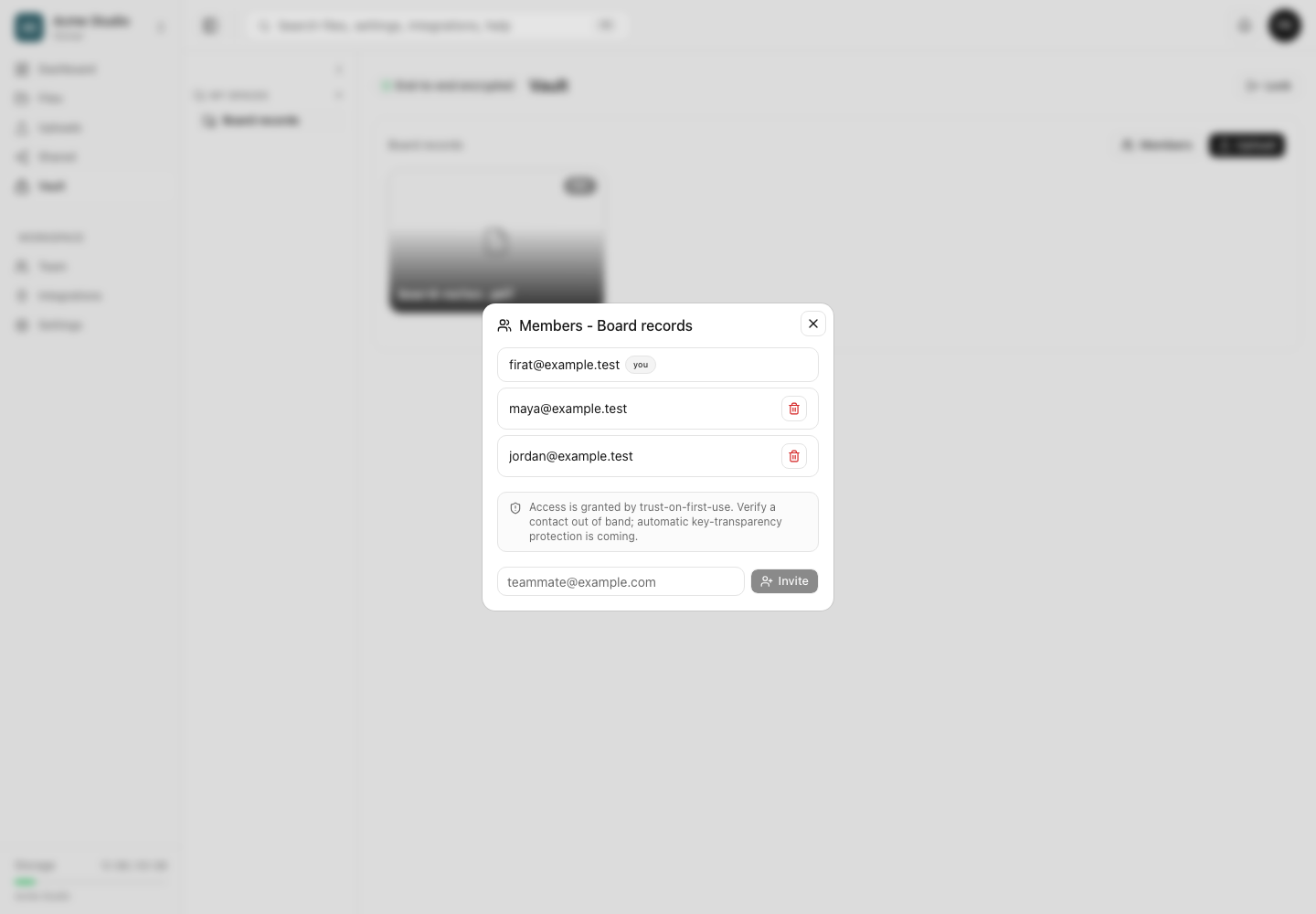
- Select Members above the encrypted file list.
- Review the existing member list and the Space name in the dialog title.
- Enter the recipient’s complete Dosya email address.
- Verify the address with the recipient outside Dosya because current access uses trust on first use.
- Select Invite and wait for the member list to refresh.
- Ask the recipient to unlock Vault and check Shared with me for the Space.
Steps: revoke a member
- Open the Space and select Members.
- Find the exact email whose access should end.
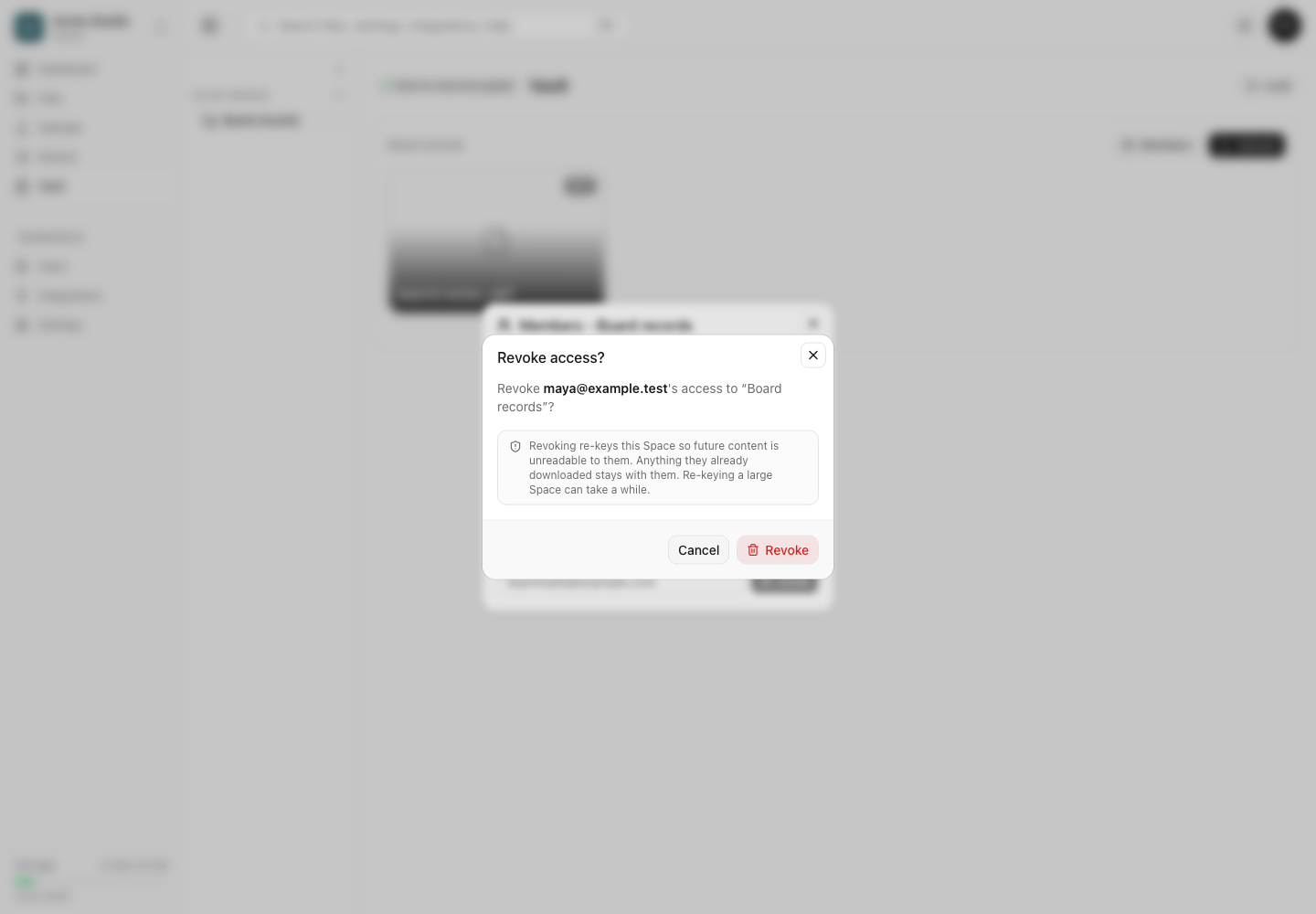
- Select its revoke control.
- Read the confirmation. Revocation re-keys the Space so the member cannot read future content, but copies they already downloaded stay with them.
- Select Revoke and keep Vault open while re-keying completes.
- Reopen Members and confirm the email is gone.
Expected result
An invited user sees the encrypted Space under Shared with me after unlocking Vault. After successful revocation and re-keying, the removed user cannot read future content in that Space, and their email no longer appears in its member list.
Limits and trust boundaries
- Vault Space membership is separate from ordinary workspace membership and ordinary share links.
- Automatic key-transparency protection is not yet available in the current interface; verify a new contact out of band.
- The recipient must already have a Vault encryption identity.
- Revocation cannot remove local copies already downloaded or otherwise saved by the former member.
- Re-keying a large Space can take time. Do not close the session or assume completion before the UI confirms it.
Troubleshooting
The invite says the user has not set up encryption. Ask the recipient to open Vault, create their encryption identity and save their recovery key. Retry after they finish.
The wrong email was invited. Revoke that member promptly, wait for re-keying to complete, then invite the verified address.
The recipient cannot find the Space. Confirm the exact account email, ask them to unlock Vault and check Shared with me, then refresh the current session.
Members will not load. Keep Vault unlocked, verify the active Space and retry after checking the connection. Do not create a duplicate Space as a workaround.
Revocation appears stuck. Leave Vault open while the Space re-keys. If it fails, preserve the visible error and Space name for private support; never include a passphrase or recovery key.
Related guides
Was this helpful?
Loading helpfulness results…
Voting saves a necessary ballot cookie for up to 180 days so you can change your answer.
Questions and replies
Ask about the steps in this guide. Questions are reviewed before publication.
Keep account details, credentials and private files out of public questions. Use private support for those.
Loading questions…
Sign in to your Dosya account to ask a question.