Restricting a workspace member to one folder
Limit a member to a selected folder and its contents across the web app, desktop sync, WebDAV and the S3 gateway.
Last reviewed
A folder restriction confines a member to one selected folder and everything below it. Use it for a client, contractor or project team that should work in one branch of the workspace without seeing the rest of the file tree.
This setting applies alongside the member’s role. The role controls allowed actions; the folder restriction controls the visible scope.
Before you start
- Select the correct workspace and open Team.
- You need Manage roles.
- The target must be another non-owner member. You cannot restrict yourself or the workspace owner.
- Create and organize the destination folder first. The folder must belong to the same workspace and must not be in Trash.
- Review the member’s role before limiting the folder. A folder restriction does not add upload, download, sharing or delete permissions.
- Tell the member before applying the change because pages outside the restricted scope become unavailable.
Steps: limit a member to a folder
- Open Team and find the member under Members.
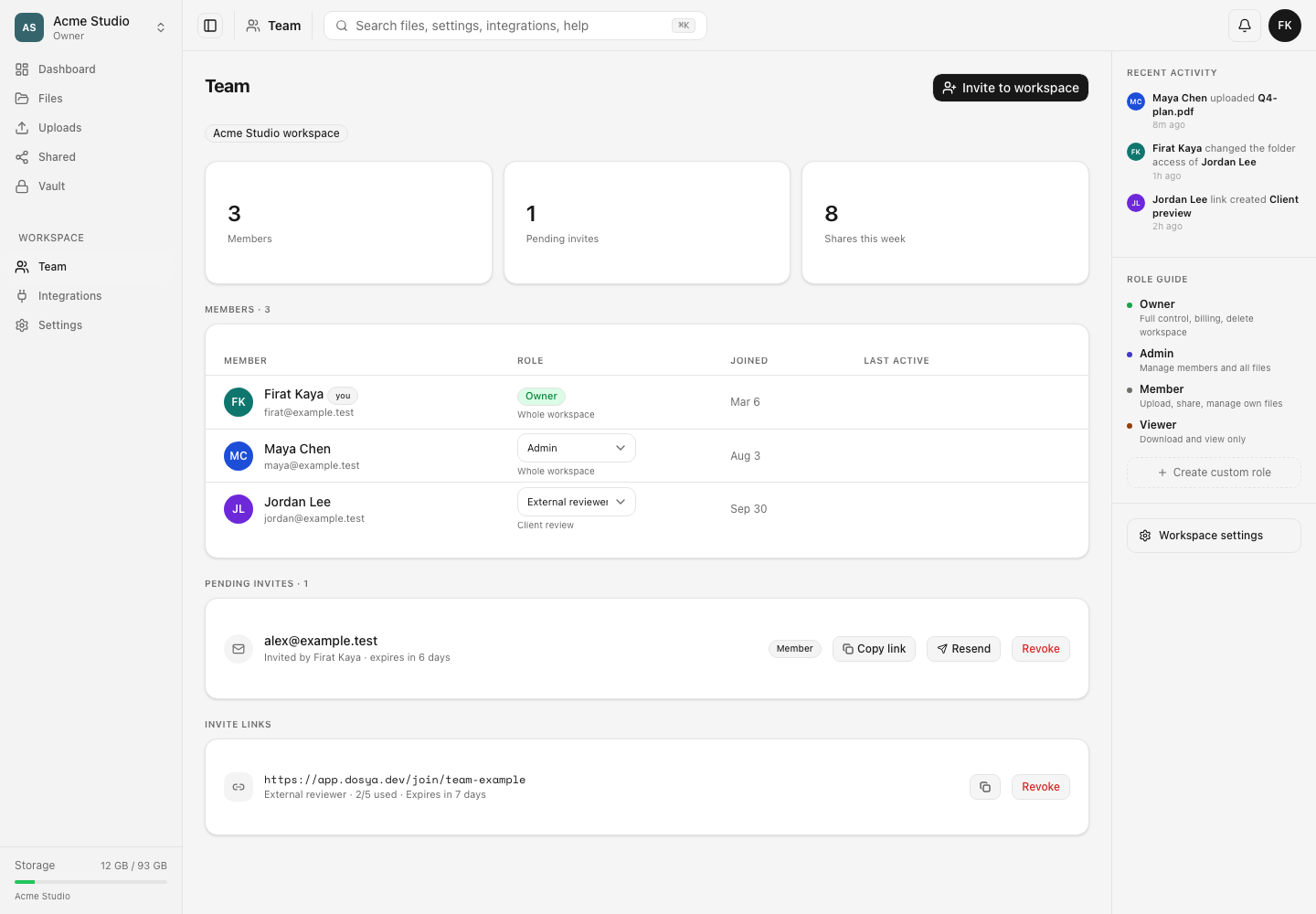
- Move to the controls at the right side of their row and select the folder button whose tooltip is Set folder access.
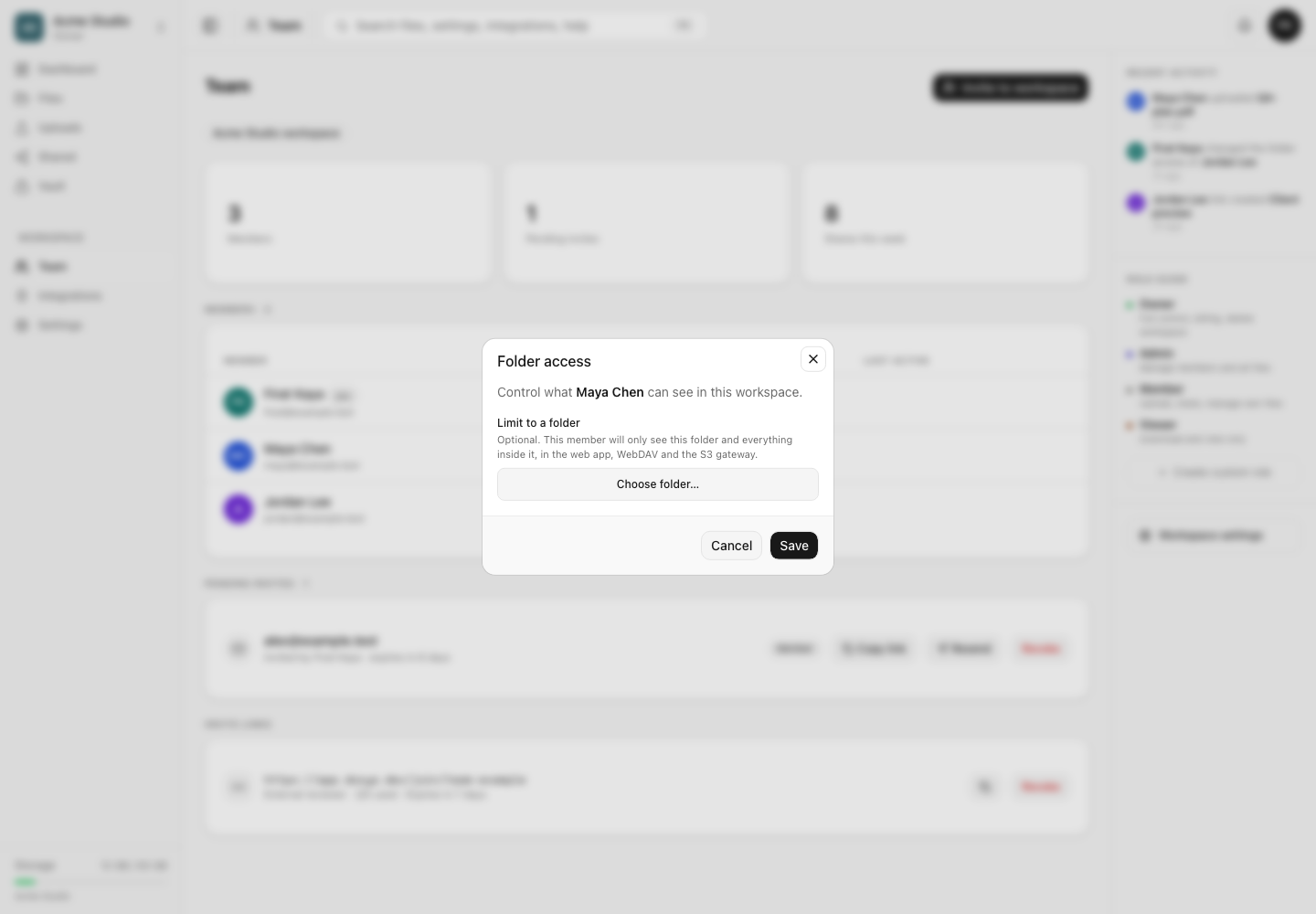
- In Folder access, select Choose folder….
- Browse the workspace tree, choose the top-level folder the member should see and confirm the selection.
- Read What this changes for them. Confirm that the selected scope matches the intended project.
- Select Save.
- Check the member’s role column. The selected folder name appears below the role instead of Whole workspace.
- Ask the member to refresh or reconnect their client and confirm that they can reach the intended files.
What changes for the member
After the restriction is saved, the member sees the selected folder and its descendants across the web app, desktop sync, WebDAV and the S3 gateway. Their dashboard, search results and shared-link views are scoped to that tree.
Workspace settings, the Team page and the full activity log remain unavailable to a folder-restricted member. This prevents control-plane or audit data outside the folder from becoming another view into the workspace.
Steps: change or clear the restriction
- Return to Team and open Folder access for the same member.
- To move the boundary, clear the current folder, choose another folder and save.
- To restore workspace-wide visibility, select Clear, leave the folder empty and select Save.
- Confirm that the member row now shows the new folder name or Whole workspace.
- Ask the member to refresh or reconnect before testing the new scope.
Expected result
The member can open the selected folder and its descendants, subject to their role. Items elsewhere in the workspace do not appear in their supported web, desktop and protocol views.
The Team row records the boundary, and the workspace activity log records a folder-access change for later review.
Limits and behavior
- One member can have one root folder restriction. Selecting a folder includes its descendants.
- The workspace owner cannot be restricted.
- You cannot restrict yourself because doing so could remove the access needed to reverse the change.
- The selected folder must be live and belong to the same workspace.
- A folder restriction does not copy or move files.
- It does not grant actions missing from the member’s role.
- Moving, deleting or reorganizing the selected folder can affect what the member can reach. Review the member after structural changes.
- Existing API keys and integrations remain subject to their own credentials and conditions; verify the intended identity and scope rather than assuming a member setting changes every unrelated credential.
Troubleshooting
The folder button is missing. You lack Manage roles, the row is your own, or the target is the owner.
The folder cannot be selected. Confirm it belongs to the active workspace and is not in Trash. Restore or recreate the folder before selecting it.
The member sees an empty area. Confirm the Team row names the expected folder, the folder still contains live items and the member’s role includes the required page and file permissions.
The member still sees old results. Have them refresh the web app and reconnect desktop or protocol clients. Permission and membership caches can take a short time to settle across active connections.
The member cannot open Team, Settings or Activity. That is expected for folder-confined members. A workspace-wide administrator should perform those tasks.
Frequently asked questions
Can I select several unrelated folders?
No. Choose one common parent folder, or restructure the workspace so the required folders sit beneath one controlled root.
Can the restricted member create subfolders?
Only if their role grants the relevant folder and upload permissions. Any created items remain within the restricted tree.
Does clearing the restriction change the member’s role?
No. It restores workspace-wide scope while leaving the assigned role unchanged.
Related guides
Was this helpful?
Loading helpfulness results…
Voting saves a necessary ballot cookie for up to 180 days so you can change your answer.
Questions and replies
Ask about the steps in this guide. Questions are reviewed before publication.
Keep account details, credentials and private files out of public questions. Use private support for those.
Loading questions…
Sign in to your Dosya account to ask a question.