Using workspace invitation links safely
Create a reusable workspace invite link with the right role, expiry and use limit, then monitor or revoke it from Team.
Last reviewed
Use a workspace invitation link when several people should join with the same role and you do not need to bind each invitation to one email address. Anyone who has the URL can attempt to use it, so set a short expiry and a realistic use limit before sharing it.
For one named person, an email invitation is usually easier to control. See Inviting people to a workspace for the email-bound workflow.
Before you start
- Select the intended workspace and open Team. Confirm the workspace name below the page title.
- You need Invite members permission. If Invite to workspace is missing, ask an owner or a member whose role carries that permission.
- Decide which role every person using the link should receive. Owner is never available because ownership uses a separate transfer action.
- Decide how many successful joins you expect and how long the link should remain useful.
- Treat the URL like an access credential. Send it through a private channel and avoid placing it in tickets, public documents or screenshots.
Steps: create an invitation link
- In the web app, select Team in the workspace navigation.
- Select Invite to workspace near the upper-right corner.
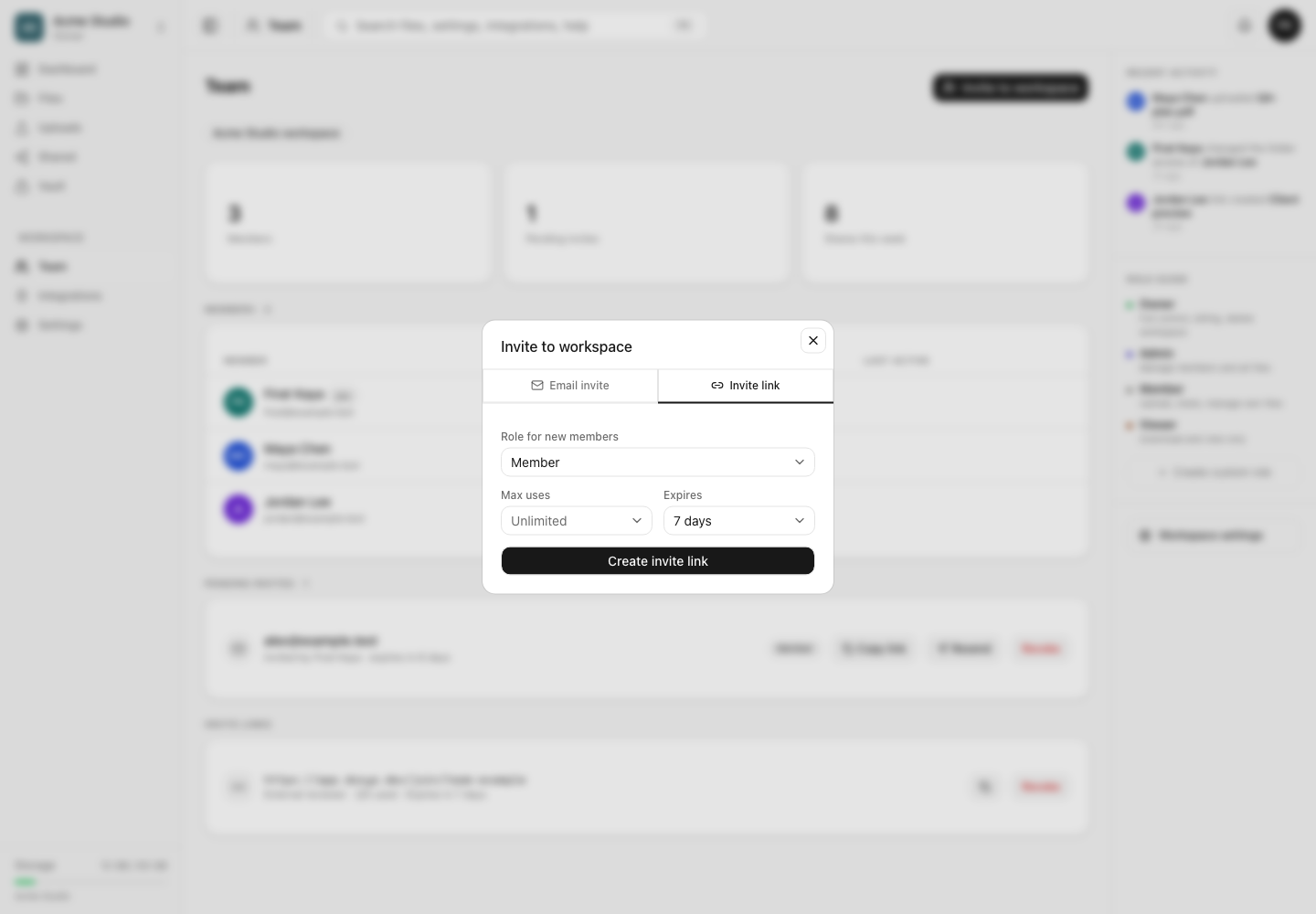
- Select the Invite link tab.
- Under Role for new members, choose the built-in or custom role that new members should receive. The selector only shows roles you are allowed to grant.
- Under Max uses, choose the smallest number that covers the planned recipients. Unlimited removes this safeguard.
- Under Expires, choose how long the URL should work. The initial selection is seven days. Never creates a link without a time limit.
- Select Create invite link.
- Copy the generated URL from Share this link and send it only to the intended people.
Steps: monitor or revoke a link
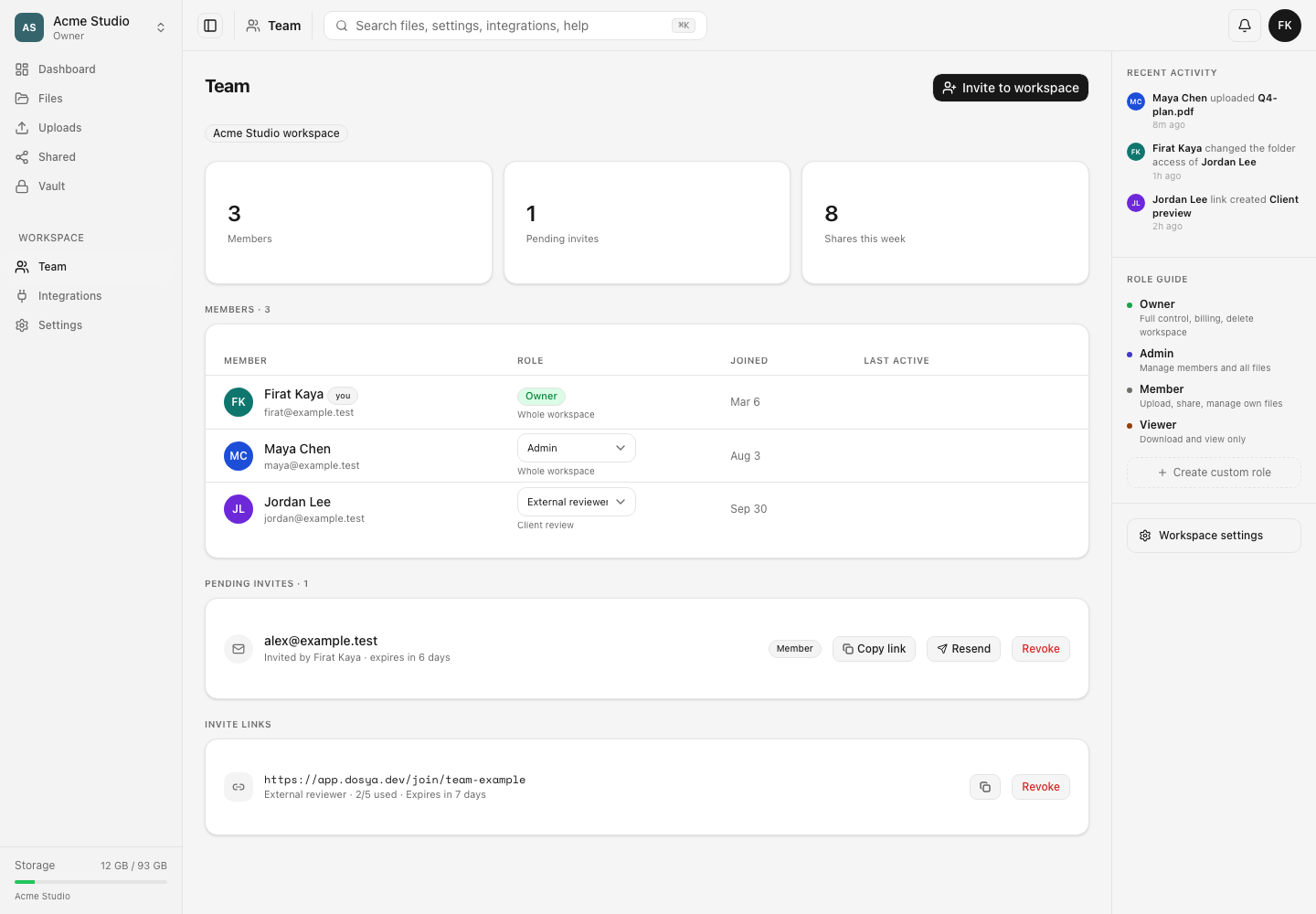
- Return to Team and scroll to Invite links.
- Check the role, the number of uses and the expiry shown under the URL.
- Use the copy control when you need to send the existing URL again. Creating another link gives you a separate URL with separate limits.
- Select Revoke when the link was sent to the wrong place, enough people have joined, or the role is no longer appropriate.
- Review Members after each expected recipient joins. The member row shows the role they received.
Expected result
The new URL appears under Invite links with its role, use count and expiry. An eligible person who opens it, signs in and accepts becomes a workspace member with the selected role. The use count increases after a successful join.
Revoking the link stops future joins through that URL. It does not remove people who already joined.
Limits and security behavior
- The link is not tied to a recipient’s email address and can be forwarded.
- The current web form offers preset use counts and expiry periods. The API rejects non-positive, fractional or excessively large limits.
- Workspace membership caps and allowed email-domain policies still apply when someone joins.
- A creator cannot use their own link to create a second membership.
- A person who is already a workspace member does not gain another seat through the same link.
- You cannot create an invitation for a role that grants permissions you do not hold.
- Revocation affects the link, not existing members. Change a member’s role or remove the member separately.
Troubleshooting
Invite to workspace is missing. Your role does not currently carry Invite members, or Team access is unavailable. Ask the workspace owner to review your role.
The role I need is not listed. You cannot grant Owner or a role with permissions beyond your own. An owner can create or review a suitable custom role.
A recipient sees that the link is expired, revoked or fully used. Review the row under Invite links. Create a new link with deliberate limits if the person should still join; do not increase access by choosing a stronger role as a workaround.
A recipient is eligible but still cannot join. Check the workspace member limit, the allowed email-domain policy and whether the person is already a member. Ask them to copy the exact error message without sharing the live invitation URL.
The link was posted publicly. Revoke it immediately. Review Members and the workspace activity log for unexpected joins, then remove or adjust any account that should not have access.
Frequently asked questions
Can I edit an invitation link after creating it?
No edit control is shown. Revoke the old link and create a new one with the required role and limits.
Does changing the role later change people who already joined?
No. The link’s role applies when a person joins. Change an existing member’s role from their row on Team.
Should I choose Never and Unlimited for a standing team link?
Only when you have an intentional process for protecting and reviewing that URL. A short expiry and bounded use count reduce the impact of accidental forwarding.
Related guides
Was this helpful?
Loading helpfulness results…
Voting saves a necessary ballot cookie for up to 180 days so you can change your answer.
Questions and replies
Ask about the steps in this guide. Questions are reviewed before publication.
Keep account details, credentials and private files out of public questions. Use private support for those.
Loading questions…
Sign in to your Dosya account to ask a question.