Reading workspace activity and audit details
Filter the workspace activity log, expand an event for forensic details, and understand which records and names your role can see.
Last reviewed
The workspace activity log helps an authorized member answer who performed an action, what resource it affected, when it happened and, when available, where the request came from. Use it to investigate unexpected changes, confirm administrative work or narrow a support report.
The compact Recent activity panel on Team shows a few events. Open Activity for filters, pagination and expandable details.
Before you start
- Select the workspace you want to investigate.
- Your role needs View activity log and access to the Activity page.
- A folder-restricted member cannot open the workspace-wide activity log.
- Write down the approximate time, member, resource name or action you are looking for.
- Activity records are evidence of recorded requests. They do not replace checking the current file, member or link state.
Steps: find an event
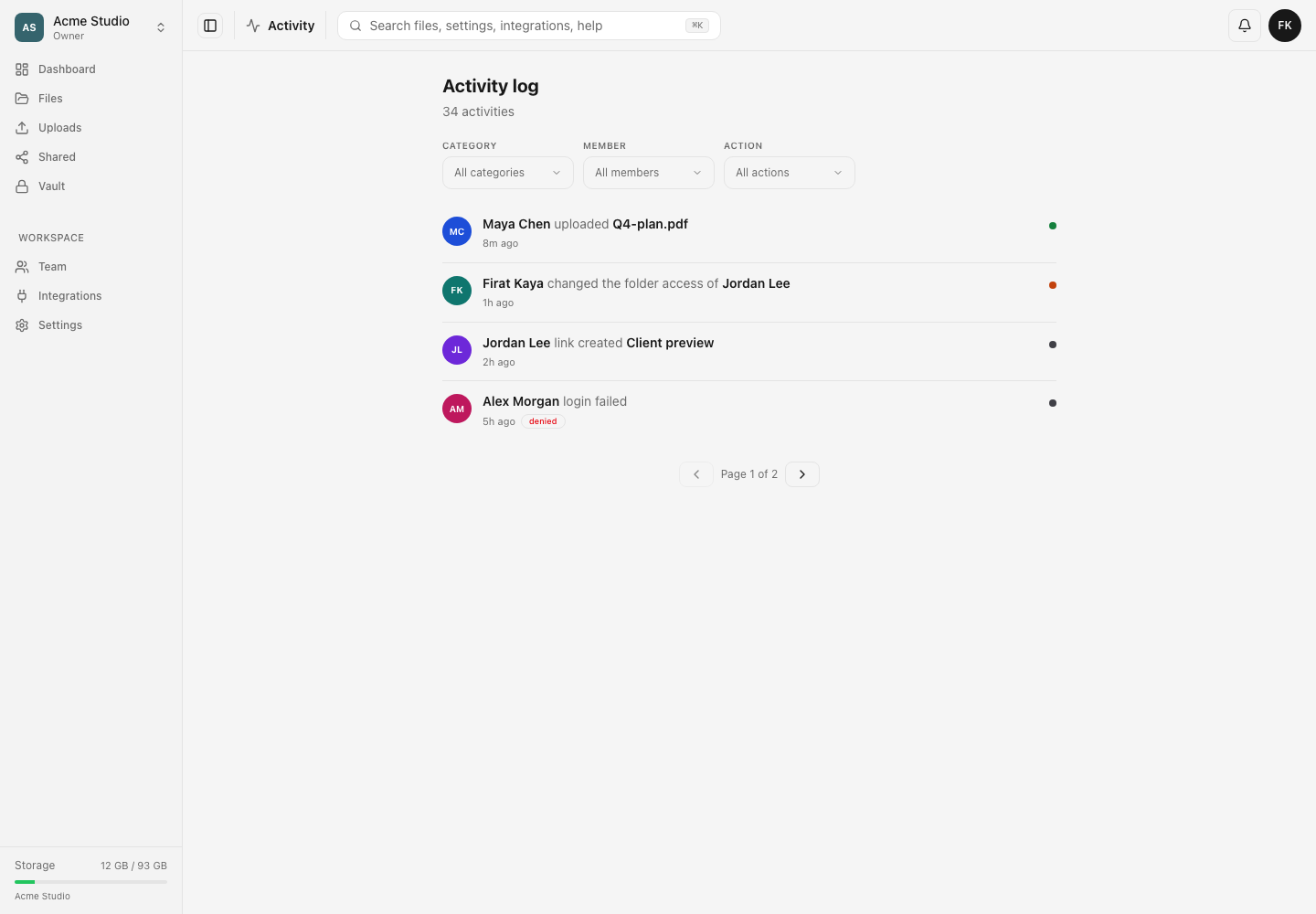
- Open Activity from the workspace navigation or the All link beside a dashboard activity panel.
- Check the total activity count under Activity log.
- Open Category and select one or more areas, such as files, sharing, team or authentication.
- Open Member to narrow results to one or more actors.
- Open Action to select exact event types. Choosing a category narrows the available actions.
- Review the resulting rows. Each row names the actor, action, resource and relative time when that information is available.
- Use the page controls at the bottom to move through older events.
- Select Clear filters to return to the complete view.
Steps: inspect event details
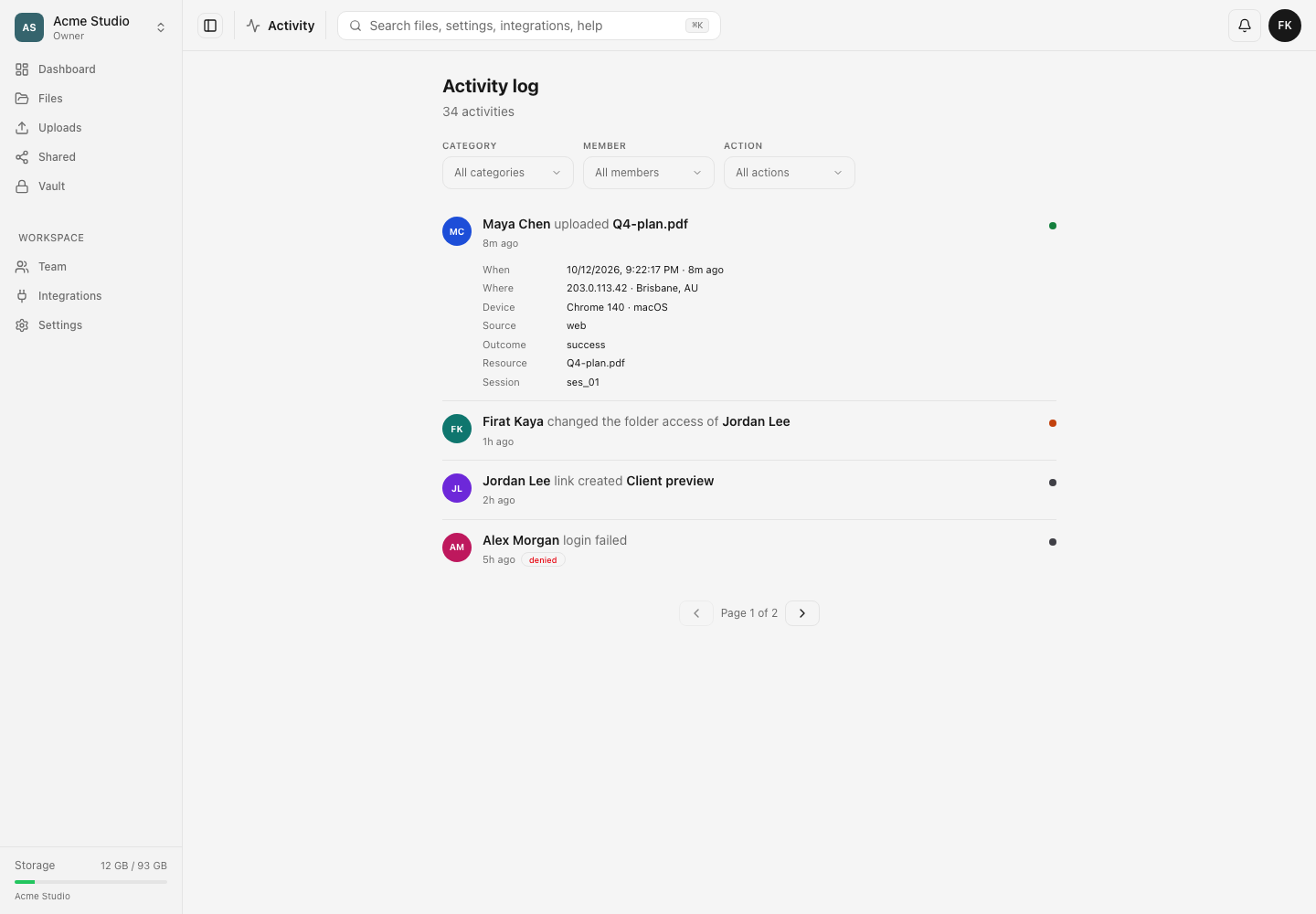
- Select an activity row to expand it.
- Read When for the absolute timestamp and relative age.
- Review Where when a source IP and approximate location are available.
- Review Device for the parsed browser and operating system.
- Check Source to distinguish web and supported integration or protocol activity.
- Check Outcome for success, failure or denial.
- Review Resource, Request and Session identifiers when shown. These values help private support locate related records.
- Select the row again to collapse it.
Expected result
The log shows activity your role is allowed to inspect, ordered with recent events first. Filters update the result count, and pagination exposes older rows. Expanding a row reveals the contextual fields recorded for that event.
A denied or failed badge indicates the request did not complete successfully. Compare the event with the current resource state before deciding what changed.
Limits and privacy behavior
- Not every event contains every detail. Source IP, location, device, request ID or session ID may be absent.
- Approximate location is derived context and may reflect a VPN, proxy, corporate gateway or mobile carrier.
- Resource names are withheld when the viewer cannot open the corresponding file or folder.
- Members without full activity permission may see only narrower activity summaries on other pages.
- A folder-confined member cannot use the full workspace activity page.
- The log records supported product actions; it is not a live network trace or file-content history.
- Relative times change as the page ages. Use the expanded absolute timestamp in an investigation.
Troubleshooting
Activity is unavailable. Your role lacks View activity log, the page is blocked by page-access rules, or the member is folder-restricted. Ask an owner to review the role and scope.
No events match the filters. Clear filters, broaden the time by moving through older pages, and check that the action belongs to the selected category.
A resource name is missing. The resource may have been deleted, or your current access does not allow its name to be shown. Use the event type, timestamp and identifier without trying to bypass that boundary.
The location looks wrong. Source locations are approximate and often identify the network exit point. Compare the IP, device and session with known access patterns.
An event needs investigation. Preserve the timestamp, actor, action, outcome, resource, request ID and session ID. Send them through private support; do not publish sensitive IP or session information.
Frequently asked questions
Can I filter by more than one member or category?
Yes. The filter menus support multiple selections. The active combination controls the result set.
Does a failed login mean the account was accessed?
No. A failed or denied outcome means that recorded attempt did not succeed. Review nearby events and active sessions if the attempt is unfamiliar.
Can activity restore a deleted file or member?
No. It records context. Use the relevant recovery or administration workflow for the current resource.
Related guides
Was this helpful?
Loading helpfulness results…
Voting saves a necessary ballot cookie for up to 180 days so you can change your answer.
Questions and replies
Ask about the steps in this guide. Questions are reviewed before publication.
Keep account details, credentials and private files out of public questions. Use private support for those.
Loading questions…
Sign in to your Dosya account to ask a question.