Upload an object with an S3 client
Upload a small object through the Dosya S3 endpoint, interpret the returned ETag, and verify its key, byte size, and overwrite behavior safely.
Last reviewed
A Dosya S3 PutObject writes to bucket {workspace-id} at the configured key. Missing prefix segments can become folders when the member role permits folder creation; uploading to an existing file key creates a new Dosya version.

Before you start
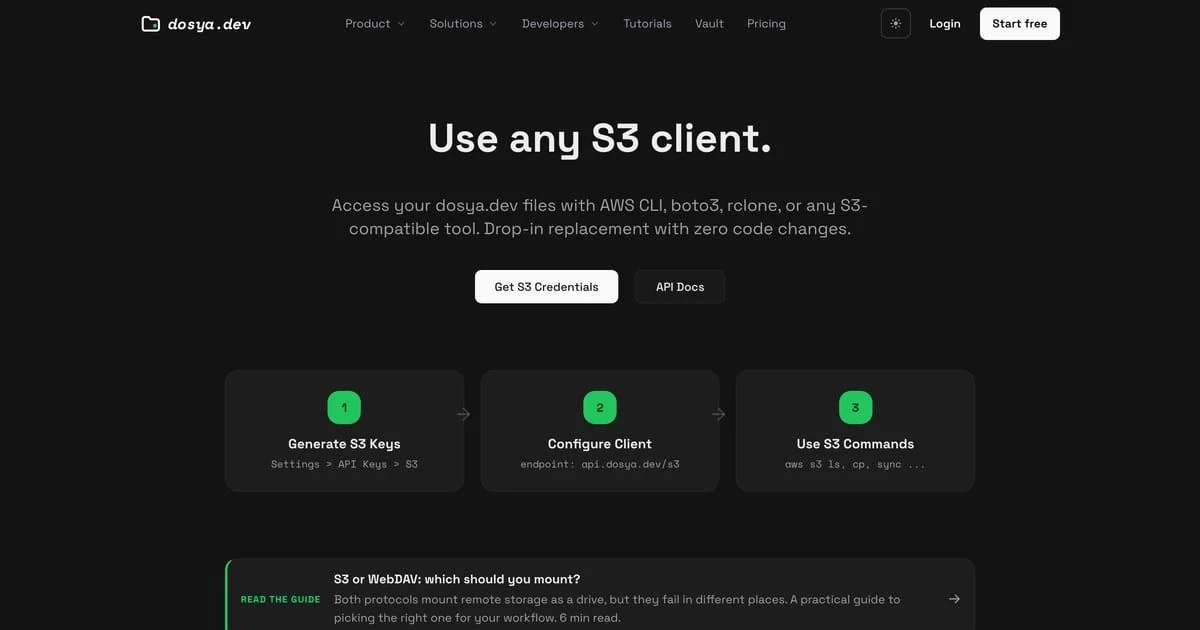
Use endpoint https://api.dosya.dev/s3, region us-east-1, path-style addressing, and an S3 credential with upload or full scope. The member role must allow S3 and uploads.
Start with a disposable object below 50 MB. Plain requests require a valid Content-Length; clients may instead use supported AWS chunked framing. Workspace extension policy, per-file limits, credential or role limits, quota, hidden paths, and folder locks all remain active.
Steps
- Create a small local test file and record its exact byte size and destination key, including case and every prefix segment.
- Confirm the bucket is the workspace ID and the key sits inside any folder anchor assigned to the credential.
- Upload once with the client’s
put,cp, orPutObjectcommand while keeping credentials outside command history. - Require an HTTP
200response and save the returnedETag; a checksum header is echoed only after Dosya verifies it. - Issue
HEADor a permitted listing for the same key and compare the reported size and stored ETag with the upload result. - Open the destination in Dosya and confirm one file exists; if you intentionally upload the same key again, verify that its version number advances.
Expected result
The object is stored once at the requested key with the expected bytes. New nested prefixes create folders only when allowed, and an overwrite preserves history as a new file version rather than creating a second same-name row.
Exact refusals identify the gate: API key scope ‘read’ cannot upload files, Upload not allowed, Creating folders is not allowed, Destination folder is locked, Object is locked, QuotaExceeded, or EntityTooLarge. Correct that gate before retrying.
Related guides
Was this helpful?
Loading helpfulness results…
Voting saves a necessary ballot cookie for up to 180 days so you can change your answer.
Questions and replies
Ask about the steps in this guide. Questions are reviewed before publication.
Keep account details, credentials and private files out of public questions. Use private support for those.
Loading questions…
Sign in to your Dosya account to ask a question.