Disconnect a cloud import account
Remove a Google Drive, OneDrive or Dropbox connection safely while keeping already imported Dosya files and checking active jobs first.
Last reviewed
Disconnecting removes Dosya’s stored connection to the provider account. Files that already completed import remain in Dosya; future browsing and imports from that account stop.
Before you start
- Check for active import jobs and let required items finish.
- Verify important imported files in Dosya.
- Identify the exact provider email to remove.
- Understand that deleting a Dosya copy and disconnecting its provider are separate actions.
Steps: disconnect the account
- Open Profile → Integrations, or open the provider integration’s Connected accounts section.
- Find the provider and exact account email.
- Confirm that no required import is still running from it.
- Select Disconnect on that account row.
- Wait for Account disconnected and confirm the row disappears.
- Reload the provider integration and verify that browsing now requires a new connection.
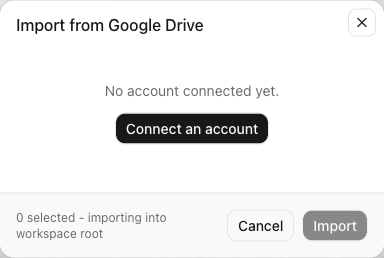
Expected result
The account no longer appears as connected and cannot open the import picker until reauthorized. Completed files remain in their Dosya workspace folders.
Limits and provider revocation
- Disconnecting does not delete provider originals or completed Dosya copies.
- It may interrupt an active job that still needs provider access.
- Provider-side authorization can also be revoked from the provider account’s security settings.
- Reconnecting later creates a new authorization and does not automatically resume every old job.
Troubleshooting
Disconnect failed. Check the connection and retry once from Profile → Integrations. Preserve the provider name and visible error for support.
The account still appears. Reload the list and confirm you removed the correct row when multiple emails are connected.
Imported files disappeared. Check the active Dosya workspace and destination. Disconnection itself does not delete completed files.
The provider still lists Dosya access. Revoke it from the provider’s connected-app security page as an additional provider-side step.
Related guides
Was this helpful?
Loading helpfulness results…
Voting saves a necessary ballot cookie for up to 180 days so you can change your answer.
Questions and replies
Ask about the steps in this guide. Questions are reviewed before publication.
Keep account details, credentials and private files out of public questions. Use private support for those.
Loading questions…
Sign in to your Dosya account to ask a question.