Excluding files and folders from desktop sync
Review the visible default exclusions, add exact names or supported wildcard patterns before pairing, and verify a matching sample is skipped.
Last reviewed
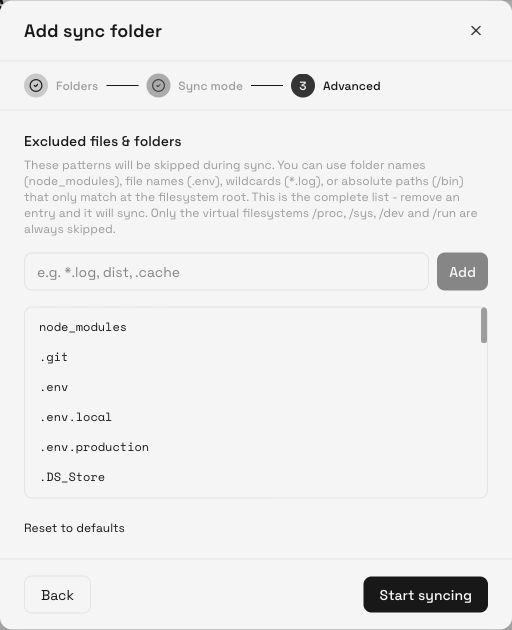
Configure exclusions in the Advanced step while adding a sync folder. The list is saved with that folder pair and applies to its initial scan and later file watching. A matching item is skipped; it is not uploaded, downloaded or deleted by that pair.
Before you start
- Decide whether the item is safe to omit on both sides of the pairing. Exclusions apply to the pair, regardless of which direction a supported mode would otherwise transfer it.
- Use a disposable test folder first. Put one matching file and one near-match inside it so you can verify the boundary.
- Review the visible defaults. The wizard currently starts with common development, system and temporary names, but every visible default can be removed.
- If a copy already exists in Dosya, preserve or manage it separately. Adding an exclusion does not remove an existing cloud file.
Steps: add exclusions when creating a pair
- Open Sync and select Add sync folder.
- Choose the cloud folder and local folder, then select Continue.
- Choose the sync mode and conflict behavior, then continue to Advanced.
- Review every entry under Excluded files & folders.
- Enter one supported pattern in the input and select Add. Repeat for additional patterns.
- Use the remove control beside any default you deliberately want included. Reset to defaults restores the starting list.
- Select Start syncing, then inspect Activity and both folders using your matching and near-match samples.
Supported pattern forms
| Pattern | What it matches |
|---|---|
node_modules | A file or folder with that exact name at any depth; a skipped folder includes its subtree |
.env | An exact dotfile or folder name at any depth |
*.log | Names ending in .log |
test_* | Names beginning with test_ |
/bin | Only that exact absolute filesystem path, not a project folder named bin |
Patterns are simple name rules. They are not a full regular-expression language. A middle wildcard such as foo*bar is passed to the file watcher, but the initial scanner’s supported matcher is limited to exact names, *.suffix, prefix* and exact absolute paths. Use the documented forms so the initial scan and later watching behave consistently.
Verify that a pattern is correct
For *.log, create excluded.log and included.log.txt in the local test folder. After the first cycle, the .log file should be absent from the cloud destination while the near-match appears. Check Activity for a skip reason if the app records one.
For a folder-name rule such as cache, place a harmless file inside cache/ and another inside cache-copy/. The exact cache directory is skipped as a subtree; cache-copy should remain eligible.
Limits and existing files
An exclusion controls what this pair considers for transfer. It does not delete a copy that already exists in the cloud, and it does not retroactively hide that copy from Files. Manage the existing cloud item separately after confirming that you no longer need it.
The current Overview does not edit the saved exclusion list. To change it, pause the pair, record its mode and destinations, remove the pair, then create it again with the intended list. Existing local and cloud files remain when the pair is removed, but the new pair performs a fresh comparison.
Always-skipped technical items
The engine always skips its own temporary sync markers, transient Office or editor lock files, editor backup files ending in ~, macOS AppleDouble sidecars and the real virtual filesystem roots /proc, /sys, /dev and /run. These technical safeguards do not appear as removable preferences.
Expected result
The matching test item stays outside the pair’s transfer set while a near-match transfers normally. The pair completes without treating the exclusion as a failed file.
Troubleshooting
A pattern skipped too much. Compare it with the supported forms and test an exact near-match. Remove the pair and recreate it with a narrower pattern after preserving important copies.
A matching file already exists in the cloud. The exclusion did not delete it. It was uploaded before the rule, arrived through another upload path or belongs to another pair. Check Activity and manage that copy separately.
A file was not skipped. Confirm that the pattern was present before selecting Start syncing and that the file is inside this pair’s local folder. Check capitalization and use a documented pattern form.
I removed a default but the item is still skipped. Some transient and virtual-system items are always skipped for safe operation. For other names, make sure another pattern in the list does not also match.
I need to change a saved list. Record the pair’s cloud folder, local path and mode. Pause and remove the pair, then recreate it with the corrected exclusions.
Frequently asked questions
Does an exclusion delete files already in Dosya?
No. It keeps matching items out of this pair’s future transfer set. Existing cloud files remain until someone manages them separately.
Can I exclude one absolute system path without excluding project folders with the same name?
Yes. A leading slash anchors the match to the exact absolute path. /bin does not match a project’s own bin folder.
Are exclusions a backup policy?
No. They define this sync pair’s transfer set. Keep a separate backup for important files, including items you deliberately exclude.
Related guides
Was this helpful?
Loading helpfulness results…
Voting saves a necessary ballot cookie for up to 180 days so you can change your answer.
Questions and replies
Ask about the steps in this guide. Questions are reviewed before publication.
Keep account details, credentials and private files out of public questions. Use private support for those.
Loading questions…
Sign in to your Dosya account to ask a question.