Delete your Dosya account
Review what account deletion removes, resolve workspace blockers, schedule deletion with an email code, or cancel during the waiting period.
Last reviewed
Deleting your account permanently removes the account and its data after a waiting period. Dosya shows a review before it sends the confirmation code, so you can copy data and resolve workspace ownership first.
Before you start
- Download any files, billing records or account information you need to keep.
- Check every workspace you own. A workspace with other members blocks deletion until you transfer ownership or remove those members.
- If you only want to stop a paid plan or leave one workspace, use that workspace’s billing or membership controls instead.
- Keep access to your account email. Dosya sends a six-digit confirmation code there.
- Do not begin while important uploads, transfers or downloads are still running.
Steps: review and schedule account deletion
- Sign in to Dosya and open Profile.
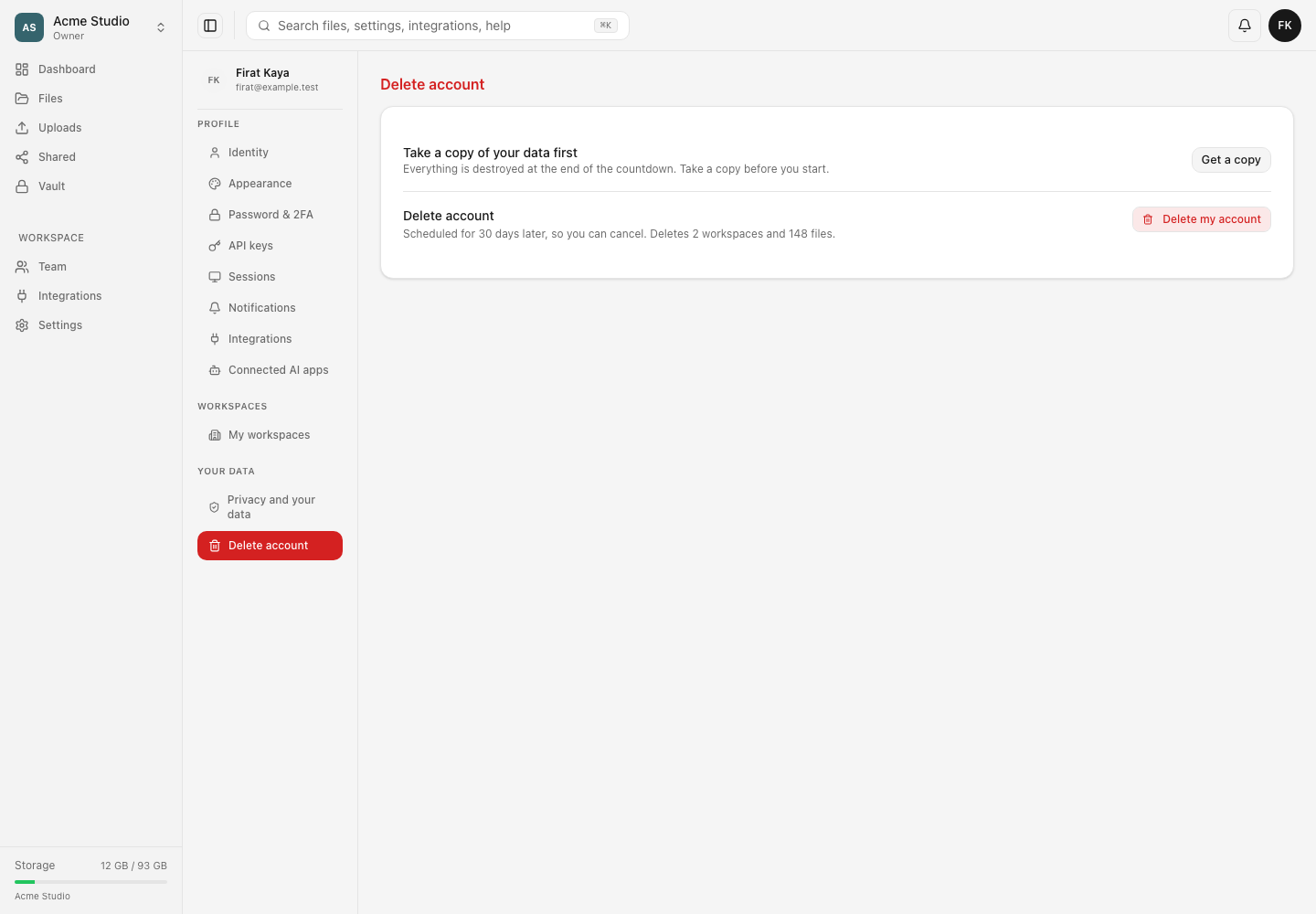
- Select Delete account.
- Review the deletion summary. Check the number of owned workspaces, files, the waiting period and any blockers.
- If Dosya lists a workspace blocker, open that workspace and transfer ownership or remove its remaining members. Return to the deletion page and refresh the review.
- Select the option to request the confirmation code.
- Open the message sent to your account email and enter its six-digit code. A code expires, so request a new one if it is no longer accepted.
- Confirm the deletion request. Dosya schedules deletion and signs you out.
Expected result
Dosya confirms that deletion is scheduled, shows the final deletion date and signs you out. The current waiting period is shown in your own deletion review; do not calculate it from this guide.
You may sign in again before that deadline and cancel the scheduled deletion. After a successful cancellation, your account remains active and you can use it normally.
Limits and consequences
- The action applies to the whole account. It is broader than cancelling a subscription or leaving a workspace.
- Deletion cannot be scheduled while an owned workspace still has other members.
- Everything covered by the deletion review is destroyed when the countdown ends. Treat the deadline as final.
- A confirmation code only proves access to the email; it does not bypass workspace blockers.
- If you use Vault, make any needed local copies while you can still unlock the encrypted files.
Troubleshooting
The page says a workspace blocks deletion. Open the named workspace. Transfer ownership to another suitable member if the workspace must continue, or remove the other members if it should be deleted with your account. Then reload the review.
The code did not arrive. Confirm the email shown on the page, check spam or filtering folders, wait a few minutes, then request another code. Use only the newest valid code.
The code is rejected. Enter all six digits without surrounding spaces. Request a replacement if the code expired or if you requested another one afterward.
You changed your mind. Sign in before the displayed deletion deadline and use the cancellation action. If the deadline has already passed, the deletion cannot be reversed through the cancellation flow.
You only need to end billing. Return to the affected workspace’s billing settings. Do not schedule account deletion solely to stop a plan.
Related guides
Was this helpful?
Loading helpfulness results…
Voting saves a necessary ballot cookie for up to 180 days so you can change your answer.
Questions and replies
Ask about the steps in this guide. Questions are reviewed before publication.
Keep account details, credentials and private files out of public questions. Use private support for those.
Loading questions…
Sign in to your Dosya account to ask a question.