Importing files and folders from Dropbox
Connect a Dropbox account, choose files or folders, and check the imported copies in the selected Dosya workspace.
Last reviewed
Open Integrations → Dropbox in the web app, select Connect Dropbox, then use Import from Dropbox to choose files or folders. Imports from this setup page go to the selected workspace’s top level. Check the completed copies in Files before treating your migration as finished.
Before you start
- Sign in to the Dosya app and select the workspace that should receive the import.
- Have the Dropbox account containing the files you intend to copy.
- Your workspace role needs upload permission. Available storage and workspace file-type and size policies also apply to imports.
- Start with a small folder or a few disposable files whose names are not already present at the destination.
- This workflow adds ordinary workspace files. It does not place imports in the Vault, and it does not require a Dosya API key.
Steps: connect Dropbox
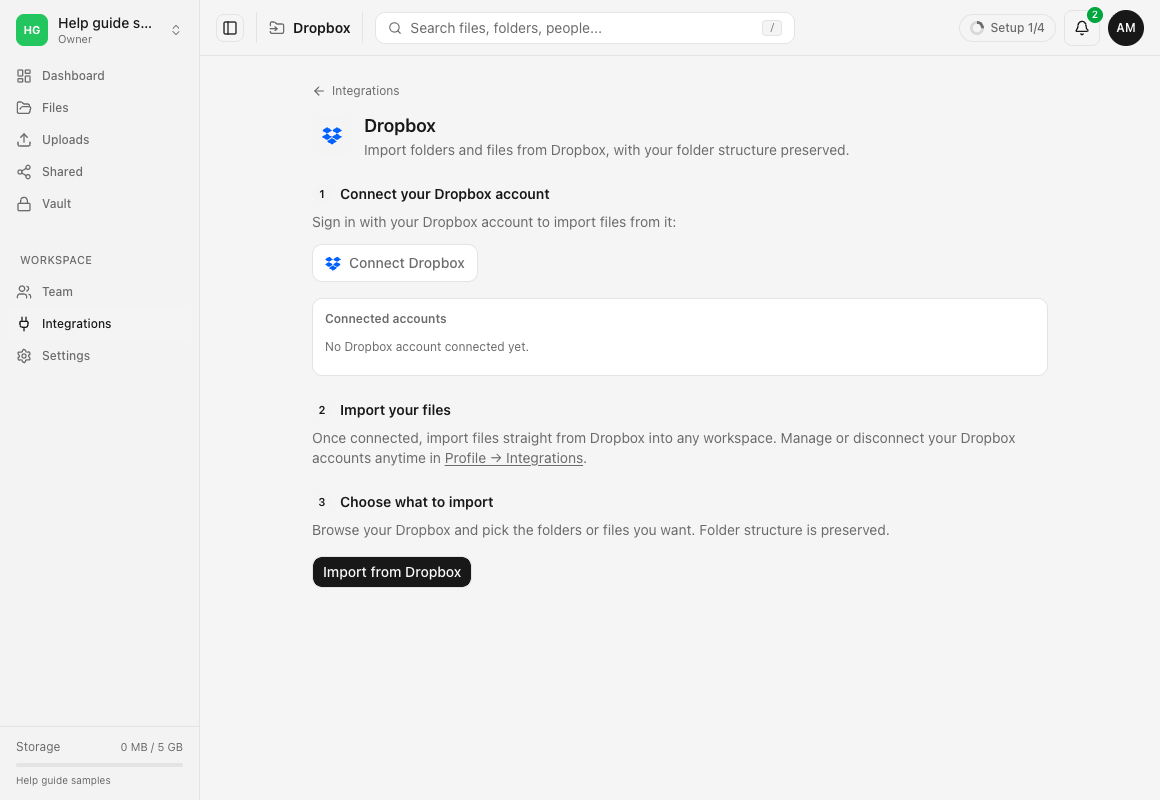
- Open the setup page. Select Integrations in the sidebar, then Dropbox, or open Dropbox setup.
- Check the workspace. Confirm the selected workspace before importing. The setup page does not include a destination-folder chooser.
- Select Connect Dropbox. Continue through Dropbox’s sign-in and connection screens using the intended account. Review the provider’s request and complete the connection if it matches your intent.
- Check Connected accounts on return. The account’s email and Connected time label should appear on the setup page. A successful connection returns you here; it does not start an import by itself.
- Connect another account if needed. Repeat Connect Dropbox. Each connected account appears separately.
Steps: select and import
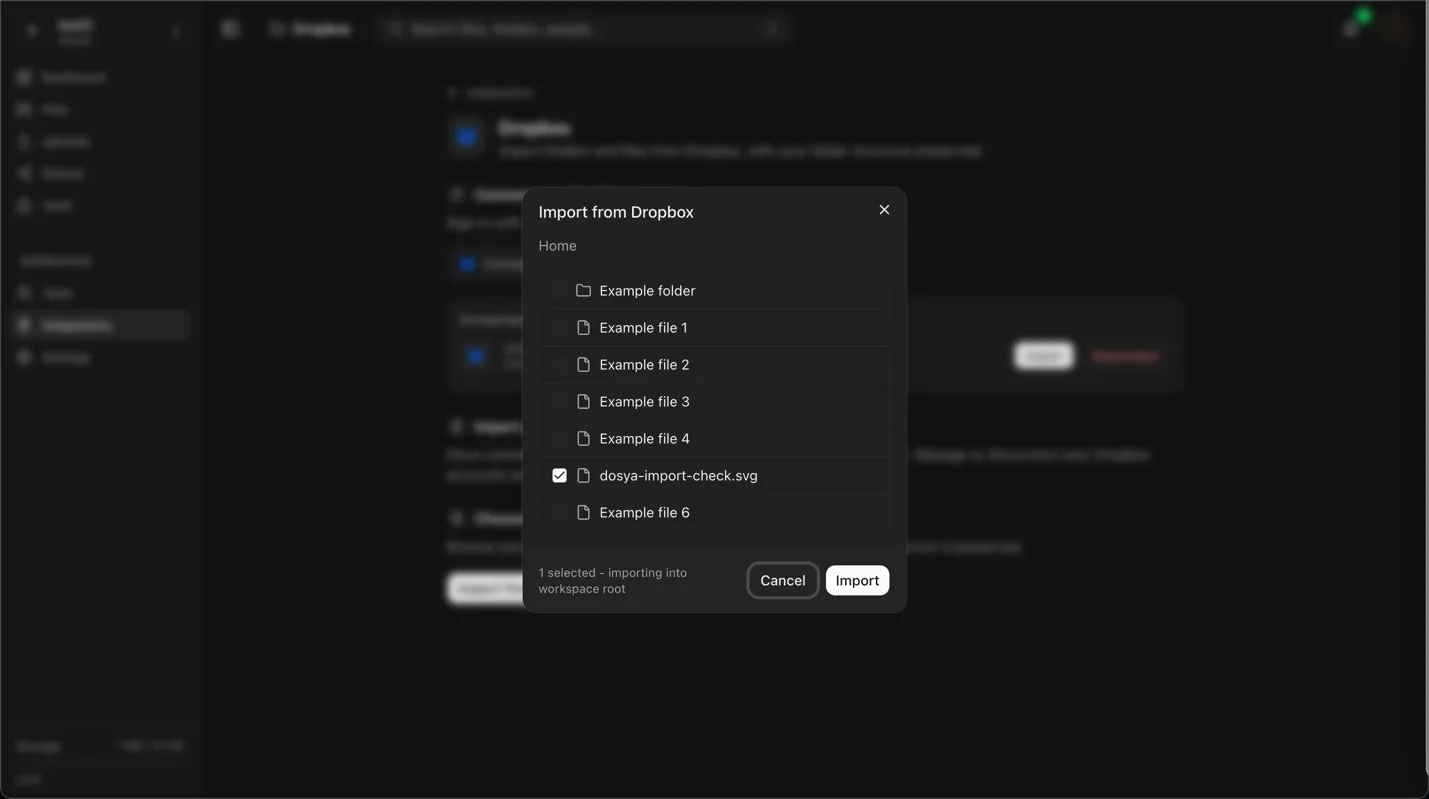
- Open the picker. Select Import from Dropbox, or Import beside a connected account to start with that account selected.
- Choose the source account when offered. If more than one Dropbox account is connected, the selector shows their email addresses. Switching accounts clears the current selection.
- Browse from Home. Select a folder’s name to open it. Use the breadcrumb buttons to return to a parent folder, and Load more when another page of items is available.
- Select files or folders with the checkboxes. Checking a folder selects its whole subtree, including the selected folder itself. Selections remain while you browse other folders. Items marked Cannot be imported have disabled checkboxes.
- Check the destination footer. It shows the number selected and importing into workspace root. This means the selected workspace’s top level, not whichever Dosya folder you last viewed.
- Select Import. The picker closes after the job starts, and Import started identifies the source account. Using Cancel in the picker before this step abandons the selection without creating a job.
Steps: confirm the result
- Check progress. The setup page shows active Dropbox imports; Files shows active cloud imports across providers. Preparation counts can grow while the folder tree is prepared. Transfer progress can show file counts, bytes and, once enough samples exist, speed and an estimated remaining time.
- Return when needed. A started cloud import runs in the background and can continue after the browser tab closes. Reopen the Dropbox setup page or Files to check its current state.
- Check the completion message. Import complete can include failed or skipped counts. Review them before assuming every selected item succeeded.
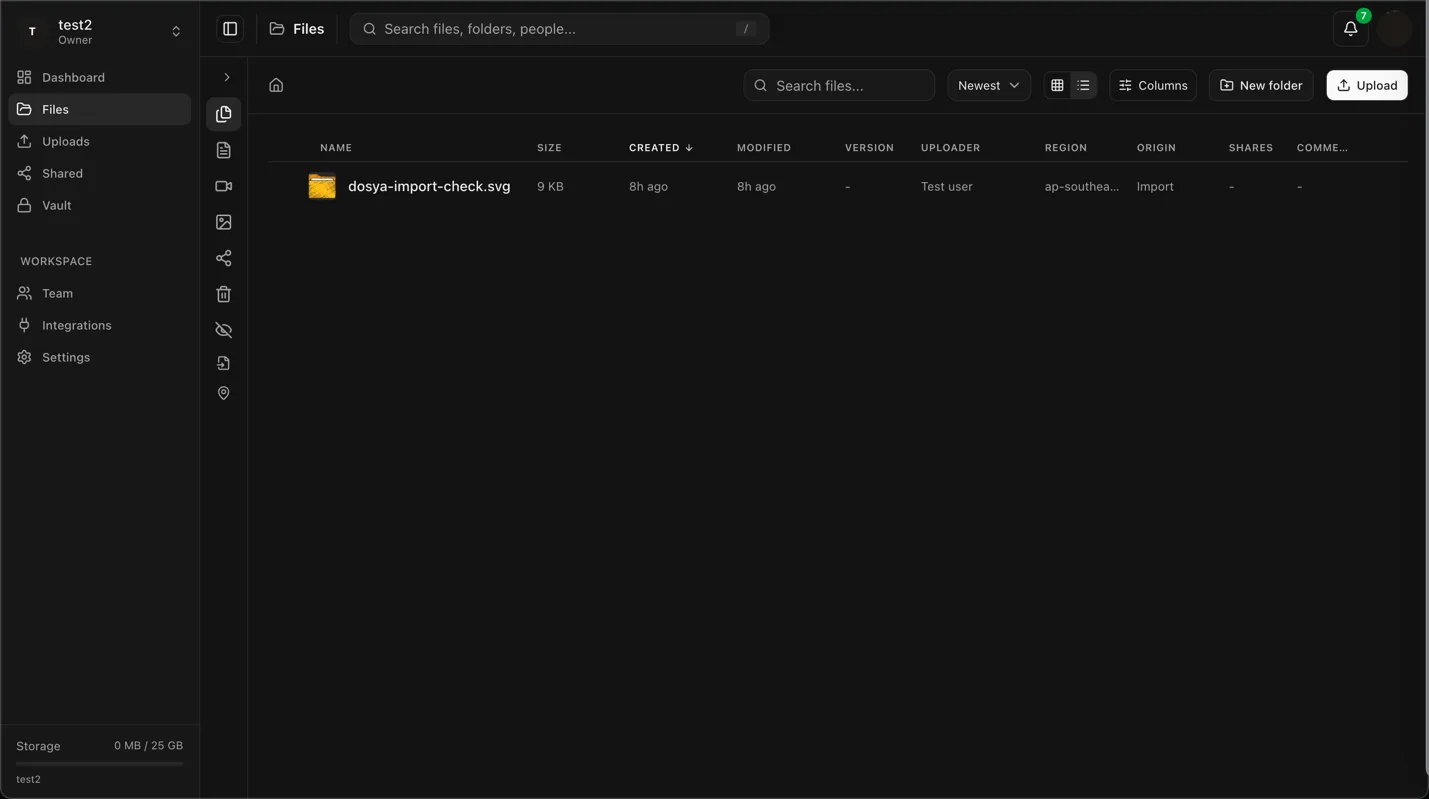
- Open Files in the destination workspace. Check the top level, selected folders, nested structure and filenames. Open a few imported copies to check the result before continuing with a larger migration.
Expected result
Selected files appear at the workspace’s top level. Selected folders appear there with their nested folder structure. Original items remain in Dropbox. The imported copies do not automatically follow later Dropbox changes.
The import creates new files. It does not recreate Dropbox sharing settings, version history or the surrounding Dropbox collaboration workflow. Keep your original copies until you have checked the result.
Limitations
Only downloadable Dropbox files and folders are supported. Paper and other cloud-native items reported as non-downloadable are marked Cannot be imported. Such items found inside a selected folder can be skipped even though the parent folder was selectable. Export or download an appropriate file through Dropbox when available, then upload it to Dosya.
The picker browses the connected account’s root and folders. It does not offer a separate team-space or namespace chooser. Confirm that any required team folder appears and can be selected; do not assume a team-account connection will include every area visible in Dropbox.
Folders reuse an existing live destination folder with the same name. Two source folders with the same name at the same destination can therefore merge into that one folder. A file with the same destination name as an existing file can fail; the importer does not offer an overwrite or automatic rename choice. Check existing copies before submitting the same selection again.
Files discovered inside selected folders carry Dropbox’s reported original modification date when available, otherwise its server modification date. Files selected directly do not carry those source dates through the picker. Dropbox supplies no original creation date for this workflow or dates for folders, so those dates can show the import time. Do not use identical dates as the only check that a migration succeeded.
You can select up to 500 files or folders in one submission. A selected folder can contain more items; the limit counts the selected starting items, not every nested file. Storage, workspace file policies, Dropbox restrictions and temporary throttling can still prevent individual transfers.
Cancel, retry or disconnect
Use Cancel on an active import’s progress card to stop that job. Completed files and created folders remain in Dosya. Cancellation does not undo those copies.
Temporary throttling waits and retries automatically. The picker shows a retry notice for a throttled listing and Retry for an ordinary listing error. Transfer items retry ordinary temporary failures automatically, up to three attempts. A failed or cancelled job has no manual Resume or Retry button in this interface. Correct the cause, check completed files, then start a new selection for the missing items.
Use Disconnect beside the account on this setup page or in Profile → Integrations to remove the saved connection. Cancel an active import first. Disconnect removes the connection and its import history; completed files remain. Dropbox’s own app permissions are managed separately, so do not treat this button as confirmation that Dropbox’s grant was revoked.
Troubleshooting
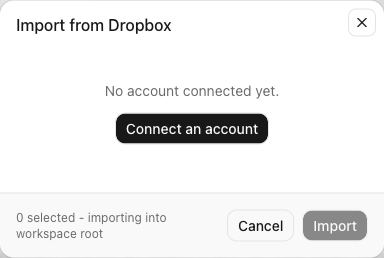
The picker says No account connected yet. Select Connect an account, finish the Dropbox connection, and check Connected accounts before trying again.
The connection returns an error. Check that you used the intended Dropbox account. An expired sign-in attempt needs a fresh Connect Dropbox attempt. If you declined the connection, try again only when you intend to complete it. For a repeated provider or saving error, send the displayed message and time to private support.
The account needs reconnecting. Use Reconnect when the picker offers it. A job already failed because its connection expired does not resume automatically after reconnection. Check its completed files before starting another selection.
Import is unavailable or fails to start. Select at least one supported item and a workspace. Check upload permission and whether the account is still connected. A start failure keeps the picker open and shows an error, preserving the current selection.
Paper or a team folder is missing. Check the limits above. A non-downloadable item cannot be made importable by selecting its parent repeatedly. Confirm the Dropbox source account and the folders actually shown by the picker.
The result is incomplete. Check failed and skipped counts, storage and workspace policies. A source item moved or removed during the job can fail, as can a filename already present at the destination. Check the files already imported before starting another job.
Frequently asked questions
Is this a continuous Dropbox sync?
No. It creates copies of the selected items. Later changes in Dropbox do not automatically update those imported copies.
Can I import Dropbox Paper?
Paper and other items that Dropbox reports as non-downloadable are unsupported. If Dropbox offers an export for the item, export an appropriate file and upload it separately.
Can I choose a destination folder or close the tab?
This setup page imports into the selected workspace’s root and has no destination-folder chooser. After Import started, the job can continue after the tab closes. Return to the setup page or Files to check the result.
Does Disconnect delete my copies?
No. Completed copies remain in Dosya. Cancel an active import first, then use Disconnect to remove its saved account connection and import history.
Related guides
- Uploading files and folders, for files you downloaded or exported separately.
- Creating and managing an API key, for separate protocol or tool integrations; the built-in Dropbox importer does not need one.
Was this helpful?
Loading helpfulness results…
Voting saves a necessary ballot cookie for up to 180 days so you can change your answer.
Questions and replies
Ask about the steps in this guide. Questions are reviewed before publication.
Keep account details, credentials and private files out of public questions. Use private support for those.
Loading questions…
Sign in to your Dosya account to ask a question.