Update the Dosya WordPress plug-in
Update the Dosya WordPress plug-in with a controlled test, clear verification, limits, and recovery steps.
Last reviewed
Update the Dosya WordPress plug-in is easier to verify when you use one controlled item and confirm the account, workspace, and destination at each step. This guide follows the current Dosya workflow and identifies the result you should see.
Before you start
- Open WordPress wp-admin and Integrations > WordPress in the current released client.
- Confirm the active account and workspace, then identify installed Dosya backup plug-in and official current zip.
- Use a small non-confidential test item and record its current state before changing it.
- Keep passwords, API keys, recovery keys, private links, and personal data out of screenshots and support messages.
Steps: update the Dosya WordPress plug-in
- Open WordPress wp-admin and Integrations > WordPress and confirm the active account and workspace.
- Locate installed Dosya backup plug-in and official current zip and verify its name or identifying details.
- Record settings, install the official update, and confirm the plug-in remains active.
- Read the displayed warning, permission, progress, or confirmation state before leaving the screen.
- Confirm that the updated plug-in retains its intended connection and can run a test backup.
- Refresh or reopen the relevant view once to verify the result persisted.
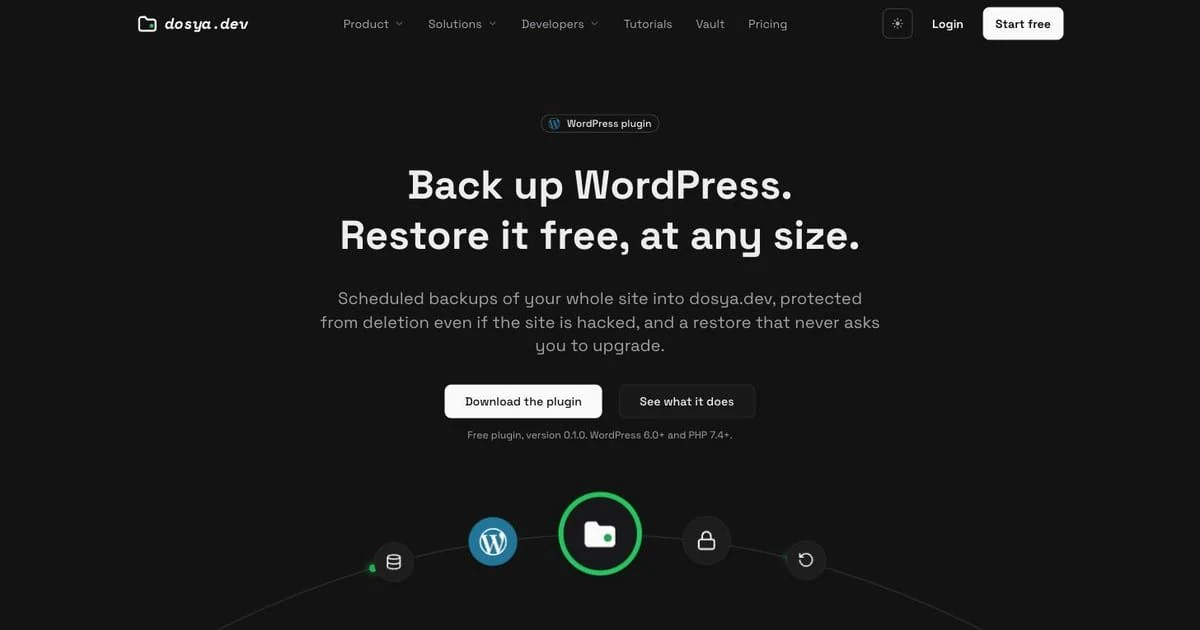
Expected result
The controlled workflow completes and the updated plug-in retains its intended connection and can run a test backup. The result remains visible after a refresh, reconnect, or return to the relevant screen.
Limits and important details
- Available controls depend on the current client version, account plan, workspace role, and policy.
- Processing, indexing, background transfer, or third-party authorization can delay a visible result.
- For destructive, access-changing, or automation actions, validate with disposable data before applying the workflow to important files.
Troubleshooting
The expected control is missing. Return to WordPress wp-admin and Integrations > WordPress, confirm the active workspace, and check that your role and client version support the action.
The operation is rejected or stalls. Read the exact message and check permissions, locks, storage, network state, source availability, and any third-party authorization before retrying.
The result is still unclear. Repeat with one small test item, then contact support with the time, client version, workspace, and a nonsecret error or request identifier.
Related guides
Was this helpful?
Loading helpfulness results…
Voting saves a necessary ballot cookie for up to 180 days so you can change your answer.
Questions and replies
Ask about the steps in this guide. Questions are reviewed before publication.
Keep account details, credentials and private files out of public questions. Use private support for those.
Loading questions…
Sign in to your Dosya account to ask a question.